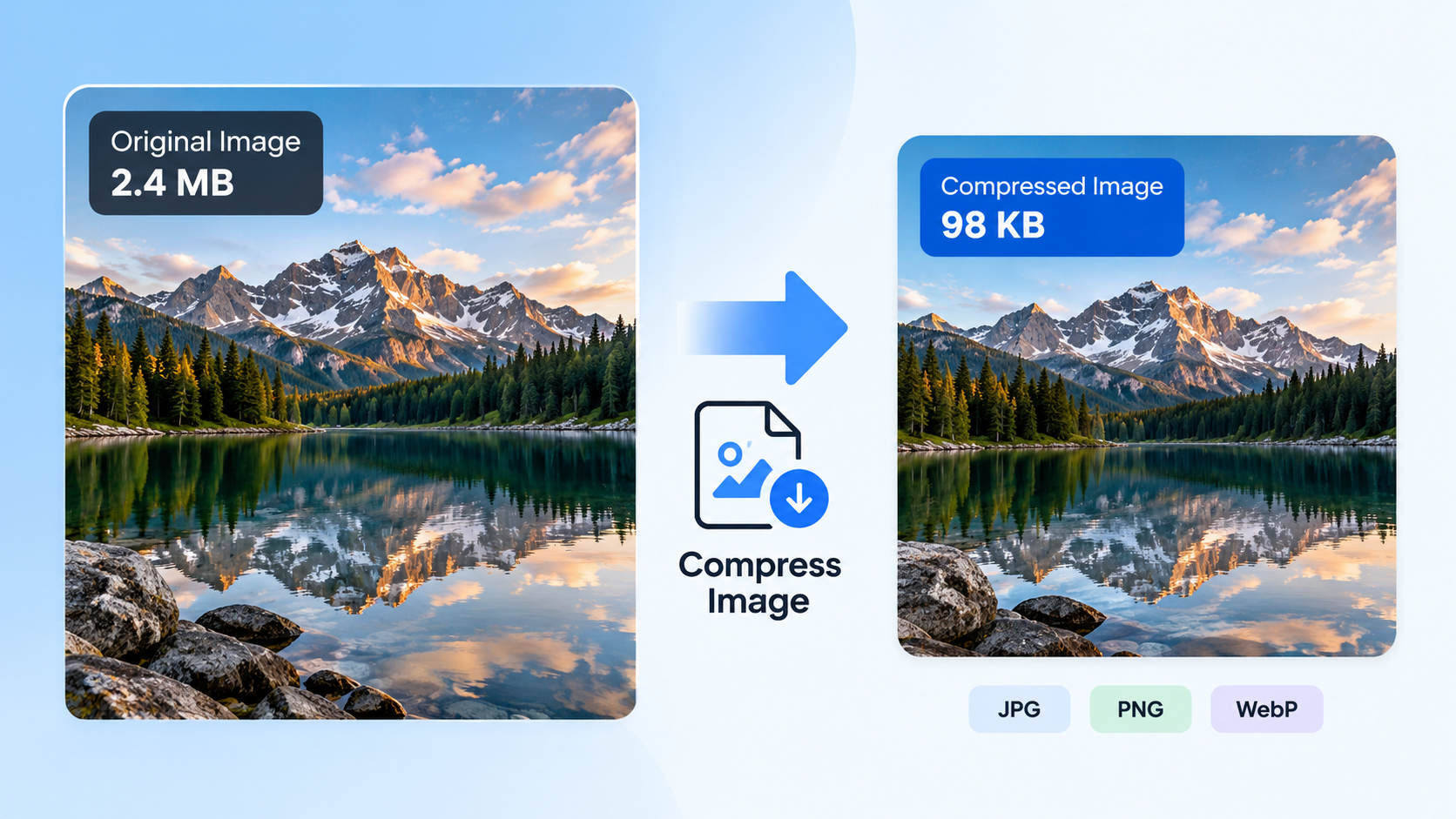
How to Make a Photo Smaller for an Online Upload
How to Make a Photo Smaller for an Online Upload
Have you ever tried to upload a photo to a website only to receive an error saying that the file is too large? This can happen when submitting an online application, filling out a form, uploading a profile picture, or attaching an image to a website.
The good news is that you usually don’t need to take another photo or install complicated software. You can make an existing photo smaller by reducing its file size, resizing its dimensions, or changing its format.
The best method depends on the upload requirements. In this guide, you’ll learn how to reduce a photo’s size, choose the right settings, and avoid common problems that can prevent an image from uploading.
1. Check the Website’s Image Requirements
Before editing your photo, check the requirements shown on the upload page. This helps you avoid making unnecessary changes or reducing the image quality more than necessary.
Look for these three details:
- Maximum file size: The website might accept images up to 2 MB, 5 MB, or another specified limit.
- Image dimensions: Some websites require a particular width and height, such as 600 × 600 pixels.
- Supported formats: The upload form may accept JPG, PNG, or other image formats.
These requirements are different. A photo can have the correct dimensions but still exceed the file size limit. Likewise, a small file might be rejected because its dimensions are incorrect.
If the website only specifies a maximum file size, focus on reducing the number of bytes without unnecessarily changing the image’s dimensions.
2. Compress the Photo to Reduce Its File Size
Image compression is often the easiest solution when a website rejects a photo because it exceeds the upload limit.
Compression reduces the amount of data stored in an image. Depending on the method and format, it can significantly reduce file size while preserving most of the visible detail.
Here’s how to do it:
- Open an image compression tool that supports your photo’s format.
- Select the photo you want to upload.
- Choose a suitable compression level or target file size, if available.
- Download the compressed image.
- Check its new file size before uploading it again.
For example, if a website accepts images up to 2 MB and your photo is 4.5 MB, you need to reduce it below that limit. Aim for a little less than the maximum to allow for differences in how file sizes are displayed.
If you need a specific target, read our guide on [how to compress an image to 100 KB without making it blurry] to learn more about controlling file size while preserving image quality.
Tip: If the website doesn’t require a particular image format, JPG is often a practical choice for photographs because it can produce relatively small files.
3. Resize the Photo’s Dimensions
Sometimes the problem isn’t just compression. Your photo may have far more pixels than the website needs.
For example, a photograph measuring 6000 × 4000 pixels contains much more image detail than a website might need for a small profile picture. Reducing its dimensions can lower its file size as well.
To resize a photo:
- Open the image in an image editor or resizing tool.
- Find the width and height settings.
- Enter smaller dimensions while keeping the aspect ratio locked.
- Save the resized image as a new file.
- Check that the new image meets the website’s requirements.
If the website requires a square profile picture, for example, you might need to crop the image to a square before resizing it.
Avoid stretching the image by changing its width and height independently. This can make people and objects look distorted.
Also, don’t reduce the dimensions more than necessary. A photo that’s too small may look blurry or pixelated when displayed.
4. Convert the Photo to a More Suitable Format
The format of an image can affect both its file size and whether a website accepts it.
For most photographs, JPG is a sensible starting point. PNG is useful when you need transparency or sharp graphics, but it can produce larger files for detailed photographs.
Other formats, such as WebP, can offer efficient compression, but not every upload form supports them.
If your photo is in PNG format and the website accepts JPG, converting it to JPG may reduce the file size considerably. The result depends on the image’s contents and the compression settings.
Keep in mind that converting a file doesn’t automatically make it smaller. Some conversions can produce files that are the same size or even larger.
For a detailed comparison, see our guide on [JPG vs PNG: which format should you use?].
5. What If the Photo Is Still Too Large?
If you’ve compressed or resized your photo and it still exceeds the upload limit, try the following steps.
Reduce the dimensions a little more
If the website doesn’t require a specific resolution, reduce the width and height gradually. Smaller dimensions generally mean fewer pixels to store, which can help lower the file size.
Adjust the compression level
For JPG images, increasing compression can reduce the file size further. However, excessive compression may introduce visible artifacts, blur fine details, or make edges look uneven.
Make small adjustments and compare the results rather than immediately choosing the strongest compression setting.
Check whether the format can be changed
If the photo is saved as PNG, try JPG if transparency isn’t required and the website supports it. Always check the resulting file size instead of assuming the conversion will make it smaller.
Make sure you’re uploading the correct file
After editing an image, it’s easy to select the original file by mistake. Check the filename, location, and file size before trying again.
You should also confirm that the new image was saved successfully and that the upload form accepts its format.
Leave a little room below the limit
If the maximum allowed size is 5 MB, don’t aim for a file that’s right on the edge if you can avoid it. A smaller file gives you some breathing room and makes it easier to meet the requirement.
6. How to Keep Your Photo Looking Good
Making a photo smaller shouldn’t mean sacrificing more quality than necessary. A few simple habits can help you get a good result.
- Keep the original file. Save an edited copy so you can start again if the result looks poor.
- Resize before applying heavy compression. If the photo is much larger than necessary, reducing its dimensions can help you avoid excessive compression.
- Use JPG for ordinary photographs when appropriate. It often provides a useful balance between file size and visual quality.
- Avoid repeatedly saving JPG files. Repeated lossy compression can gradually reduce image quality.
- Check the final image at normal viewing size. Look for noticeable blur, artifacts, or missing details before uploading it.
You don’t always need the smallest possible image. The goal is to meet the website’s requirements while keeping enough detail for the photo’s intended purpose.
7. Frequently Asked Questions
How do I make a photo smaller than 2 MB?
Use an image compression tool to reduce the file size. If the photo is still larger than 2 MB, resize its dimensions or adjust the compression settings. Check the resulting file size before uploading it.
Does making a photo smaller reduce its quality?
It depends on the method. Reducing dimensions removes pixels, while lossy compression discards some image information. Moderate changes may be difficult to notice, but excessive compression or resizing can make a photo look blurry or pixelated.
Should I resize a photo or compress it?
Choose compression when the dimensions are already correct and the file is simply too large. Resize the image when it has more pixels than the website needs. You can also combine both methods if necessary.
Why does a website reject my photo even though it’s small?
The website may have restrictions on image dimensions, file formats, or other requirements. Check the error message and upload instructions. A small file can still be rejected if its format isn’t supported or its dimensions are outside the permitted range.
Is JPG better than PNG for uploading photos?
JPG is often a better choice for ordinary photographs because it can keep file sizes relatively small. PNG is preferable when you need transparency or lossless image quality. The right choice depends on the website’s requirements and the type of image.
Can I make a photo smaller without installing software?
Yes. You can use a browser-based image compression or resizing tool. Choose a reputable service, and avoid uploading sensitive or confidential photos to an online tool unless you understand how the service handles your files.
Final Thoughts
If a website won’t accept your photo, start by checking the upload requirements. Compress the image if its file size is too large, resize it if its dimensions exceed what the website needs, and convert it to a supported format if necessary.
Make one change at a time and check the resulting file before uploading it again. This helps you meet the upload limit without unnecessarily sacrificing image quality.
With the right settings, you can usually prepare a photo for an online form, profile picture, or application in just a few minutes.