Why Is My PNG File So Large?
Why Is My PNG File So Large?
Have you ever saved an image as a PNG and ended up with a file that is much larger than expected? A simple screenshot, logo, or graphic can sometimes take up several megabytes, making it inconvenient to upload, email, or use on a website.
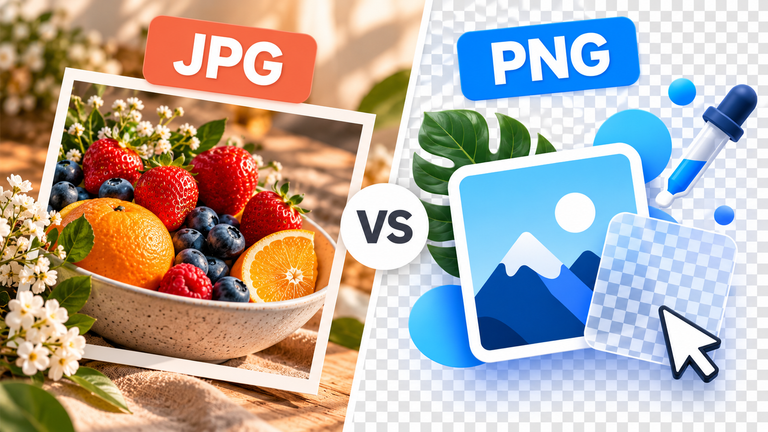
PNG is a popular image format because it preserves image data through lossless compression and supports transparent backgrounds. However, these benefits do not mean that every PNG file will be small.
The file size depends on several factors, including the image’s dimensions, colours, transparency, and how efficiently the image was encoded.
In this guide, you’ll learn why PNG files can be so large, how to reduce their size, and when it makes sense to keep PNG instead of converting the image to another format.
Why Are PNG Files So Large?
There are several reasons a PNG image may occupy more storage than expected.
1. PNG Uses Lossless Compression
PNG uses lossless compression, which means that the encoded pixel data can be recovered exactly when the image is decoded correctly.
This is useful for screenshots, diagrams, text-heavy graphics, and logos because it avoids the lossy compression artefacts that can appear around sharp edges.
However, lossless compression has a trade-off. It cannot discard visual information to achieve smaller files in the same way that lossy JPG compression can.
A detailed photograph saved as PNG may therefore be much larger than the same photograph saved as JPG at a suitable quality setting.
According to the W3C PNG specification, PNG is designed for lossless image storage and supports transparency through an optional alpha channel.
2. The Image Has Too Many Pixels
A PNG’s dimensions can have a significant effect on its file size.
For example, a 4000 × 3000 pixel image contains 12 million pixels. If you only need the image for a small thumbnail or an icon on a website, those dimensions may be unnecessary.
More pixels generally mean more image data to encode. Although compression efficiency varies, oversized dimensions can contribute to a larger file.
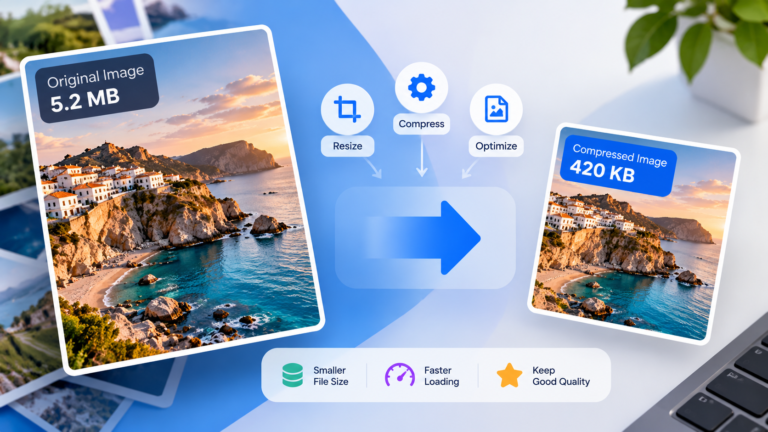
If an image will only be displayed in a small area, resizing it to appropriate dimensions can often reduce the file size without noticeably affecting its appearance at that size.
3. The Image Contains Many Colours and Fine Details
Images with complex colour patterns and fine details can be more difficult to compress efficiently.
A simple icon with a few solid colours may be stored quite efficiently as PNG. A photograph containing thousands of colour variations, textures, shadows, and gradients may require considerably more data.
This is one reason PNG is often a better choice for simple graphics than for photographs.
It doesn’t mean that PNG is a poor format. It means that its lossless compression is not always the most space-efficient choice for every type of image.
4. The PNG Uses Transparency
PNG supports transparent pixels, which makes it useful for logos, icons, overlays, and graphics that must appear over different backgrounds.
Depending on how the image is encoded, it may store an alpha channel describing transparency. This can contribute to the amount of data required for the image.
Transparency itself does not automatically make a PNG enormous, and removing it is not always appropriate. If the image needs a transparent background, preserve it rather than flattening the image simply to reduce its size.
5. The PNG May Use More Colour Information Than Necessary
PNG supports different colour types and bit depths. Some images contain more colour information than their intended use requires.
For instance, a simple logo may use only a limited palette of colours, while it may have been saved as a full-colour image.
Reducing the colour palette can sometimes produce a smaller PNG. This is known as palette optimization or colour quantization.
Be aware that some palette-reduction methods are lossy: they approximate the original colours and may alter the appearance of the image. Inspect gradients, shadows, and areas with subtle colour changes before using the result.
6. The PNG Has Not Been Optimized
Two PNG files can contain the same dimensions and look identical while having different file sizes.
This can happen because the files were encoded with different compression settings, filtering strategies, or metadata.
Lossless PNG optimization tools can sometimes make a file smaller without changing the decoded image. However, the amount saved depends on how efficiently the original file was already encoded.
If a PNG has already been optimized, running another optimizer may make very little difference.
How to Reduce a PNG File Size
You don’t always need to convert PNG to JPG to make the file smaller. Try these methods in order, based on what the image is used for.
1. Resize the PNG to the Required Dimensions
If the image is much larger than necessary, resizing it is a good first step.
For example, a 4000 × 3000 image may be unnecessarily large for a small website thumbnail.
To resize the image:
- Make a copy of the original PNG.
- Check the dimensions required by the website, application, or document.
- Reduce the width and height while maintaining the aspect ratio.
- Export the resized image as PNG.
- Compare the new file size and inspect the result.
Avoid choosing dimensions randomly. If the image contains small text or detailed graphics, reducing it too much can make those details difficult to see.
2. Use a PNG Optimization Tool
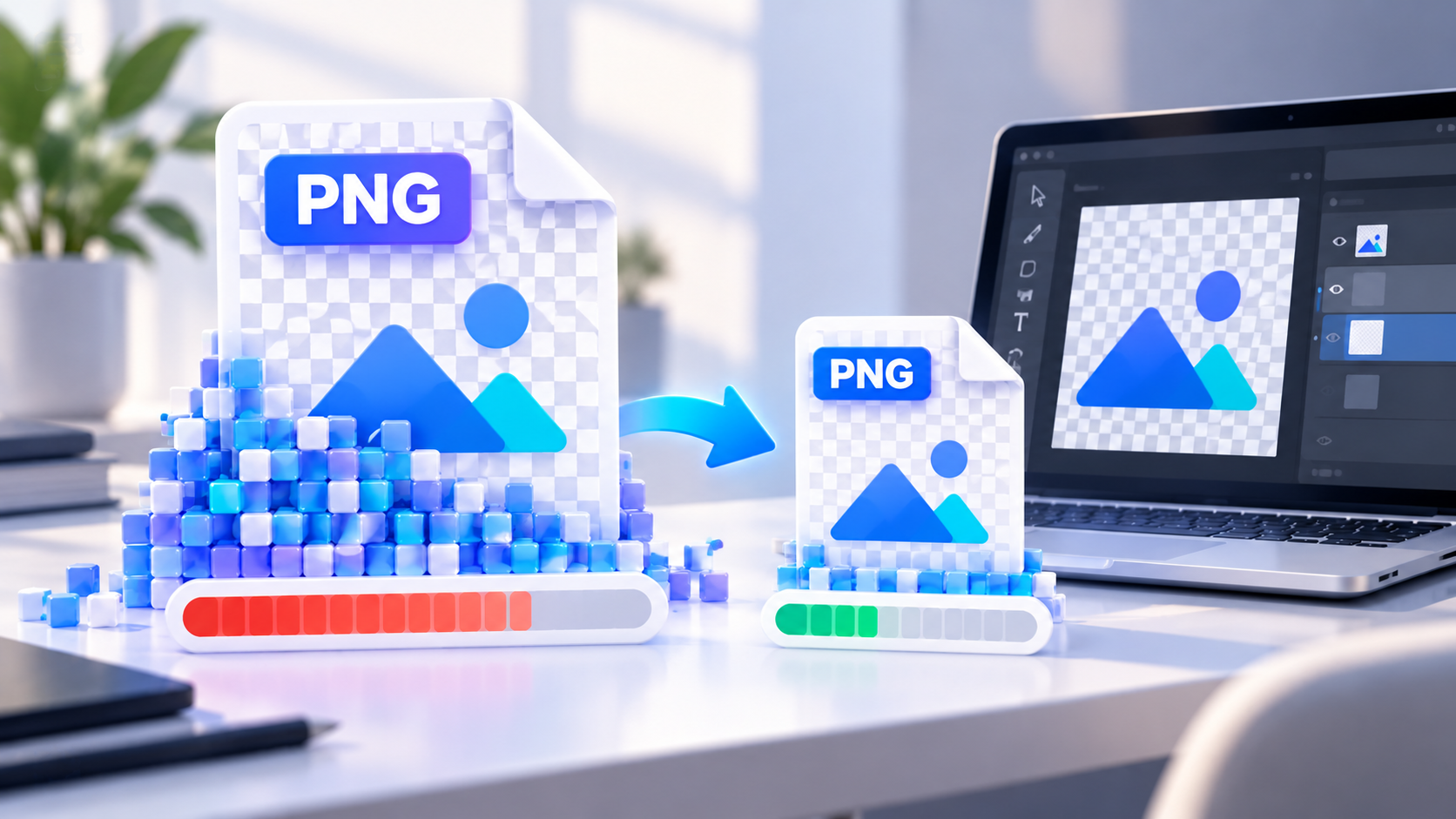
A lossless PNG optimizer can sometimes reduce file size without changing the image’s decoded pixels.
These tools improve the way the image data is encoded. Depending on the file, they may change compression parameters, filtering strategies, or the organization of image data.
When using an optimizer, look for a lossless mode if you need the original image data to remain unchanged.
For technical users, tools such as Oxipng provide lossless PNG optimization.
After optimization, compare the original and resulting images, and confirm that transparency is preserved where required.
3. Reduce the Colour Palette When Appropriate
If the PNG is a logo, icon, or illustration with a limited number of colours, reducing its palette may help.
For example, a graphic that uses only a small set of flat colours may not need the full range of colours available in a true-colour image.
Palette reduction can produce substantial savings for some graphics, but it is not always lossless. Some methods approximate colours to achieve a smaller file.
Use it cautiously for images containing gradients, shadows, photographs, or subtle colour transitions.
4. Remove Unnecessary Metadata
PNG files can contain ancillary information in addition to the encoded image data.
Depending on the file, this may include text fields, colour information, or other metadata. Some of it may be unnecessary for a particular use.
A metadata-cleaning tool may reduce the file size slightly, but the savings vary. Metadata removal is unlikely to solve every large-PNG problem on its own.
Be careful when removing colour-profile information, as doing so can affect how colours are interpreted by different applications.
If the file’s provenance, editing history, or metadata is important to your workflow, keep the original intact.
5. Convert the PNG to JPG if Transparency Is Not Needed
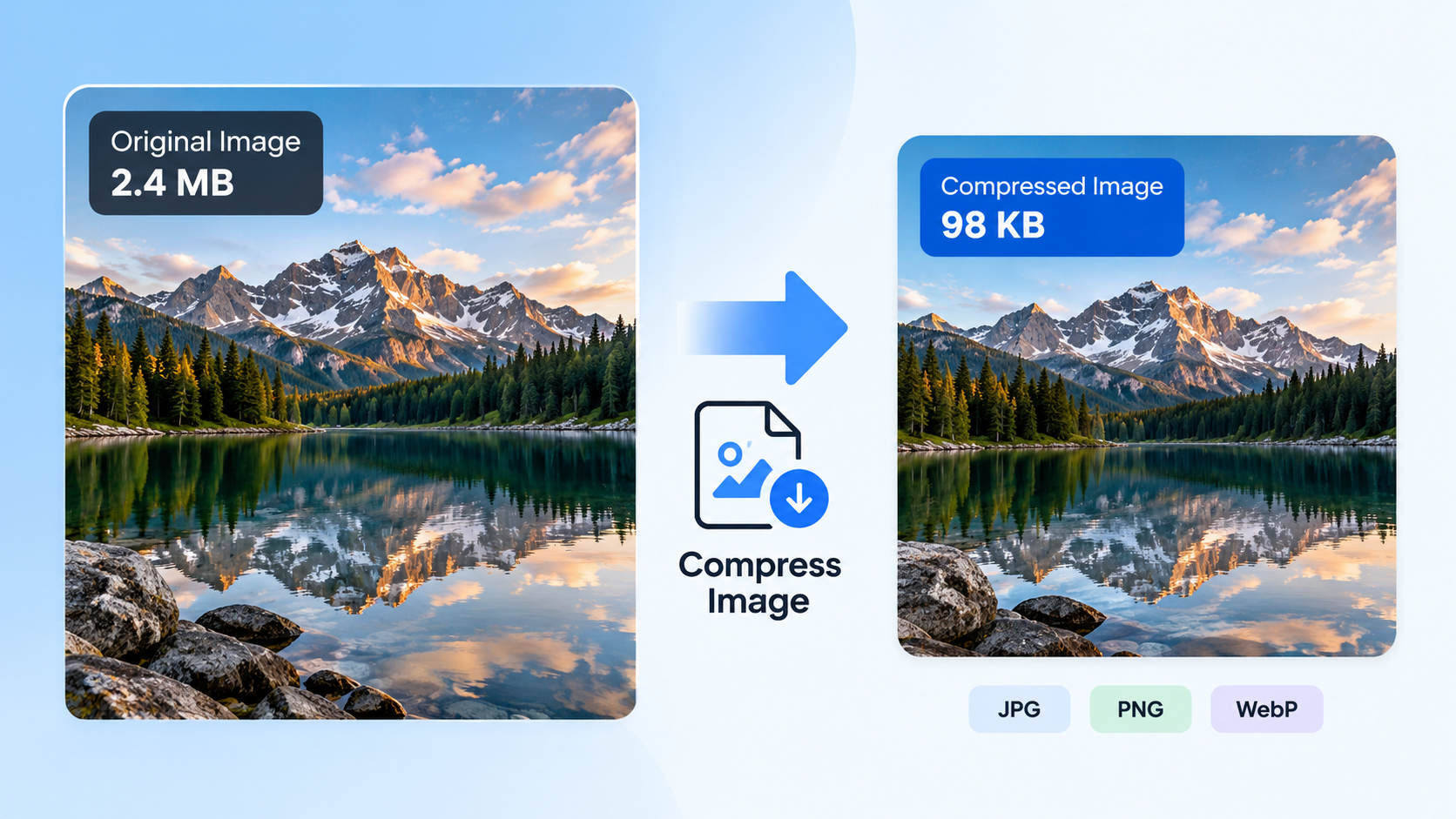
If the PNG is a photograph and does not need a transparent background, converting it to JPG may substantially reduce file size.
JPG uses lossy compression, which discards some image information to create smaller files. At suitable settings, the visual difference may be hard to notice, but aggressive compression can introduce visible artefacts.
To test this method:
- Keep a copy of the original PNG.
- Convert the image to JPG.
- Start with a relatively high quality setting.
- Compare the two files at the size at which the image will be used.
- Check the actual file size and confirm that the quality is acceptable.
Remember that JPG does not support transparency. If your PNG has a transparent background, converting it to JPG requires an opaque background.
Do not use this method for every image. Screenshots containing text, line drawings, and logos may be better left as PNG or converted to another suitable format.
6. Consider WebP for Web Images
If you are preparing images for a website, WebP may be an alternative worth testing.
WebP supports both lossy and lossless compression and can preserve transparency. Depending on the image and settings, it may produce a smaller file than PNG while retaining an appropriate visual appearance.
The MDN image format guide explains the differences between PNG, JPEG, WebP, and other common image formats.
Before converting a PNG to WebP, check whether your intended destination supports it. Modern browsers widely support WebP, but other applications or upload systems may have stricter requirements.
If you’re optimizing images for a website, compare the output file sizes and inspect the resulting images rather than assuming that one format will always be smaller.
PNG vs JPG vs WebP: Which Format Should You Use?
The best format depends on the image’s content and what you need it to do.
| Image Type | Recommended Starting Point | Why |
|---|---|---|
| Photograph | JPG or WebP | Often produces smaller files with suitable quality |
| Logo with transparency | PNG or WebP | Both support transparency |
| Screenshot containing text | PNG | Lossless compression helps preserve sharp details |
| Simple icon or diagram | PNG or SVG | PNG preserves pixels; SVG may be better for scalable vector artwork |
| Website photograph | WebP or JPG | Useful options for balancing size and visual quality |
| Graphic with subtle gradients | PNG, WebP, or another tested format | Compare results to avoid visible colour artefacts |
These are general guidelines, not rules that apply to every image. The best choice depends on the content, compatibility requirements, and compression settings.
Why Is My PNG Still Large After Compression?
If you’ve already compressed the image and its size has barely changed, there may be a few reasons.
The image is already optimized. If the PNG is efficiently encoded, another lossless optimization pass may achieve little additional reduction.
The image has large dimensions. Compression cannot eliminate the amount of pixel detail required to represent an image at its current dimensions. Resizing may help if the full resolution is unnecessary.
The image contains complex photographic detail. PNG can be inefficient for some photographs compared with lossy formats such as JPG or WebP.
The tool uses lossless compression. A lossless optimizer preserves image information, so its ability to reduce file size is limited by how compressible that information is.
The image needs transparency or precise colours. If those properties must be retained, your options may be more limited than they would be for an ordinary photograph.
In these situations, identify which properties you can safely change before choosing another compression method.
Common Mistakes When Reducing PNG Files
Converting every PNG to JPG
JPG may be better for photographs, but it removes transparency and introduces lossy compression. It is not an appropriate replacement for every logo, icon, or screenshot.
Assuming lossless optimization will always save a lot of space
Lossless optimization can help, but the outcome depends on the original encoding and the image itself. Some PNG files are already well optimized.
Reducing the dimensions too aggressively
A smaller file is not useful if the image becomes too small for its intended use. Keep the original and check the result at the final display size.
Removing transparency without checking the background
Transparent areas may be essential to the way a logo or graphic is displayed. Make sure you actually want an opaque background before converting formats or flattening the image.
Ignoring the quality of palette-reduced images
Reducing the number of colours can save space, but some techniques are lossy. Check gradients, edges, and subtle colour differences before using the optimized file.
Frequently Asked Questions
Why are PNG files larger than JPG files?
PNG uses lossless compression, while JPG uses lossy compression. JPG can discard some image information to produce a smaller file, making it particularly suitable for many photographs. PNG is often more appropriate for transparency, screenshots, and graphics where sharp edges matter.
How can I reduce a PNG file without losing quality?
Try resizing it to appropriate dimensions, using a lossless PNG optimizer, or removing unnecessary metadata. These methods may reduce file size without discarding image information, although the amount saved varies.
Does PNG support transparency?
Yes. PNG supports transparent pixels through an optional alpha channel and is commonly used for graphics such as logos and icons that need transparent backgrounds.
Will converting PNG to JPG reduce its size?
It often reduces the size of photographic PNGs, but the result depends on the image and the quality setting. JPG uses lossy compression and does not support transparency, so it may not be appropriate for logos, icons, or screenshots.
Is WebP better than PNG?
WebP can provide smaller files for many images and supports both lossy and lossless compression, along with transparency. However, the best format depends on image content, encoding settings, and the requirements of the application where the image will be used.
Can I compress a PNG without changing its dimensions?
Yes. Lossless optimization can reduce file size while preserving pixel dimensions and decoded image data. Whether you achieve a noticeable reduction depends on how efficiently the PNG is already encoded.
Why is my screenshot PNG so large?
Screenshots with large dimensions, many colours, or detailed content can produce sizeable PNG files. Try resizing the screenshot if possible or using a suitable PNG optimizer. If the screenshot contains text or crisp lines, avoid aggressive lossy compression that could make those details harder to read.
Final Thoughts
PNG files can be large because the format preserves image information, supports transparency, and may be used to store images with many pixels or complex details.
Start by checking the image’s dimensions and whether transparency is necessary. Then try lossless optimization and metadata cleanup. If the image is a photograph that does not need transparency, test JPG or WebP and compare both size and visual quality.
The right solution is not always to convert PNG to another format. It’s to find the smallest file that still meets your requirements for image quality, transparency, compatibility, and intended use.