Why Is My Image Larger After Converting Formats?
Why Is My Image Larger After Converting Formats?
Have you ever converted an image from PNG to JPG, WebP to JPG, or another format, only to discover that the new file is actually larger? It might seem strange, especially when you expected the conversion to reduce the file size.
The truth is that converting an image does not automatically make it smaller. The final file size depends on the format you choose, the compression settings, the image’s contents, and other factors that affect how the image is stored.
In this guide, we’ll explain why an image can become larger after conversion and what you can do to reduce its size without unnecessarily sacrificing quality.
Why Does an Image Get Larger After Conversion?
There isn’t just one reason why a converted image might take up more space. Different image formats store visual information in different ways, and the settings used during conversion can make a significant difference.
Here are the most common causes.
1. The New Format Uses Less Efficient Compression
One of the main reasons an image becomes larger is that the destination format may compress the image less efficiently than the original format.
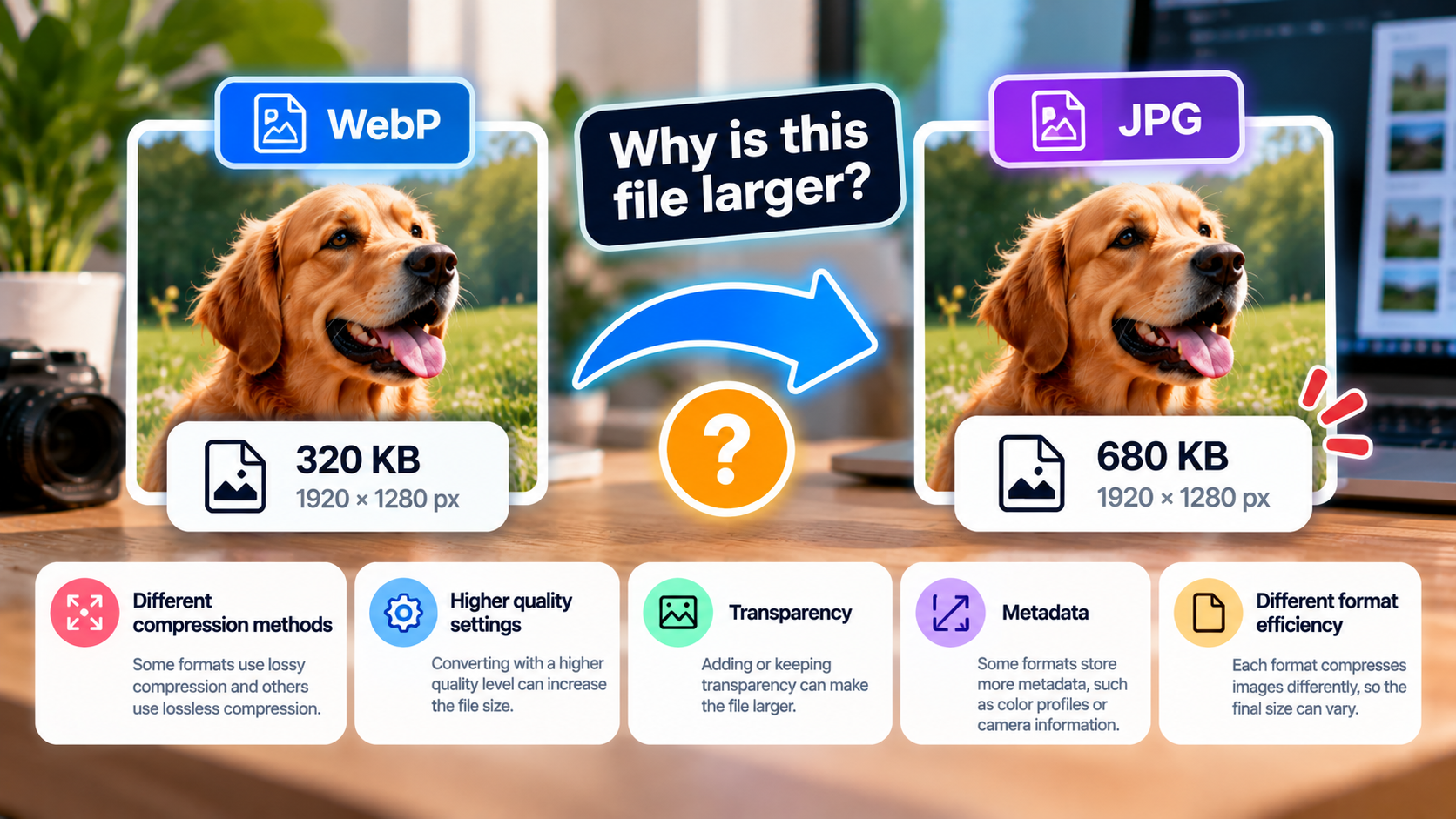
For example, converting a WebP image to JPG can increase its file size because WebP can often achieve similar visual quality with fewer bytes than JPEG.
The same can happen when converting an optimized PNG or WebP image into another format using settings that produce a larger result.
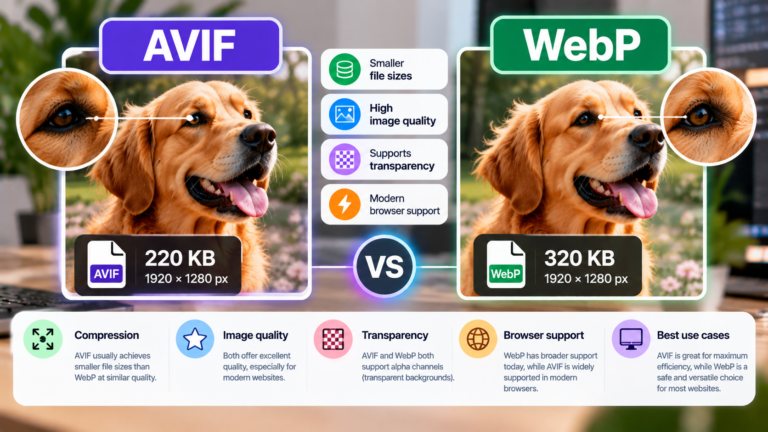
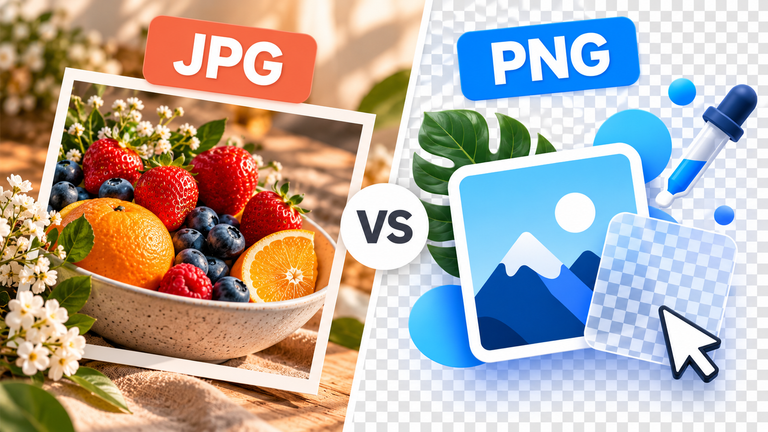
However, this doesn’t mean one format is always better than another. PNG is useful for lossless images and transparency, while JPG is commonly used for photographs. WebP and AVIF can offer efficient compression for many types of images, but the result depends on the specific image and encoding settings.
2. The Quality Setting Is Too High
Many image converters let you choose a quality level when exporting an image. This setting can have a major impact on the final file size.
When you select a very high quality level, the converter may preserve more image information, resulting in a larger file. Lower quality settings generally produce smaller files when using lossy compression, although the exact result varies.
For example, converting a photograph to JPG at 100% quality may produce a much larger file than exporting it at 80% quality, with a difference that might be difficult to notice in everyday viewing.
Tip: If you’re converting photographs, try a quality setting between 75% and 85% as a starting point. Inspect the result before using it, since the best setting depends on the image and your needs.
Remember that quality percentages are not standardized across all formats or converters, so an 80% setting in one tool may not produce the same result as 80% in another.
3. You’re Converting to a Format That Preserves More Information
Some image formats prioritize preserving the original image data rather than reducing the file size as much as possible.
For instance, converting a compressed JPG photograph to PNG can make the resulting file significantly larger. PNG uses lossless compression, which preserves the pixel values of the image being encoded, but it often isn’t as space-efficient as JPG for photographs.
This is particularly noticeable with images containing millions of colors, gradients, textures, and complex details.
PNG can still be the better choice for screenshots, diagrams, logos, and graphics that need transparency or crisp edges.
The important thing is to choose a format based on the type of image rather than assuming that every conversion will reduce its size.
4. Transparency Can Affect the File Size
Transparency is another factor worth considering.
PNG supports transparency, and WebP and AVIF can also store transparent images. JPG, on the other hand, does not support transparency.
When converting an image with transparency to JPG, the transparent areas must be replaced with a solid background color. The conversion process may also use different compression settings, changing the resulting file size.
In other situations, preserving transparency in the destination format can affect the amount of data that needs to be stored.
Transparency doesn’t automatically make an image larger in every case, but it can influence which format is most suitable and how efficiently the image can be compressed.
5. The Image Dimensions Have Changed
Sometimes, the file gets larger because the converter has changed more than just the format.
Check whether the output image has the same width and height as the original. If the original was 1200 × 800 pixels and the converted version is 4000 × 2667 pixels, the new image contains substantially more pixels.
More pixels generally mean more information to encode and potentially a larger file.
Some converters also offer options to upscale images, preserve original dimensions, or resize them during export. Make sure you haven’t accidentally enabled an option that increases the resolution.
If your goal is to reduce file size, keep the dimensions appropriate for the image’s intended use.
6. The Converted Image Contains More Metadata
Image files can contain additional information, such as camera settings, timestamps, GPS coordinates, color profiles, and other metadata.
Depending on the converter, some of this information may be removed, preserved, or added during conversion.
If the new file contains more metadata than the original, its total size may increase slightly. In some cases, metadata can account for a noticeable amount of space, particularly when images contain extensive embedded information.
If you don’t need this information, check whether your image editor or converter allows you to remove unnecessary metadata during export.
Be careful when removing color profiles, however, because they can affect how colors appear in different applications.
Which Image Formats Can Make Your File Larger?
The result depends on the source image, the destination format, and the conversion settings. The following examples illustrate common situations.
| Conversion | Why the file might get larger |
|---|---|
| WebP to JPG | JPG may require more data to achieve similar visual quality. |
| JPG to PNG | PNG’s lossless compression is often less efficient for photographs. |
| AVIF to JPG | JPG may need more bytes to represent a photograph at a similar visual quality. |
| PNG to WebP | The result depends on the WebP mode, transparency, and quality settings. |
| JPG to WebP | WebP may reduce the size, but poor settings or different dimensions can reverse the result. |
These are possible outcomes, not guaranteed results. For example, converting PNG to WebP doesn’t always produce a smaller file if the wrong settings are selected or the source image is already highly optimized.
How to Make an Image Smaller After Converting It
If your converted image is larger than the original, you don’t necessarily need to start again. Try these steps to find a better balance between file size and image quality.
Step 1: Check the Original and Converted File Sizes
Start by comparing both files in kilobytes (KB) or megabytes (MB).
Make sure you’re comparing the actual file sizes rather than just the dimensions shown in an image editor.
For example:
- Original WebP: 250 KB
- Converted JPG: 620 KB
In this example, the JPG is 370 KB larger than the original. That doesn’t automatically mean the conversion failed; the JPG may have been exported with different compression settings.
Step 2: Choose a More Suitable Format
Think about what the image contains and where you’ll use it.
- JPG: A practical choice for photographs and general-purpose compatibility.
- PNG: Suitable for graphics, screenshots, and images that need lossless storage or transparency.
- WebP: Useful for website images when you want efficient compression and support for transparency.
- AVIF: A modern format that can provide excellent compression, depending on the image and encoder settings.
For a photograph intended for a website, WebP or AVIF may be worth testing against JPG. For a logo with a transparent background, PNG or a suitable transparent WebP image may be more appropriate.
Step 3: Adjust the Compression Quality
If the converter allows you to control quality, experiment with a few different settings.
Export the same image at several quality levels, then compare the file sizes and visual results. Look closely at fine details, edges, gradients, and areas with lots of texture.
Avoid automatically selecting the highest possible quality. The goal is to find the smallest file that still looks good for its intended purpose.
Step 4: Resize the Image if Necessary
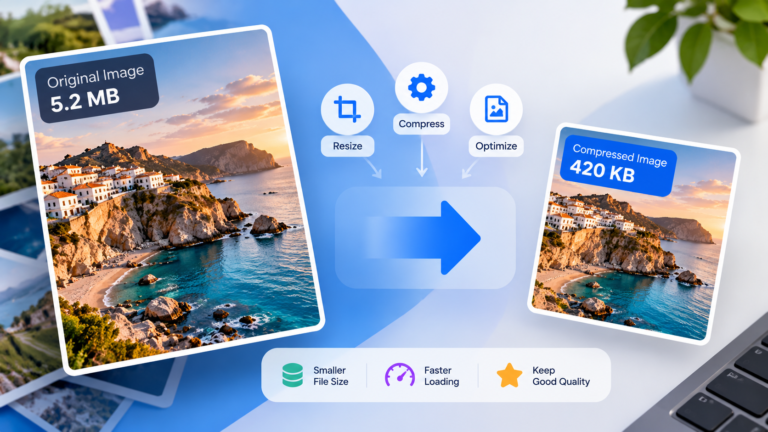
If the image is larger than it needs to be, reducing its dimensions can save more space than changing formats alone.
For example, a photograph displayed at 800 pixels wide on a website may not need to be stored at 4000 pixels wide, depending on the layout and screen requirements.
Don’t reduce dimensions blindly, though. Consider high-resolution displays, responsive layouts, and whether users need to zoom in or download the original.
Step 5: Remove Unnecessary Metadata
Look for an option to strip unnecessary metadata when exporting the image. This can reduce the file size without changing the visible image itself.
Keep any metadata you need, particularly color profiles or information required for professional workflows.
Step 6: Compare the Results Before Using the Image
After conversion, check both the file size and the visual quality. A smaller file isn’t automatically better if it introduces visible artifacts or removes important transparency.
If you’re optimizing images for a website, test the result on the actual page and make sure it still looks good on different screen sizes.
How to Prevent Images from Getting Larger During Conversion
The easiest way to avoid unexpected file sizes is to check your conversion settings before exporting.
Here are a few habits that can help:
- Choose a format that suits the image rather than converting everything to the same format.
- Avoid unnecessarily high quality settings when using lossy compression.
- Keep the original dimensions unless resizing is needed.
- Compare the exported file with the source before replacing it.
- Use a reliable image converter that gives you control over quality and dimensions.
- Keep an original copy if you may need to convert the image again later.
If you’re optimizing images for a website, you can also generate multiple image sizes for different devices instead of serving a full-resolution image everywhere.
Frequently Asked Questions
Why is my JPG larger than my WebP image?
WebP can often compress photographs more efficiently than JPG at comparable visual quality. If you convert WebP to JPG, the output may therefore be larger, especially if you choose a high JPG quality setting.
Does converting an image reduce its quality?
Not necessarily. Some conversions use lossless methods, while others use lossy compression that discards image information. The effect depends on the formats and settings involved. Repeated lossy conversions can introduce additional quality loss.
Why does converting JPG to PNG increase the file size?
JPG uses lossy compression, which is generally effective for photographs. PNG uses lossless compression and is often less efficient for photographic images. As a result, the PNG version may be considerably larger without looking noticeably better.
Is WebP always smaller than JPG?
No. WebP often produces smaller files at comparable visual quality, but the result depends on the image, the encoder, and the quality settings. A poorly optimized WebP image can be larger than a well-optimized JPG.
Can I reduce an image’s file size without changing its dimensions?
Yes. You can try a more efficient format, adjust the compression quality, or remove unnecessary metadata. These methods can reduce the file size while keeping the same pixel dimensions, although the effect varies from image to image.
Final Thoughts
An image can become larger after conversion because different formats use different compression methods, the quality settings may have changed, or the output contains more pixels or metadata.
The key is to remember that changing an image’s format is not the same as compressing it. If you want a smaller file, choose an appropriate format, experiment with the export settings, and compare the result before using it.
With the right combination of format, quality, and dimensions, you can often reduce an image’s file size while keeping it looking great.