PNG vs WebP: Transparency and Compression Explained
PNG vs WebP: Transparency and Compression Explained
Choosing between PNG and WebP can be confusing when you’re preparing images for a website. Both formats support transparency, but they use different compression methods and can produce very different file sizes.
PNG is known for preserving image data without lossy compression, making it useful for logos, screenshots, and graphics. WebP offers both lossy and lossless compression, which means it can often produce smaller files while maintaining good visual quality.
So, which format should you choose? In this guide, we’ll explain how PNG and WebP compare in terms of transparency, compression, image quality, and compatibility, so you can decide which one works best for your website.
1. What Is PNG?
PNG stands for Portable Network Graphics. It is a raster image format that uses lossless compression.
This means that when a PNG is saved using standard PNG encoding, the image’s pixel data is preserved exactly. Unlike lossy formats, PNG doesn’t discard image information to achieve a smaller file size.
One of PNG’s most useful features is its support for transparency. You can create images with transparent backgrounds, which makes the format suitable for logos, icons, interface elements, and graphics that need to appear over different backgrounds.
PNG is particularly useful for:
- Logos with transparent backgrounds.
- Screenshots containing text and sharp edges.
- Icons and interface graphics.
- Images where exact pixel preservation matters.
However, PNG files can become quite large, especially when they contain detailed photographs. Its lossless compression isn’t always as efficient as lossy compression when handling photographic content.
2. What Is WebP?
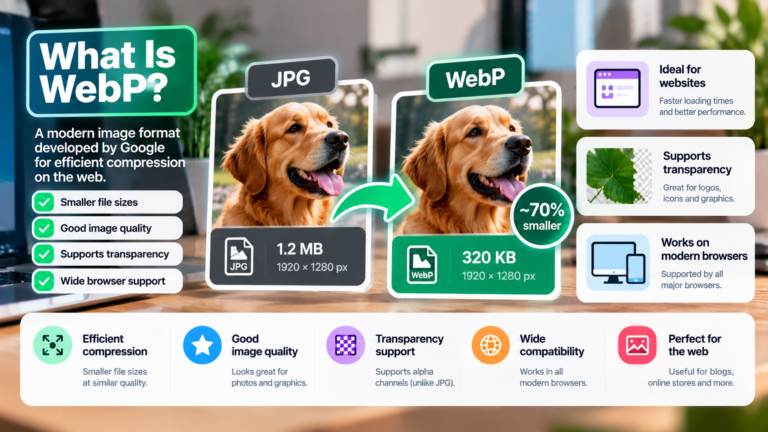
WebP is an image format designed to provide efficient compression for web images.
Unlike PNG, WebP supports both lossy and lossless compression. This gives you more flexibility when choosing between smaller files and exact preservation of image data.
WebP also supports transparency, so it can be used for many of the same purposes as PNG.
Its main advantages include:
- Lossy compression for smaller files.
- Lossless compression for preserving pixel data.
- Support for transparent backgrounds.
- Efficient compression for many photographs and graphics.
- Broad support in modern web browsers.
For website owners, WebP can be a practical way to reduce image file sizes without noticeably affecting visual quality.
However, the results depend on the image and compression settings. Not every WebP file will be smaller than its PNG equivalent, especially when comparing lossless versions of particular graphics.
3. PNG vs WebP: How Do They Compare?
The main differences become clearer when you compare their features side by side.
| Feature | PNG | WebP |
|---|---|---|
| Lossless compression | Yes | Yes |
| Lossy compression | No | Yes |
| Transparency | Yes | Yes |
| Exact pixel preservation | Yes | Yes, with lossless encoding |
| Small photographic files | Often less efficient | Often more efficient |
| Graphics and screenshots | Excellent | Also suitable |
| Modern browser support | Excellent | Excellent in modern browsers |
Both formats support transparency, and both can preserve image data through lossless compression.
The biggest difference is flexibility. WebP lets you choose lossy compression when reducing file size is the priority, while PNG uses lossless compression.
This can make WebP a better option for many website images, although PNG remains useful when you want a simple, widely supported format for graphics that require exact pixel preservation.
4. Transparency: Does PNG Have an Advantage Over WebP?
Both PNG and WebP support transparency, which allows parts of an image to remain see-through instead of displaying a solid background.
For example, imagine you have a company logo that needs to appear on both a white website header and a dark footer. A transparent image allows the background of the website to show through the empty areas around the logo.
PNG has been a common choice for this type of image for many years. WebP also supports transparency, making it a suitable alternative when you want to reduce file size.
Neither format has an automatic advantage simply because transparency is required.
The better choice depends on the image, the compression settings, and the tools you’re using.
One important detail: If you use lossy WebP compression, some image information can be discarded. This may affect the appearance of edges or semi-transparent areas in certain images. If exact preservation matters, use lossless WebP or keep the original PNG.
5. Compression: Which Format Produces Smaller Files?
This is where WebP often has an advantage.
PNG uses lossless compression, which preserves all original pixel information. This is useful for graphics and screenshots, but it can result in large files when the image contains complex photographic details.
WebP supports lossy compression, allowing it to discard some information that is less noticeable to the human eye. This can substantially reduce file size while keeping the image visually appealing.
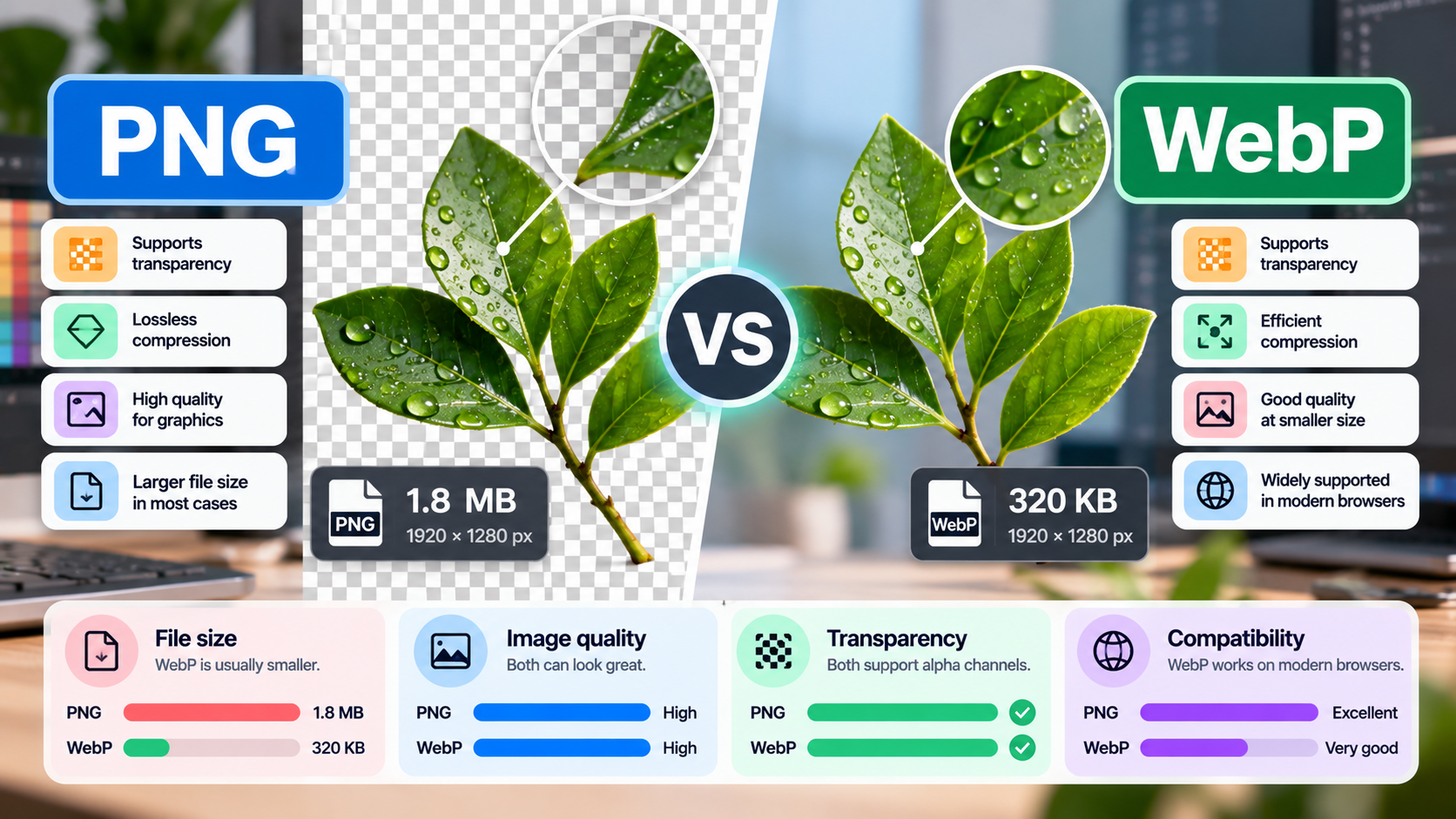
Consider this illustrative example of the same image saved at identical dimensions:
| Format | Example file size |
|---|---|
| PNG | 1.8 MB |
| Lossless WebP | 1.2 MB |
| Lossy WebP | 320 KB |
These figures are examples, not guaranteed results. Actual file sizes vary depending on the image content, encoding settings, and optimization tools.
Notice that WebP can produce different results depending on whether you use lossy or lossless compression. Lossless WebP preserves the original pixel data, while lossy WebP may achieve much smaller files at the cost of some image information.
For a photograph used in a website banner, lossy WebP may be a good choice. For a screenshot containing small text or a graphic that must remain pixel-perfect, lossless compression may be preferable.
6. Which Format Offers Better Image Quality?
Neither PNG nor WebP is universally better for image quality. It depends on the compression method and what you’re trying to preserve.
PNG is a strong option when you need exact pixel preservation. This is particularly important for screenshots, diagrams, text-heavy graphics, and certain types of logos.
WebP can also preserve exact pixel data when using lossless compression. With lossy compression, it can produce smaller files while maintaining good visual quality, but some information is discarded.
For example:
- A logo with sharp edges: PNG or lossless WebP can preserve the original pixels.
- A detailed photograph: Lossy WebP may offer a better balance between file size and visual quality.
- A screenshot containing small text: PNG is often a safe starting point because it preserves sharp details.
- A transparent website graphic: Both formats are suitable, provided the selected encoding settings meet your quality requirements.
The best approach is to compare the results at the size at which the image will actually appear on your website.
7. When Should You Use PNG?
PNG is still a very useful image format, despite the availability of newer alternatives.
Choose PNG when:
- You need lossless image storage with broad compatibility.
- Your screenshot contains small text or sharp interface elements.
- You want to preserve exact pixel values.
- Your image editing or publishing workflow works best with PNG.
- You don’t need the additional compression flexibility offered by WebP.
For example, if you’re documenting a software tutorial, screenshots may contain text and interface details that you don’t want to alter through lossy compression.
PNG is also useful when you want a dependable format that can be opened by a wide range of image editing applications.
However, if your PNG images are unnecessarily large and are intended for website display, it may be worth testing WebP as an alternative.
8. When Should You Use WebP?
WebP is particularly useful when reducing file size is important.
Consider WebP when:
- You want smaller images for a website.
- You need transparent backgrounds without necessarily using PNG.
- You want to choose between lossy and lossless compression.
- You’re optimizing photographs, graphics, or thumbnails.
- Your website and image processing tools support the format.
For example, a website with many transparent product images may benefit from WebP if it produces smaller files at an acceptable visual quality.
Likewise, a blog containing numerous photographs can often benefit from efficient image compression.
Still, don’t convert every PNG automatically. Some files may already be small, and certain graphics may not benefit much from conversion. Test representative images first.
9. How to Convert PNG to WebP
If you already have PNG images, converting them to WebP is relatively straightforward.
You can use an image editor, a conversion tool, or a website optimization plugin that supports WebP.
Follow these steps:
- Open your PNG image in a compatible tool.
- Select the export or conversion option.
- Choose WebP as the output format.
- Select lossless compression if you need to preserve exact pixel data, or choose lossy compression if reducing file size is more important.
- Save the converted image.
- Compare its file size and appearance with the original PNG.
If the image contains transparency, check that the converted version retains it correctly.
Keep the original PNG until you’re satisfied with the result. This is especially important if the image is a logo, screenshot, or other graphic where small changes may be noticeable.
Also, remember that changing the file extension alone doesn’t convert an image. You need to export or encode the image into the new format.
10. Common Mistakes When Choosing PNG or WebP
Assuming WebP is always smaller
WebP is often more efficient, but the result depends on the image and encoding settings. Compare actual file sizes before choosing.
Assuming transparency requires PNG
WebP supports transparency too. You can use it for transparent images when your workflow supports it.
Using lossy compression for every graphic
Lossy compression can introduce artifacts around text, edges, and fine details. Consider lossless encoding for graphics that need exact preservation.
Converting images without checking their appearance
A smaller file isn’t necessarily better if the image becomes visibly worse. Compare the converted image against the original.
Deleting the original image too early
Keep your source files until you’ve confirmed that the converted images work correctly and meet your quality requirements.
11. Frequently Asked Questions
Is WebP better than PNG?
WebP often provides smaller files, particularly when lossy compression is used. PNG remains an excellent choice for lossless graphics and screenshots. The best option depends on the image and your requirements.
Does WebP support transparent backgrounds?
Yes. WebP supports transparency, including partially transparent areas. PNG also supports transparency, so both formats can be used for logos and graphics with transparent backgrounds.
Is WebP lossless?
WebP supports both lossy and lossless compression. You need to select the appropriate encoding mode if preserving the original pixel data is important.
Will converting PNG to WebP reduce file size?
It often will, especially when lossy compression is suitable. However, the reduction depends on the image and settings. Lossless WebP may also produce smaller files, but the results vary.
Should I use PNG or WebP for logos?
Both can work well. PNG is a dependable choice when you need transparency and exact pixel preservation. Lossless WebP is another option if your tools support it and the resulting file is smaller.
Can I use PNG and WebP together on my website?
Yes. You can use PNG for graphics that benefit from lossless storage and WebP for images where it provides a useful reduction in file size. You can also provide alternate formats when your compatibility requirements call for them.
Final Thoughts
PNG and WebP both support transparency, but their compression options make them suitable for different situations.
PNG is a dependable choice for screenshots, logos, and graphics where preserving exact pixel data matters. WebP offers greater flexibility, allowing you to choose lossy or lossless compression and often achieve smaller files for website use.
If your main goal is website performance, try WebP and compare the results. If you need exact pixel preservation or prefer a simple, widely compatible workflow, PNG remains a strong option.
The best format is the one that meets your requirements for image quality, transparency, file size, and compatibility without introducing unnecessary complexity.