How to Make an Image Smaller in KB, Not Just Pixels
How to Make an Image Smaller in KB, Not Just Pixels
Have you ever resized an image, only to discover that its file size is still too large? Maybe you need to upload a photo under 500 KB, but changing its dimensions doesn’t seem to solve the problem.
The reason is simple: image dimensions and file size are two different things. Reducing an image’s width and height can help, but it doesn’t always reduce its file size enough.
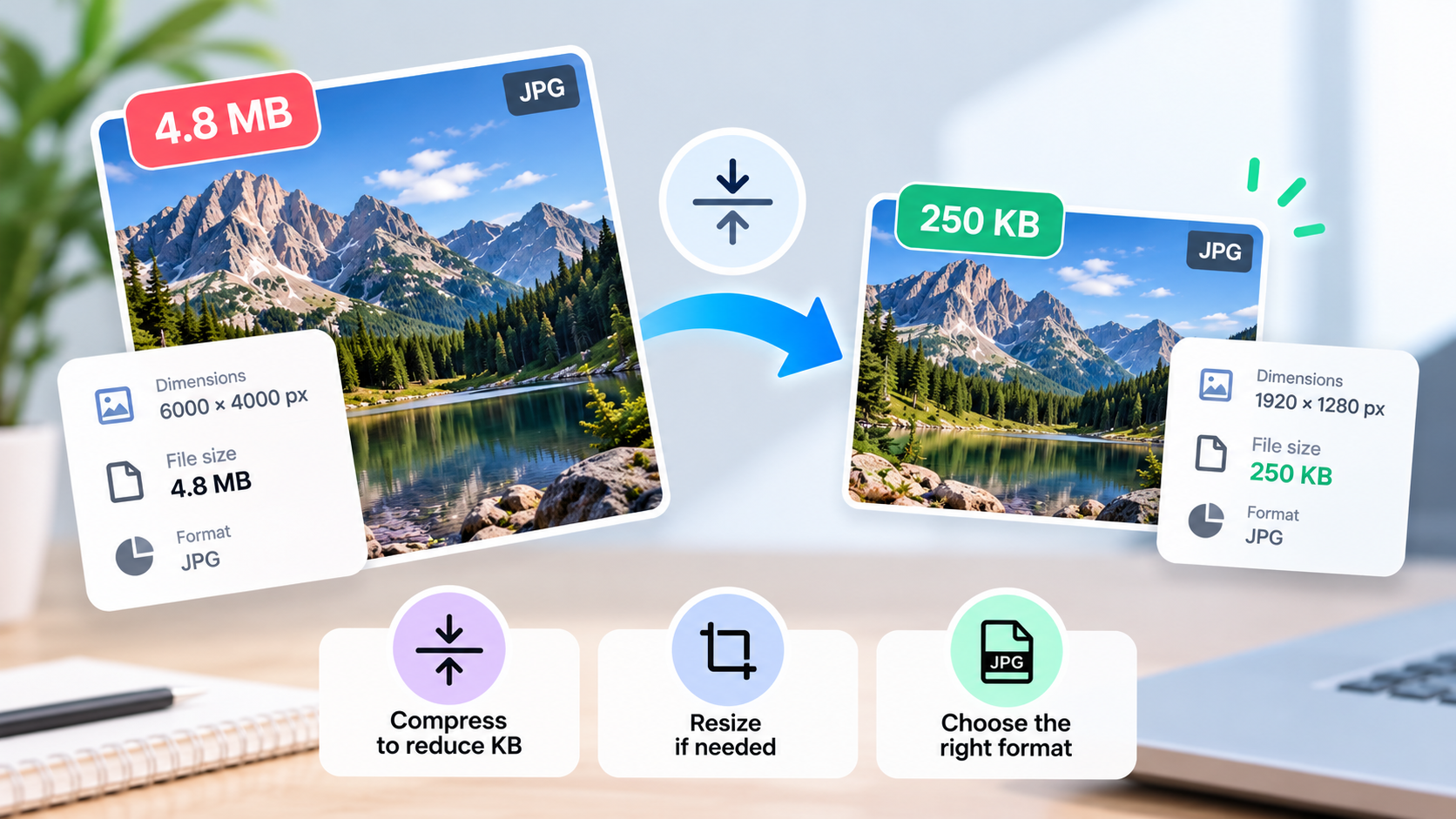
If your goal is to make an image smaller in KB, you need to focus on compression, image format, and sometimes dimensions as well. In this guide, you’ll learn how to reduce an image’s file size without making it unnecessarily blurry or sacrificing more quality than needed.
1. Understand the Difference Between KB and Pixels
Before making any changes, it’s important to understand what you’re trying to reduce.
- File size (KB or MB): This tells you how much storage space an image occupies.
- Image dimensions (pixels): These describe the image’s width and height, such as 1920 × 1080 pixels.
- Image quality: This refers to how clear and detailed the image looks.
For example, a 3000 × 2000 pixel photograph might occupy 4 MB, while another image with exactly the same dimensions might occupy only 700 KB.
Why? Images can contain different amounts of visual detail, use different formats, and have different compression settings.
This is why resizing an image doesn’t guarantee that it will meet a specific file size limit.
2. Compress the Image to Reduce Its Size in KB
If you want to reduce the file size without necessarily changing the image’s dimensions, compression is usually the best place to start.
Image compression reduces the amount of data required to store an image. Depending on the format and method used, it can significantly reduce file size while preserving much of the original appearance.
Here’s how to do it:
- Open an image compression tool.
- Upload the image you want to reduce.
- Choose a compression level or target file size if the tool supports it.
- Download the compressed image.
- Check the resulting file size in KB.
For example, if your original image is 2.5 MB and you need it to be below 500 KB, you’ll need to reduce its size substantially. A compression tool may be able to do this without changing the dimensions, although the result depends on the image itself.
Tip: If you need to meet a strict upload limit, choose a tool that lets you specify a target size in KB. Not every compression tool offers this option.
3. Reduce the Image Dimensions if Necessary
Sometimes compression alone isn’t enough. In that case, reducing the image dimensions can help.
Suppose your image measures 5000 × 3500 pixels, but you only need it for a small profile picture. Those dimensions might be much larger than necessary.
You could resize it to 1500 × 1050 pixels while keeping the original aspect ratio. This reduces the number of pixels and can make the resulting file considerably smaller.
To resize an image:
- Open it in an image editor or resizing tool.
- Enter a smaller width and height.
- Keep the aspect ratio locked to avoid distortion.
- Save the resized image.
- Check its file size and appearance.
Remember that resizing and compression solve slightly different problems. Resizing reduces the number of pixels, while compression reduces the amount of data used to store the image.
If the dimensions are already correct, try compression first. If the image is much larger than necessary, combining resizing and compression may produce a better result.
4. Choose the Right Image Format
The image format can make a noticeable difference to file size.
JPG
JPG is often a good choice for photographs. It uses lossy compression, which can reduce file size considerably, although excessive compression can introduce visible artifacts.
PNG
PNG supports lossless compression and transparency, making it useful for screenshots, logos, and graphics. However, detailed photographs saved as PNG can occupy considerably more space than JPG versions.
WebP
WebP supports both lossy and lossless compression and can produce relatively small files. It can be a good option for websites and online use, provided the destination supports it.
If you have a large PNG photograph and the website accepts JPG, converting it to JPG may reduce the file size without changing its dimensions.
However, conversion doesn’t guarantee a smaller file. Always check the result, and avoid changing formats when doing so would remove transparency or introduce unwanted quality loss.
5. How to Make an Image Smaller Than a Specific KB Limit
Sometimes you don’t just want a smaller image. You need it to stay below a specific limit, such as 100 KB, 200 KB, or 500 KB.
The best approach is to work toward the required size rather than repeatedly changing random settings.
Here’s a practical example:
| Step | Example file size |
|---|---|
| Original image | 2,400 KB |
| After compression | 950 KB |
| After resizing and compression | 420 KB |
| Final adjusted image | 280 KB |
These figures are illustrative; actual results depend on the original image, dimensions, format, and compression settings.
If the website requires an image under 500 KB, the final example would meet that limit.
For the best results:
- Check the maximum file size allowed by the website.
- Compress the image using a suitable tool.
- If it’s still too large, reduce the dimensions if possible.
- Adjust the compression level gradually.
- Check the final file size before uploading it.
It’s usually sensible to leave some room below the maximum rather than aiming for a file that’s exactly at the limit.
If you need a much smaller image, such as one under 100 KB, you may need to reduce the dimensions more aggressively or use stronger compression.
6. How to Check an Image’s File Size
After editing an image, make sure it actually meets your target.
On Windows
- Open File Explorer and locate the image.
- Right-click the file.
- Select Properties.
- Look at the file size under the General tab.
Windows may display the size in KB or MB, depending on the file.
On macOS
- Find the image in Finder.
- Right-click it.
- Select Get Info.
- Check the Size field.
On a phone
Open the image’s details or information panel in your gallery or file manager. Depending on your device and app, you may be able to see its dimensions and file size there.
Checking the actual file size is important because an image can look smaller on screen without its underlying file becoming smaller.
7. Common Mistakes When Reducing Image Size
A few common mistakes can make the process more difficult than it needs to be.
Changing only the dimensions. A smaller image can still be too large in KB if it uses a format or compression setting that produces a large file.
Using excessive compression. Reducing file size too aggressively can make photographs blurry, create artifacts, and remove fine details.
Converting formats without checking the result. A converted image isn’t necessarily smaller, so compare the original and final file sizes.
Saving over the original image. Keeping the original allows you to try different settings if the first result doesn’t look good.
Confusing KB with pixels. A file size limit is not the same as a dimension requirement. If a website specifies both, you need to meet both conditions.
8. Frequently Asked Questions
Can I reduce an image’s KB without changing its pixels?
Yes. You can compress the image while keeping its original dimensions. The amount of reduction depends on the format, image content, and compression settings.
Why is my image still large after resizing?
Resizing reduces the number of pixels, but the image may still contain a large amount of data. Try compressing it or choosing a more suitable format if the destination supports it.
How do I make an image exactly 100 KB?
Use a compression tool that supports a target file size, if available. Otherwise, adjust the compression settings and dimensions gradually until the file is close to your target. Check the final size because some tools may not produce an exact result.
Does reducing KB always reduce image quality?
Not necessarily. Lossless compression can reduce file size without losing image information, although the reduction may be limited. Lossy compression removes some information, but moderate compression can preserve a good visual appearance.
Which is more important: file size or image dimensions?
It depends on where you’re using the image. A website upload may impose a maximum file size, while a profile picture may also require specific dimensions. Check the destination’s requirements before editing.
Final Thoughts
Making an image smaller in KB isn’t the same as reducing its pixel dimensions. If your main goal is to meet a file size limit, start with compression and check the result. Resize the image only when its dimensions are larger than necessary, and consider changing formats when appropriate.
By combining these methods carefully, you can create a smaller image that meets your requirements without sacrificing more quality than necessary.