How to Compress an Image to 100 KB Without Making It Blurry
Need to compress an image to 100 KB for a website, application, online form, or email attachment? Reducing an image’s file size can help you meet upload limits and make files easier to share. The challenge is keeping the image clear enough to use.
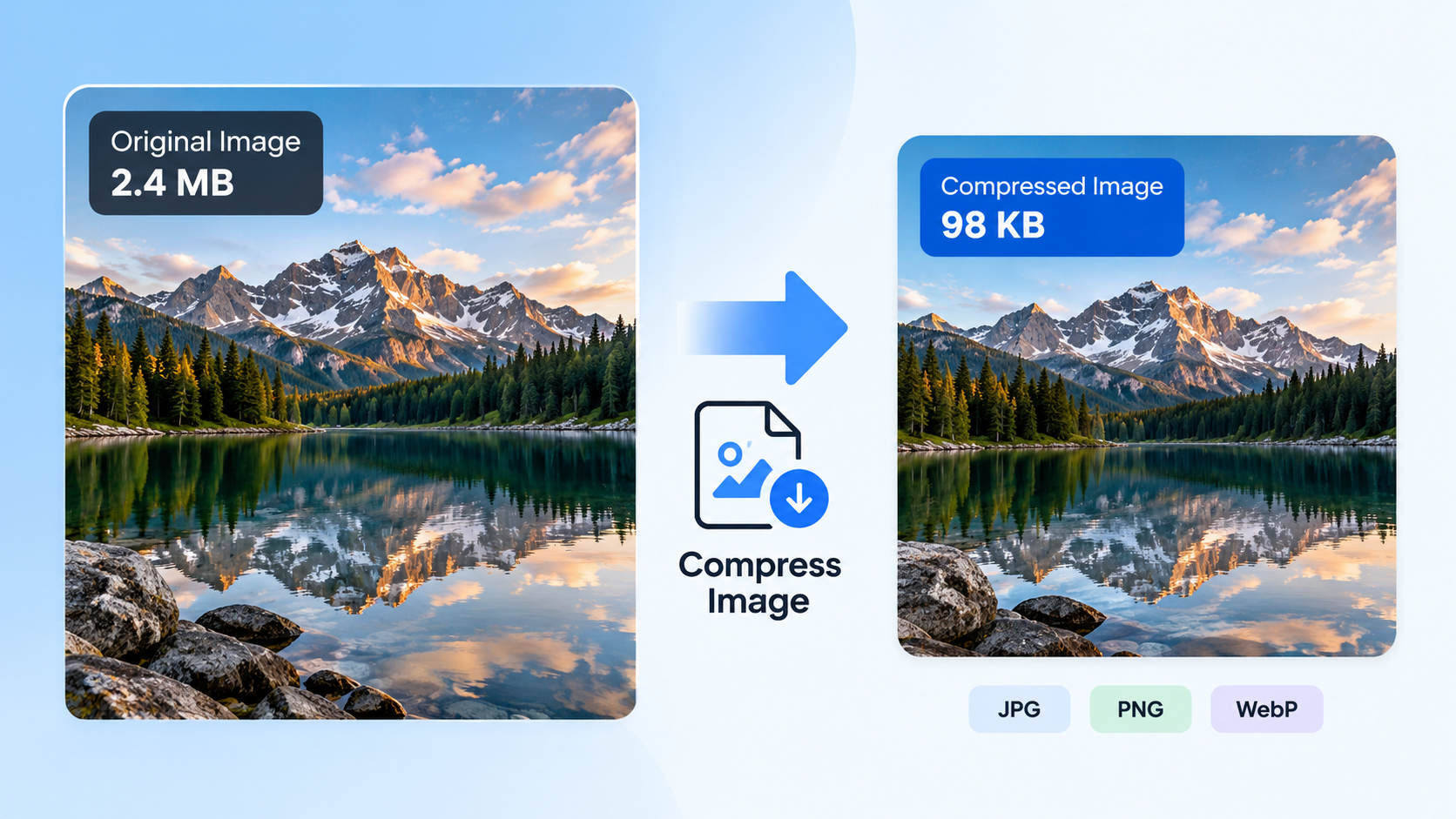
The best way to compress an image to 100 KB is to choose a suitable file format, resize it to the dimensions you actually need, and adjust the compression level gradually. The ideal settings depend on the original image, so there is no single quality value that works perfectly for every file.
In this guide, you’ll learn how to reduce an image to around 100 KB, which formats work best, and what to do when the result looks blurry or the file is still too large.
What Does It Mean to Compress an Image to 100 KB?
An image’s file size and its dimensions are two different things.
File size, measured in kilobytes (KB) or megabytes (MB), tells you how much storage the image occupies. Image dimensions, measured in pixels, describe its width and height.
For example, a photo measuring 3000 × 4000 pixels may take up several megabytes, depending on its format and content. A smaller version of the same photo may retain enough detail for a profile picture or online form while using considerably less storage.
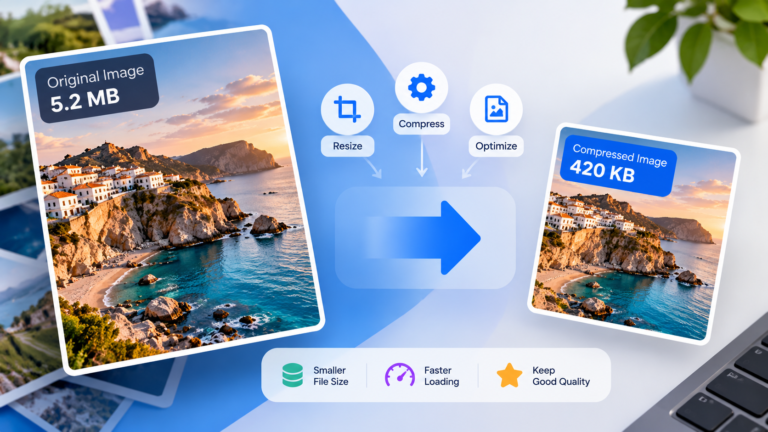
Compressing an image reduces its file size. Resizing it reduces its pixel dimensions. Combining both techniques is often the most effective way to reach a strict limit such as 100 KB.
Before you begin, check the requirements of the website or application where you plan to upload the image. Some platforms specify a maximum file size, while others also require particular dimensions or formats.
How to Compress an Image to 100 KB
Follow these steps to reduce your image’s size while keeping it as clear as possible.
1. Check the Original Image
Start by checking the current file size, dimensions, and format.
If the file is 4 MB and must be reduced to less than 100 KB, you need a substantial reduction. If it is already close to the target, a small adjustment to the compression settings may be enough.
Keep a copy of the original image. That way, you can try different settings without repeatedly compressing an already compressed file.
2. Choose the Right Image Format
The format has a significant effect on file size and appearance.
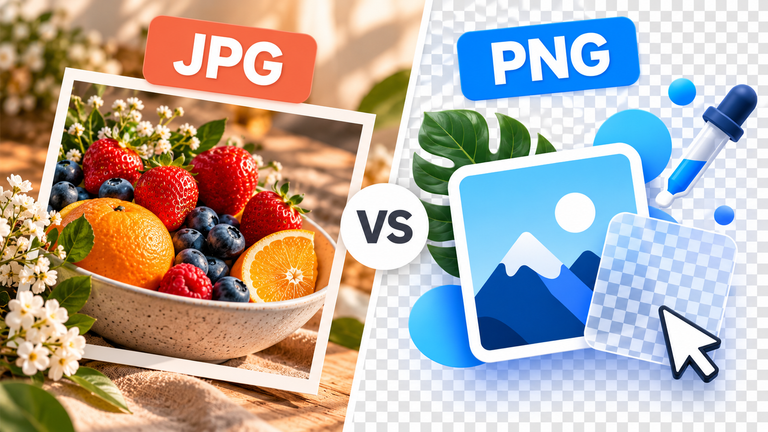
| Format | Best For | Important Consideration |
|---|---|---|
| JPG / JPEG | Photographs and realistic images | Uses lossy compression, which can reduce quality at aggressive settings |
| PNG | Screenshots, graphics, logos, and images requiring transparency | Can produce large files, especially for photographs |
| WebP | Website images, photographs, and many graphics | Supports both lossy and lossless compression, including transparency |
For a photograph, JPG or WebP is often a good starting point when file size matters. PNG is usually more appropriate when you need crisp graphic edges or transparency and want to preserve image data.
WebP is particularly useful for web publishing. Google’s WebP documentation explains how its compression methods can produce smaller images than comparable JPEG or PNG files in suitable cases.
However, always check the format accepted by your destination. A website that requires JPG will not necessarily accept WebP or PNG.
3. Resize the Image if You Don’t Need Its Full Resolution
Resizing can often reduce file size without making the image visibly worse at its intended display size.
For example, if an image will only appear in a small profile area, keeping its original camera resolution may be unnecessary. Reducing its dimensions to match the space where it will be displayed can remove a considerable amount of data.
Use the following approach:
- Check the required width and height, if the destination specifies them.
- Keep the original aspect ratio to avoid stretching the image.
- Reduce the dimensions only as much as necessary.
- Preview the resized image at the size at which people will actually see it.
Do not reduce dimensions blindly. A small thumbnail and a photograph intended for a large display have different requirements.
4. Adjust the Compression Level Gradually
If the image is still too large, adjust its compression settings.
For JPG and lossy WebP, a quality setting around 80% can be a reasonable starting point when the tool offers a quality slider. This is only a starting point: the resulting file size and visual quality vary with the image and the encoder.
Use this process:
- Start with a relatively high quality setting.
- Export or compress the image.
- Check the resulting file size.
- Compare the output with the original.
- Reduce the quality gradually if the file is still too large.
- Stop when the image meets the size requirement and still looks acceptable.
Look closely at faces, text, fine lines, gradients, and areas with intricate details. These can reveal compression artefacts that may not be obvious when viewing the entire image at a small size.
Technical tools can expose quality settings when exporting images. For example, the MDN documentation for HTMLCanvasElement.toBlob() describes how supported lossy image formats can be exported with a configurable quality value. The precise output depends on the browser and image encoder.
5. Check the Final File Size
After compression, verify the size of the exported file rather than relying only on a preview or a selected target value.
If the destination allows a maximum of 100 KB, aim slightly below that limit, for example around 90–95 KB, when visual quality permits. This gives you some breathing room if the destination reports file sizes differently.
If the image is still above the limit, try reducing the pixel dimensions before lowering the quality too aggressively.
If the image is comfortably below the limit and still looks good, there may be no need to compress it further.
6. Inspect the Image Before Uploading It
A small file is not automatically a good result.
Open the compressed image and check that:
- The subject remains clear.
- Text is still readable.
- Edges do not look excessively blocky.
- Gradients do not show distracting bands.
- Colours and transparency behave as expected.
- The file opens correctly in the intended application.
If the image looks noticeably worse, return to the original and try a different format, a larger pixel size, or a less aggressive quality setting.
Which Settings Should You Use for a 100 KB Image?
There is no universal combination of dimensions and quality that guarantees a 100 KB output. A simple illustration or a flat-colour graphic may compress differently from a detailed photograph, even when both begin with the same dimensions.
Use these recommendations as a starting point rather than fixed rules.
| Image Type | Recommended Approach |
|---|---|
| Portrait or photograph | Try JPG or WebP, then adjust dimensions and quality |
| Screenshot containing text | Preserve readability; consider PNG if the file size allows it |
| Logo with transparency | Keep a transparency-compatible format such as PNG or WebP |
| Website thumbnail | Match the dimensions to the displayed size and use an efficient format |
| Image for an online application | Follow the application’s required format, dimensions, and maximum file size |
The best result is the smallest file that still meets the requirements and remains visually suitable for its intended use.
What to Do If Your Image Is Still Larger Than 100 KB
If you’ve already compressed your image but cannot reach the target, try these adjustments in order.
Reduce the dimensions first. If the image is much larger in pixels than necessary, resizing may reduce the file size without requiring extreme compression.
Try another supported format. A photograph saved as WebP or JPG may be substantially smaller than the same image saved as PNG. Only change formats if the destination supports the new format.
Adjust quality gradually. Lower quality can reduce the size further, but excessive compression can introduce visible defects. Compare each version rather than choosing the lowest available setting.
Remove unnecessary image data. Some files contain metadata such as camera details, timestamps, or location information. Removing metadata may help reduce the file size, although it will not necessarily be enough on its own.
Start again from the original. Repeatedly saving a lossy image can lead to additional quality degradation. When possible, apply your adjustments to the original file rather than compressing the compressed output.
If none of these options gives you an acceptable result, the image may simply contain too much detail to fit the size limit without a visible trade-off. In that situation, consider whether the upload destination accepts a larger file or whether different dimensions would be suitable.
Common Mistakes When Compressing Images
Avoid these mistakes when trying to reach a strict file-size limit.
Changing the file extension without converting the image. Renaming photo.png to photo.jpg does not convert the underlying image data. Use a proper conversion tool.
Confusing file size with image dimensions. A requirement of 100 KB does not mean the image must be 100 pixels wide. Check both requirements separately.
Reducing quality too aggressively. A file that meets the size limit but looks blurry may not be suitable for the intended purpose.
Using PNG for every photograph. PNG is useful for many graphics, but JPG or WebP may provide a better size-to-quality balance for photographs.
Ignoring transparency requirements. Converting an image with a transparent background to JPG can remove that transparency and replace it with a solid background.
Checking only the preview. Always verify the actual exported file size and open the final file before uploading it.
Frequently Asked Questions
Can I compress an image to exactly 100 KB?
You can aim for a particular target size, but the exact output depends on the original image, dimensions, format, and encoding settings. If a website says the file must be no larger than 100 KB, aim slightly below the limit rather than trying to hit exactly 100 KB.
Can I compress an image without losing quality?
Lossless compression can reduce file size without discarding image information, but the reduction may be limited. Lossy compression can produce smaller files by discarding some information, which may or may not be visibly noticeable. Resizing an image also changes its resolution.
Is JPG or PNG better for a 100 KB image?
It depends on the image. JPG is often a useful choice for photographs, while PNG is often preferable for screenshots, graphics, or transparency-sensitive images. WebP is another option when the destination supports it.
Why does my compressed image still exceed 100 KB?
The image may have large pixel dimensions, complex visual details, or an inefficient format for its content. Try resizing it, choosing a more suitable supported format, and adjusting compression settings gradually.
Will compressing an image make it smaller in dimensions?
Not necessarily. Compression can reduce file size while preserving the image’s pixel dimensions. Resizing changes those dimensions. Some workflows combine both operations to reach a strict file-size target.
Should I use an online image compressor for private images?
Check how the service processes uploaded files before using it. Some tools process images directly in your browser, while others transfer files to a server. For sensitive images, review the provider’s privacy information and avoid uploading files to services you do not trust.
Final Thoughts
Compressing an image to 100 KB is a balance between file size, dimensions, format, and visual quality. Start by checking the destination’s requirements, choose a suitable format, resize the image if necessary, and adjust compression gradually.
Always inspect the final result and keep the original file. A few careful adjustments can often produce a smaller, usable image without making it unnecessarily blurry.