Does Converting an Image Reduce Its Quality?
Does Converting an Image Reduce Its Quality?
If you’ve ever converted an image from PNG to JPG, JPG to WebP, or one format to another, you might have wondered whether the process affects its quality.
The short answer is: sometimes, but not always.
Converting an image can preserve its original visual information, or it can reduce quality depending on the formats involved and the settings you choose. Some conversions use lossless compression, while others discard image data to make the file smaller.
Understanding the difference can help you choose the right format, avoid unnecessary quality loss, and keep your images looking sharp.
Does Changing an Image Format Always Reduce Quality?
No. Changing an image’s format does not automatically mean that it will look worse.
The result depends mainly on the compression method used during conversion.
For example, converting a PNG image to another format using lossless compression can preserve the pixel information exactly, provided the conversion does not introduce other changes. However, converting a PNG to JPG usually involves lossy compression, which discards some image information.
The difference may be difficult to notice at normal viewing sizes, but it can become more obvious if you zoom in or repeatedly edit and save the image.
It’s also important to remember that file size and image quality are not the same thing. A smaller image can still look excellent, while a larger file is not necessarily better.
Lossy vs Lossless Compression: What’s the Difference?
To understand why image quality sometimes changes, you need to know the difference between lossy and lossless compression.
What Is Lossy Compression?
Lossy compression reduces file size by permanently removing some image information. The goal is to remove data that is less noticeable to the human eye while keeping the image visually acceptable.
Common examples include JPG and lossy encoding modes in WebP and AVIF.
The main advantage is that lossy compression can produce much smaller files, making it useful for photographs, websites, and images that need to load quickly.
However, stronger compression can introduce visible problems, such as:
- Blurry details and textures.
- Blocky or pixelated areas.
- Unnatural color transitions.
- Artifacts around text and sharp edges.
- Loss of fine details in complex images.
These effects are usually more noticeable when the compression level is high.
What Is Lossless Compression?
Lossless compression reduces file size without discarding the image data that the format is designed to preserve.
When decoded, the image can reproduce the same pixel values as the encoded source, assuming the conversion itself does not alter those values.
PNG is a common lossless format. WebP and AVIF also support lossless encoding.
Lossless compression is particularly useful for screenshots, diagrams, logos, icons, and images where sharp edges or exact pixel values matter.
However, lossless compression does not guarantee the smallest possible file. A lossless version of a photograph can be much larger than a lossy version.
Which Image Formats Preserve Quality Best?
Different formats are designed for different purposes. Choosing the right one depends on whether you prioritize exact pixel preservation, small file sizes, transparency, or compatibility.
| Format | Compression | Best use |
|---|---|---|
| JPG / JPEG | Lossy | Photographs and everyday images |
| PNG | Lossless | Screenshots, logos, diagrams, and transparency |
| WebP | Lossy or lossless | Website images and general web graphics |
| AVIF | Lossy or lossless | Efficient image delivery for supported workflows |
| TIFF | Depends on the compression settings | Photography, editing, and image archiving |
| SVG | Vector-based | Logos, icons, diagrams, and scalable illustrations |
No single format is best for every situation.
For example, PNG is a good option when you need lossless storage, but it may create larger files for photographs. WebP and AVIF can offer efficient compression, but the final quality depends on the encoding settings you choose.
What Happens When You Convert Between Formats?
The quality change depends on the specific conversion.
JPG to PNG
Converting a JPG to PNG does not restore details that were already lost during JPG compression.
The resulting PNG can preserve the decoded pixels without introducing further lossy compression, but it may be considerably larger than the original JPG.
This conversion can be useful if you plan to edit the image further and want to avoid repeatedly applying JPG compression. However, it cannot recover the original, uncompressed photograph.
PNG to JPG
Converting PNG to JPG usually introduces lossy compression.
This may be perfectly acceptable for photographs, especially when you need a smaller file. However, screenshots, text, logos, and graphics with sharp edges may show visible artifacts.
JPG also does not support transparency, so transparent areas must be replaced with a background color.
JPG to WebP
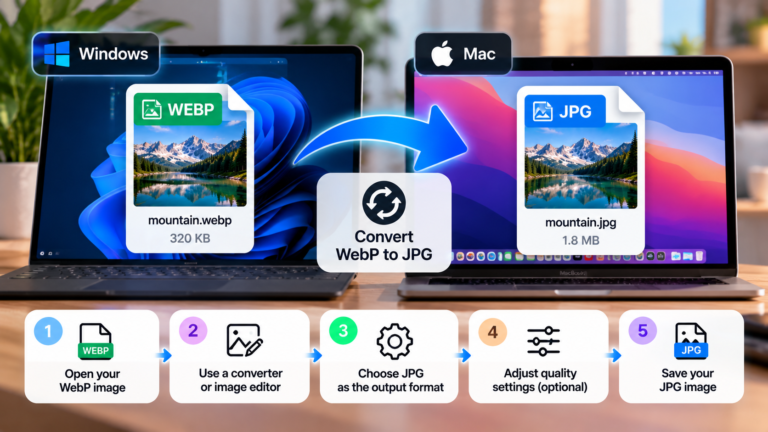
Converting JPG to WebP can reduce file size while maintaining good visual quality, depending on the settings.
However, if the WebP image is exported at an unnecessarily high quality setting, the new file might be larger than the original. If it is exported at a very low setting, visible artifacts may appear.
Because JPG is already a lossy format, converting it to lossy WebP may introduce additional changes. The result depends on the original image and the encoder settings.
PNG to WebP
WebP supports both lossless and lossy compression.
Choosing lossless WebP can preserve image pixels, while lossy WebP may reduce the file size further at the cost of some image information.
For screenshots and graphics that need crisp edges, try lossless compression first. For photographs, compare lossy WebP against the original to find a suitable balance between quality and size.
JPG to AVIF
AVIF can often achieve smaller file sizes than older formats at comparable visual quality, but the result depends on the encoder and settings.
A well-configured AVIF conversion may produce an excellent result, while overly aggressive compression can still cause visible artifacts.
Always compare the output with the original rather than assuming that a newer format automatically produces better results.
Does Converting an Image Multiple Times Reduce Quality?
It can, particularly when each conversion uses lossy compression.
Imagine starting with a photograph saved as JPG. You convert it to another lossy format, edit it, and then save it again as JPG.
Each lossy encoding can discard additional image information. Over multiple generations, artifacts may accumulate and become more noticeable.
This is sometimes called generational loss.
To avoid unnecessary degradation, follow these practices:
- Keep an original copy of the image.
- Make edits using a high-quality or lossless working copy when appropriate.
- Avoid repeatedly exporting to lossy formats.
- Perform your final conversion only when you are ready to use the image.
- Check the exported result before replacing your original file.
If you work with photographs professionally, keeping the original camera file or a high-quality master copy is especially useful.
How to Convert Images Without Losing Noticeable Quality
You don’t always need to choose between a small file and a good-looking image. With the right settings, you can often reduce file size while preserving excellent visual quality.
1. Choose the Right Format for the Image
Start by considering what the image contains.
For photographs, JPG, WebP, and AVIF are worth comparing. For screenshots, diagrams, and graphics with sharp edges, PNG or a lossless encoding mode may be a better choice.
If you need transparency, choose a format that supports it, such as PNG, WebP, or AVIF.
2. Avoid Excessively High Compression
When using lossy compression, the quality setting has a significant impact on the result.
Try a few different settings and compare the exported images. For photographs, a quality setting around 75–85% can be a reasonable starting point in some converters, but the ideal value varies between tools and formats.
Look for visible artifacts around edges, in detailed textures, and in areas with subtle gradients.
Remember that quality percentages are not standardized across every encoder.
3. Keep the Original Image Dimensions
Changing the image dimensions can affect its appearance independently of the file format.
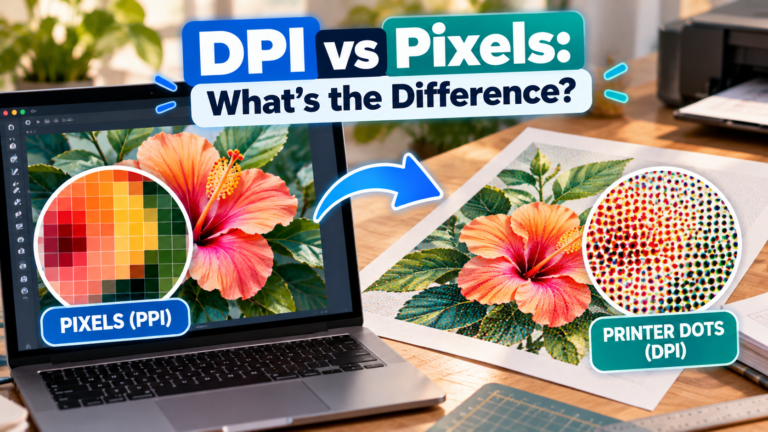
Reducing dimensions removes pixels and may eliminate details. Enlarging a raster image can cause blur or pixelation because the software must estimate additional pixels.
If you only want to change the file format, keep the original width and height unless resizing is necessary.
4. Preview the Converted Image
Always inspect the output before using it.
Compare the original and converted versions at the same zoom level. Check fine details, text, edges, colors, and transparency.
A conversion may look excellent when displayed as a small thumbnail but reveal problems when viewed at full resolution.
5. Use a Reliable Image Converter
Choose a converter that lets you control the output format, compression method, quality, and dimensions.
Some tools automatically choose settings designed to reduce file size, while others prioritize quality. Knowing which options are enabled can help you understand why the result looks different.
Frequently Asked Questions
Can I convert JPG to PNG without losing quality?
You can preserve the decoded JPG pixels by saving them as PNG, assuming no additional edits or changes are made. However, the information already discarded when the JPG was created cannot be recovered.
Does converting PNG to JPG make it blurry?
It can introduce compression artifacts, especially at low quality settings. Photographs may still look very good, but text, sharp lines, and transparent graphics can suffer more noticeably.
Is WebP better than JPG for image quality?
Neither format is automatically better in every situation. WebP can provide smaller files at comparable visual quality, but the result depends on the image and encoding settings.
Does reducing file size always reduce image quality?
No. Lossless compression can reduce file size without changing the pixel information. Lossy compression reduces file size by discarding some information, although the difference may be difficult to see.
Which format should I use if I want to preserve the original quality?
Use a lossless format or lossless encoding mode when you need to preserve the decoded pixels exactly. PNG is a common option, while WebP and AVIF also offer lossless modes. For important originals, keep a copy of the source file as well.
Final Thoughts
Converting an image can reduce its quality, but it doesn’t have to. The main factor is whether the conversion introduces lossy compression or changes the image in another way.
If you want to preserve image details, choose an appropriate lossless format or keep a high-quality original. If your goal is to reduce file size for a website, compare different formats and quality settings until you find a result that looks good without using unnecessary space.
The best approach is simple: choose the right format, avoid repeated lossy conversions, and always check the final image before replacing the original.