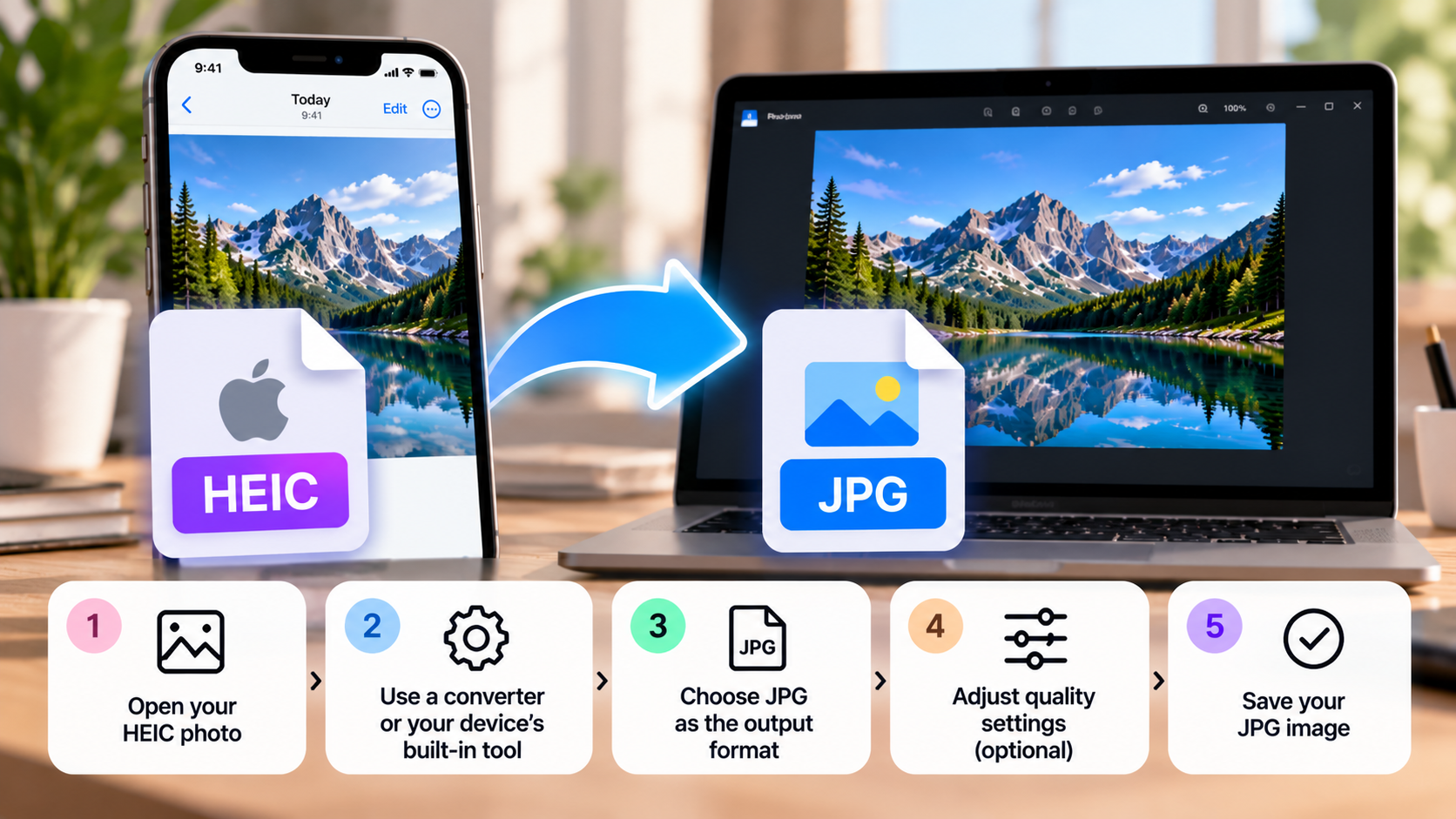
How to Convert HEIC Photos to JPG
How to Convert HEIC Photos to JPG
If you’ve ever transferred photos from an iPhone to a Windows computer, you may have noticed that some images use the HEIC format instead of JPG. Although HEIC can store high-quality photos efficiently, certain applications, websites, and older devices may not support it properly.
Fortunately, converting HEIC photos to JPG is relatively simple. You can use built-in tools on Windows and Mac, change your iPhone’s camera settings, or use an image converter when you only need to convert a few files.
In this guide, you’ll learn how to convert HEIC photos to JPG, how to handle multiple images, and what to consider when preserving image quality.
1. What Is HEIC?
HEIC stands for High Efficiency Image Container. It is commonly associated with Apple’s use of the High Efficiency Image Format (HEIF) for storing photographs on iPhones and other Apple devices.
HEIC can provide good image quality while using less storage space than some traditional image formats. It can also support features such as transparency and additional image data, depending on how the file is created.
However, not every application or website handles HEIC files equally well.
You might want to convert HEIC to JPG when:
- A website only accepts JPG or JPEG images.
- An application cannot open your photos.
- You need to share images with someone using older software.
- You want a format that’s widely supported across devices.
- You need to upload photos to an online form or document.
JPG remains one of the most widely supported image formats, which makes it a practical choice for everyday sharing and uploading.
2. How to Convert HEIC to JPG on Windows
Windows offers several ways to convert HEIC photos, depending on your version and the applications installed.
Method 1: Use the Photos App
The Windows Photos app may be able to open HEIC images if the required support is installed. However, the available export options vary by version, so you may need another application to save the image as JPG.
- Locate your HEIC photo in File Explorer.
- Open it with the Photos app.
- Check whether the app provides a Save as, Export, or format conversion option.
- If JPEG is available, select it as the output format.
- Choose a destination folder and save the new image.
If the image won’t open, Windows may need additional HEIF image support. Depending on your setup, this may involve installing the relevant extension from the Microsoft Store.
If your Photos app doesn’t offer JPEG export, use Paint if your version supports opening the image, or choose another compatible image converter.
Method 2: Use an Image Converter
A dedicated converter can be more convenient if Windows doesn’t provide the options you need.
- Open a trusted image conversion tool.
- Select or upload your HEIC photo.
- Choose JPG or JPEG as the output format.
- Adjust the quality settings if available.
- Start the conversion.
- Save the resulting JPG file to your computer.
For private or sensitive photographs, an offline converter is generally preferable to uploading the files to an unknown website.
3. How to Convert HEIC to JPG on Mac
Mac computers offer a straightforward way to export supported HEIC photos as JPG using Preview.
Method 1: Use Preview
- Find the HEIC image in Finder.
- Double-click it to open it in Preview, or right-click and choose Open With → Preview.
- Select File → Export.
- Open the Format menu and choose JPEG.
- Adjust the quality slider if needed.
- Choose the destination and click Save.
Your JPG version will be saved separately, leaving the original HEIC file unchanged unless you deliberately overwrite it.
If JPEG doesn’t appear in the export menu, check whether the image is open correctly in Preview and whether the file is supported by your macOS version.
Method 2: Convert Using Photos
You can also export images from Apple’s Photos app.
- Open Photos and select the image.
- Choose File → Export → Export Photo.
- Select JPEG as the photo kind.
- Adjust the quality and size settings if required.
- Choose an export location and complete the process.
This method is useful when your photographs are already organized in your Photos library.
4. How to Convert HEIC to JPG on an iPhone
If you want to convert a photo directly on your iPhone, you have several options.
Option 1: Use the Files App
One possible method is to use the Files app and Quick Actions, where available.
- Open the Photos app and select the image.
- Use the Share menu to save the photo to Files if necessary.
- Open Files and locate the saved image.
- Long-press the file and check whether a Quick Action or conversion option is available.
- Select JPEG if the option is offered.
The available actions depend on your iOS version and the type of file. If your device doesn’t offer a direct conversion option, use a compatible shortcut or image conversion app.
Option 2: Use the Shortcuts App
Apple’s Shortcuts app can automate image conversion.
You can create a shortcut that receives an image, converts it to JPEG, and saves the resulting file.
A basic workflow includes:
- Add an action to receive or select an image.
- Add a Convert Image action.
- Choose JPEG as the output format.
- Add a save action to store the converted image in Photos or Files.
- Run the shortcut on your chosen photo.
The exact actions and labels can vary between iOS versions.
Option 3: Make Future Photos More Compatible
If you frequently need JPG images, you can change your iPhone camera settings for future photographs.
- Open Settings.
- Go to Camera.
- Select Formats.
- Choose Most Compatible.
On supported iPhones, this setting makes the camera use JPEG for ordinary photos rather than HEIF/HEIC. It can also affect video recording formats.
Important: This setting affects future captures. It doesn’t automatically convert HEIC photos you’ve already taken.
5. Does Converting HEIC to JPG Reduce Image Quality?
It can, because JPG uses lossy compression.
HEIC can also use lossy compression, but its compression efficiency may differ from JPG. When you convert a HEIC photo to JPG, the conversion process encodes the image again and may discard additional information.
The amount of visible quality loss depends on the original image, the JPEG quality setting, and the conversion tool.
To preserve as much quality as possible:
- Choose a high JPEG quality setting.
- Avoid repeatedly opening, editing, and saving the same JPG.
- Keep the original HEIC file as a backup.
- Compare the output with the original before deleting anything.
For everyday sharing or uploading, a high-quality JPG will often be perfectly suitable. If you need to preserve as much original image data as possible, keep the original HEIC file.
6. Will JPG Files Be Larger Than HEIC?
They can be.
HEIC is designed to store images efficiently, so a JPG version of the same photograph may take up more storage space.
For example, a HEIC photo that occupies 1.5 MB might produce a JPG file of 2 MB or more after conversion. These numbers are illustrative; actual results depend on image content, resolution, and compression settings.
If you need JPG for compatibility, a larger file may be an acceptable trade-off.
If file size is also important, adjust the JPEG quality settings carefully and check the final size before uploading the image.
Avoid compressing the image more than necessary, especially if it contains fine details or will be printed.
7. How to Convert Multiple HEIC Photos to JPG
If you have dozens or hundreds of HEIC photos, converting them individually can take a long time.
A batch converter allows you to process multiple images in one operation.
The general process is:
- Open a tool that supports batch conversion.
- Select the HEIC photos you want to convert.
- Choose JPG as the output format.
- Set the desired quality level.
- Select an output folder.
- Start the conversion and check the results.
On a Mac, you can also export multiple selected images from Photos, depending on your workflow.
For large collections, test a few photos first. This helps you confirm that the quality, dimensions, and output format are correct before converting everything.
Keep the original files until you’ve verified the converted copies.
8. Can You Convert HEIC to JPG Online?
Yes. Browser-based converters can convert HEIC files to JPG without requiring you to install desktop software.
The usual process is simple:
- Open a reputable conversion service.
- Upload the HEIC image.
- Select JPG as the output format.
- Start the conversion.
- Download the converted image.
Online conversion can be convenient when you’re using a computer that doesn’t have the necessary software.
However, photos may contain personal information, faces, or location metadata. Check the service’s privacy policy before uploading them, especially if the images are sensitive.
For confidential photographs, use a trusted offline tool or a built-in application whenever possible.
9. Common Problems When Converting HEIC to JPG
Windows can’t open the HEIC file
Your system may lack the required HEIF image support. Check the available extensions in the Microsoft Store or use a compatible converter.
The JPG file is larger than the original
This can happen because HEIC may compress images more efficiently. Adjust the JPEG quality setting if you need a smaller file, while checking for visible quality loss.
The converted photo looks blurry
The export settings may be using too much compression or reducing the dimensions. Try exporting at a higher quality and retaining the original resolution.
The photo’s metadata has changed
Some conversion tools remove or modify metadata, such as timestamps, camera information, or location data. If this information matters, check whether your converter preserves the metadata you need.
The image’s orientation looks wrong
Some photos rely on orientation metadata to display correctly. If a converted image appears rotated, try another converter and check the export settings.
10. Frequently Asked Questions
Is HEIC better than JPG?
HEIC can provide efficient compression while maintaining good image quality, helping save storage space. JPG offers broader compatibility across applications and devices. The better format depends on whether you prioritize storage efficiency or compatibility.
Is HEIC the same as HEIF?
They are closely related but not identical terms. HEIF is the broader image container format, while HEIC is commonly used for HEIF files containing images encoded with HEVC.
Can I convert HEIC to JPG without losing quality?
A conversion to JPG may introduce some quality loss because JPG uses lossy compression. Choosing a high-quality setting can minimize visible differences, but it doesn’t guarantee perfect preservation.
Can I change the HEIC file extension to JPG?
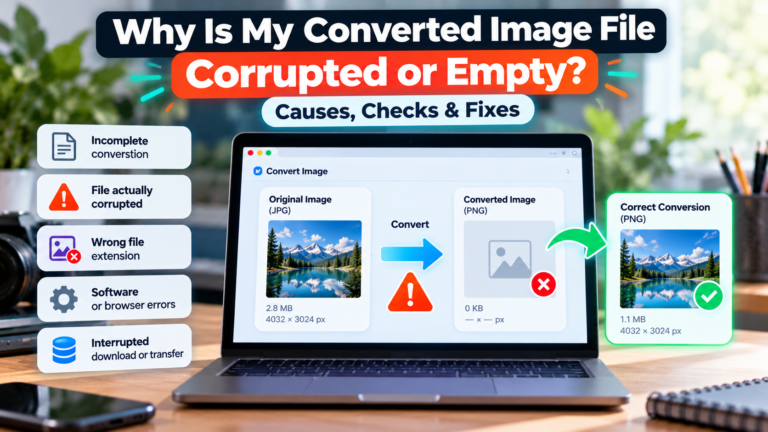
No. Renaming a file from .heic to .jpg doesn’t convert its contents. You need to export or encode the image into the JPEG format.
Can I convert HEIC to JPG for free?
Yes. Built-in tools such as Preview on Mac, compatible Windows applications, and some image converters can perform this task for free.
Should I delete my original HEIC photos after converting them?
It’s best to keep the originals until you’ve checked the JPG versions and confirmed that you no longer need the original files. HEIC may retain characteristics or metadata that aren’t preserved in the converted image.
Final Thoughts
Converting HEIC photos to JPG is useful when you need better compatibility with websites, applications, and devices that don’t support HEIC.
On Windows, you can use a compatible image editor or converter. On Mac, Preview and Photos offer convenient export options, while iPhone users can use Shortcuts or change the camera format for future photos.
Remember that conversion may increase file size or introduce some quality loss. Keep your originals, check the output, and choose JPG when compatibility is more important than retaining the benefits of the HEIC format.