How to Convert WebP Images to JPG on Windows and Mac
How to Convert WebP Images to JPG on Windows and Mac
WebP is a popular image format for websites because it can produce relatively small files while maintaining good visual quality. However, you may sometimes need a JPG version of an image to use it in an application, share it with someone, or open it in software that doesn’t support WebP.
The good news is that converting WebP to JPG is straightforward on both Windows and Mac. You can use built-in applications, image editing software, or an online converter without needing complicated tools.
In this guide, you’ll learn how to convert WebP images to JPG on Windows and macOS, how to choose the right method, and what to keep in mind when converting your files.
1. Why Convert WebP to JPG?
WebP works well for many web images, but JPG remains one of the most widely supported image formats.
There are several reasons you might want to convert a WebP image to JPG:
- Compatibility: Some older applications and workflows don’t handle WebP correctly.
- Sharing: JPG is a familiar format that works with most devices and image viewers.
- Editing: Certain programs may offer a smoother workflow with JPG files.
- Uploading: Some websites, forms, or services accept JPG but don’t support WebP.
- Printing: JPG is commonly accepted by photo services and printing applications.
Keep in mind that converting WebP to JPG doesn’t automatically improve image quality or reduce file size. The main benefit is compatibility.
2. How to Convert WebP to JPG on Windows
Windows offers several ways to convert WebP images. One convenient option is Microsoft Paint, provided your version of Paint supports opening the particular WebP file.
Method 1: Use Microsoft Paint
- Locate the WebP image in File Explorer.
- Right-click the image and choose Open with → Paint. If Paint isn’t listed, open Paint first and use its file-opening option.
- Once the image opens, click File → Save as.
- Select JPEG picture as the output format.
- Choose a filename and destination folder.
- Click Save.
You should now have a JPG copy of the original image.
Keep in mind that Paint’s menus may differ slightly between Windows versions. If your version doesn’t open WebP files, use another compatible image editor or a converter.
Method 2: Use an Online Converter
If you don’t want to install software, a browser-based image converter can be a convenient alternative.
- Open a reputable WebP-to-JPG conversion tool.
- Upload your WebP image.
- Select JPG or JPEG as the output format.
- Start the conversion.
- Download the resulting JPG file.
- Open the downloaded file to check that it works correctly.
Online converters are useful for occasional conversions, but check their privacy policies before uploading personal or confidential images.
3. How to Convert WebP to JPG on Mac
Mac users can also convert WebP images using built-in applications or compatible third-party tools.
Method 1: Use Preview
Preview is macOS’s built-in application for viewing and exporting many image formats. WebP support can depend on your macOS version, so check whether your file opens correctly.
- Locate your WebP image in Finder.
- Double-click the file to open it in Preview, or right-click and select Open With → Preview.
- In Preview, choose File → Export if the option is available.
- Open the format menu and select JPEG.
- Adjust the quality slider if one is provided.
- Choose where to save the file and click Save.
The exported image will be saved as a JPG or JPEG file.
If Preview doesn’t open the WebP image or doesn’t offer JPEG export, use a compatible image editor or online converter instead.
Method 2: Use an Online Converter
An online converter works on Mac in much the same way as on Windows.
- Open a trusted image conversion website in your browser.
- Upload the WebP image.
- Select JPG as the target format.
- Convert the image.
- Download the result to your Mac.
- Open the JPG file to verify it.
This method is useful when you only need to convert a few images and don’t want to install additional software.
4. Does Converting WebP to JPG Reduce Image Quality?
It can, depending on the original image and the conversion settings.
JPG uses lossy compression, which means some image information is discarded when the file is encoded. WebP can use either lossy or lossless compression, so the original image may have been stored with different levels of quality.
When converting a WebP image to JPG, the conversion process may introduce additional compression loss.
For example, if the original WebP already uses lossy compression, exporting it as a heavily compressed JPG can make fine details less clear.
To help preserve image quality:
- Choose a high JPEG quality setting when available.
- Avoid repeatedly converting and saving the same image.
- Keep the original WebP file in case you need it later.
- Compare the JPG with the original before deleting anything.
You don’t need to choose the highest quality setting for every image. A slightly lower setting may be perfectly suitable for sharing or everyday use.
5. Will the JPG File Be Larger Than the WebP Image?
It might be.
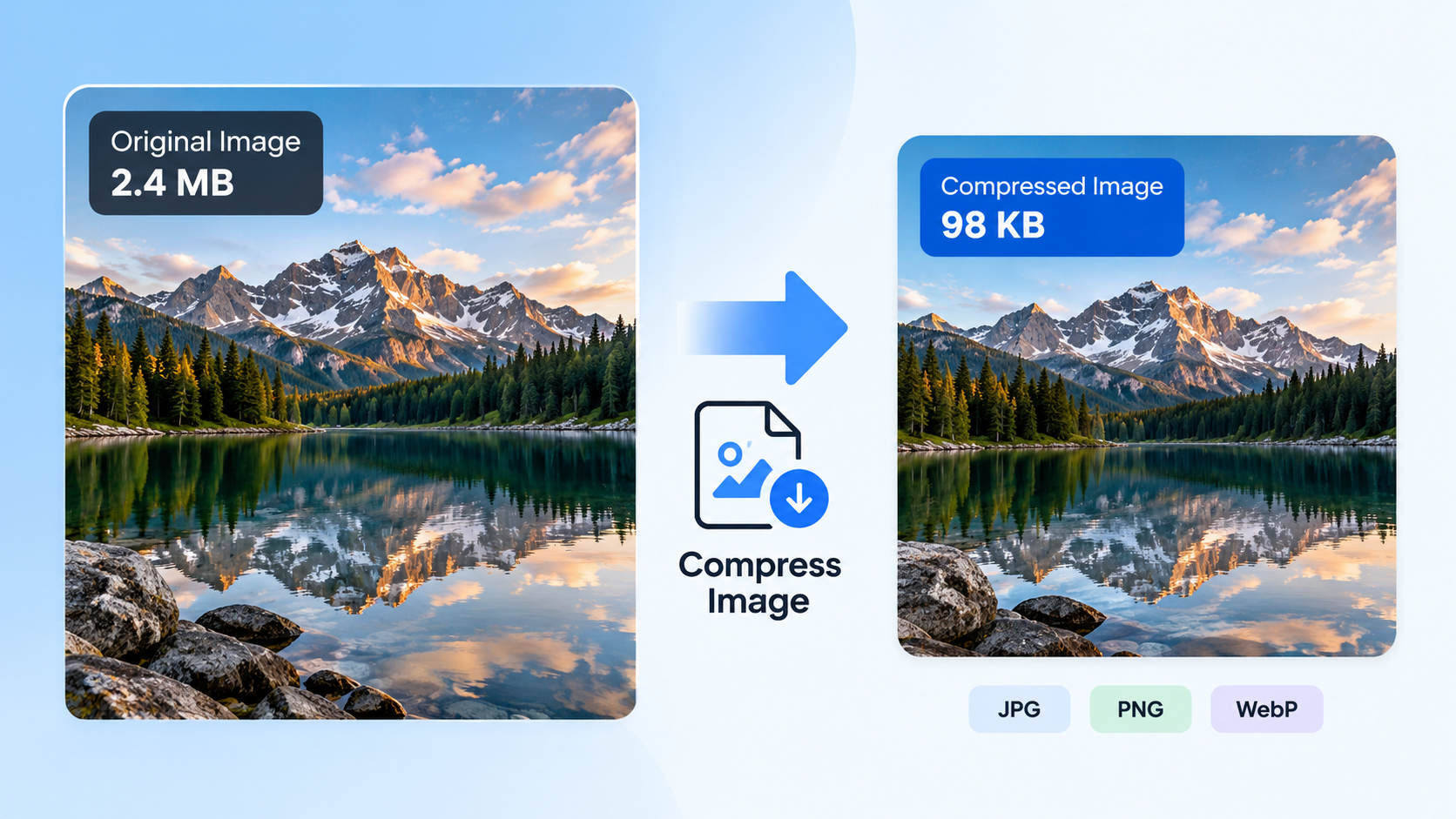
WebP often provides more efficient compression than JPG at comparable visual quality. As a result, a converted JPG may occupy more storage space than the original WebP file.
For example, imagine you have a WebP image that occupies 300 KB. After converting it to JPG, the resulting file might occupy 450 KB or more, depending on the image and export settings.
These figures are illustrative rather than guaranteed results.
If file size matters, check the original and converted files before choosing which one to keep. You can also adjust the JPEG quality setting to reduce the output size, but stronger compression may affect image quality.
The purpose of conversion is usually to improve compatibility, not necessarily to make the image smaller.
6. What Happens to Transparency When Converting WebP to JPG?
This is one of the most important differences between the two formats.
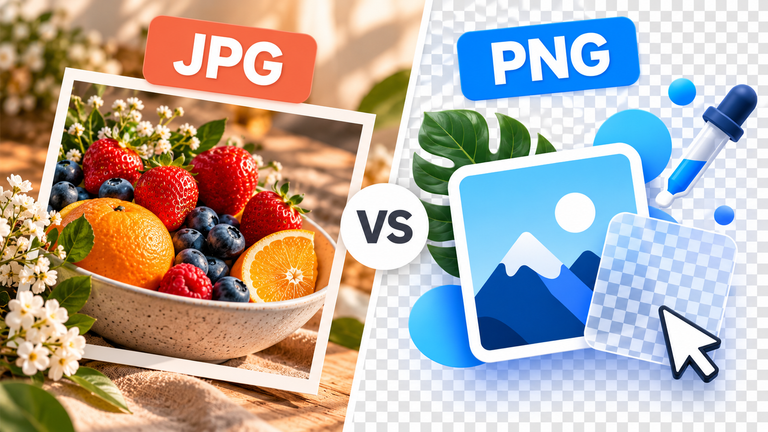
WebP supports transparent backgrounds, but JPG doesn’t.
If you convert a WebP image containing transparent areas to JPG, those areas must be replaced with a solid background. Depending on the application, the background may appear white or use another selected color.
For example, a logo with a transparent background may appear on a white rectangle after conversion.
If you need to preserve transparency, consider keeping the original WebP file or exporting to PNG instead, provided the destination supports it.
Before converting a transparent image, check whether the background matters for its intended use.
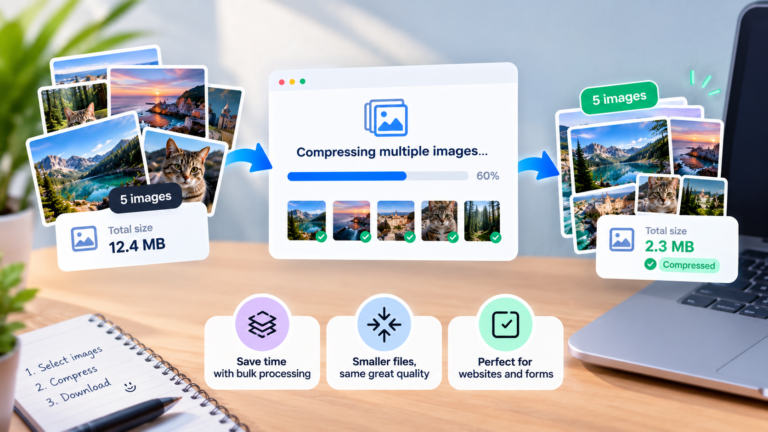
7. How to Convert Multiple WebP Images to JPG
If you have many WebP images to convert, processing them individually can become tedious.
A batch image converter allows you to select multiple files and convert them in one operation.
The general process is:
- Open a tool that supports batch conversion.
- Select the WebP images you want to convert.
- Choose JPG as the output format.
- Adjust quality settings if necessary.
- Select an output folder.
- Start the conversion and check the results.
Some applications support batch conversion directly, while others require a plugin or a separate utility.
If you’re converting a large collection, test a few images first. This helps you check the output quality, file sizes, and handling of transparent backgrounds before processing the entire batch.
8. Common Problems When Converting WebP to JPG
The image won’t open
Your image viewer or editor may not support WebP. Try a more recent application or use a compatible converter.
JPG isn’t available in the export menu
Some applications use different export menus or offer only the formats they support for the current image. Try another image editor or converter if JPEG isn’t listed.
The converted image looks blurry
The output may have been saved with excessive JPEG compression. Try exporting again at a higher quality setting.
The JPG file is larger than the original
This is normal in some cases because WebP can be more efficient at reducing file size. Adjust the JPEG quality setting if you need a smaller output.
The transparent background disappeared
JPG doesn’t support transparency. Use PNG or retain the original WebP if the transparent background is important.
9. Frequently Asked Questions
Can I convert WebP to JPG without installing software?
Yes. You can use an online image converter in your browser. Choose a reputable service and avoid uploading sensitive images unless you understand how the service handles your files.
Is JPG the same as JPEG?
Yes. JPG and JPEG refer to the same image format. The shorter .jpg extension became common because some older systems limited file extensions to three characters.
Can I convert WebP to JPG using Paint?
Yes, if your version of Microsoft Paint supports opening WebP images. Open the image and use Save as → JPEG picture. If your version doesn’t support WebP, use another compatible application.
Can Preview convert WebP to JPG on Mac?
Preview can export images as JPEG when it can open the source image and the format is available in its export menu. Support for WebP depends on your macOS version, so use another compatible tool if the image won’t open.
Does converting WebP to JPG remove transparency?
Yes. JPG doesn’t support transparency, so transparent areas must be replaced with a solid background.
Should I keep the original WebP file?
Yes, it’s generally a good idea to keep the original until you’ve confirmed that the JPG version meets your needs. The WebP file may have a smaller size or preserve transparency that the JPG version cannot retain.
Final Thoughts
Converting WebP images to JPG is a straightforward way to improve compatibility with applications, websites, and workflows that don’t support WebP.
On Windows, you can use Paint when your version supports the format. On Mac, Preview may offer the necessary export options, depending on your macOS version. Online converters are another option when you don’t want to install software.
Before converting, remember that JPG uses lossy compression and doesn’t support transparency. Keep your original image, check the final quality, and choose the method that best fits your needs.