What Is WebP and When Should You Use It?
What Is WebP and When Should You Use It?
If you’ve ever downloaded an image from a website, you may have noticed that some files end in .webp instead of the more familiar .jpg or .png. WebP is an image format designed to make images more efficient for the web, often reducing file size without noticeably affecting visual quality.
But what exactly is WebP, and when should you use it instead of other image formats?
In this guide, you’ll learn how WebP works, its main advantages and disadvantages, and when it makes sense to use it for websites, blogs, online stores, and other projects.
1. What Is WebP?
WebP is an image format developed by Google and introduced in 2010. Its main goal is to provide efficient image compression for the web, helping websites deliver images using less data.
WebP supports both lossy and lossless compression. This gives you two ways to optimize an image depending on whether your priority is reducing file size or preserving every pixel.
It also supports transparency and animated images, making it more versatile than formats such as JPG.
WebP is commonly used for:
- Blog photographs and featured images.
- Product pictures in online stores.
- Website banners and thumbnails.
- Logos and graphics with transparent backgrounds.
- Images displayed on mobile devices.
Because images can account for a significant portion of a webpage’s total download size, using an efficient format can help reduce the amount of data visitors need to download.
2. How Does WebP Work?
WebP uses compression techniques to store image information more efficiently.
There are two main compression options.
Lossy WebP
Lossy compression reduces file size by discarding some image information. When configured appropriately, it can produce significantly smaller files while maintaining good visual quality.
This option is particularly useful for photographs, product images, and other detailed images where a small amount of information loss may not be noticeable.
Lossless WebP
Lossless compression reduces file size without discarding the original pixel data.
This can be useful for graphics, screenshots, and images where exact pixel preservation matters. The amount of compression achieved depends on the image.
The important difference is that WebP doesn’t automatically determine how much quality you should sacrifice. The result depends on the encoding method and settings used.
For most website owners, the goal is to find a balance between file size and visual quality rather than simply producing the smallest possible file.
3. What Are the Advantages of WebP?
WebP offers several benefits that make it a useful choice for modern websites.
Smaller file sizes
WebP often produces smaller files than JPG or PNG at comparable visual quality. This can reduce download sizes, especially on image-heavy pages.
Good image quality
With suitable settings, WebP can preserve much of an image’s visual detail while reducing the amount of data required to store it.
Transparency support
Unlike JPG, WebP supports transparent backgrounds. This makes it useful for logos, icons, and graphics that need to appear over different background colors.
Lossy and lossless compression
You can choose between lossy compression for smaller files and lossless compression when preserving the original pixel data is important.
Broad browser support
WebP works in all major modern web browsers, making it a practical format for most websites today.
Together, these features make WebP a flexible option for optimizing images without having to rely on a single compression method.
4. What Are the Disadvantages of WebP?
Although WebP is useful, it isn’t the perfect solution for every situation.
Some older software may not support it
Most modern browsers support WebP, but older applications, legacy systems, and certain image editing workflows may not handle it as conveniently as JPG or PNG.
Conversion may require additional steps
If your website or editing software doesn’t support WebP directly, you may need a compatible converter or plugin.
Compression results vary
WebP doesn’t guarantee that every image will be smaller than its JPG or PNG equivalent. The results depend on image content, dimensions, and encoding settings.
Lossy compression can affect quality
When using lossy WebP, excessive compression can create artifacts or make fine details less clear. The same general limitation applies to other lossy image formats.
It isn’t always the best format for editing
Some workflows are better suited to keeping original files in formats such as PNG or high-quality JPEG. You can use WebP for website delivery while preserving your original files for editing.
These limitations don’t make WebP a poor choice. They simply mean you should select it according to your requirements.
5. WebP vs JPG vs PNG
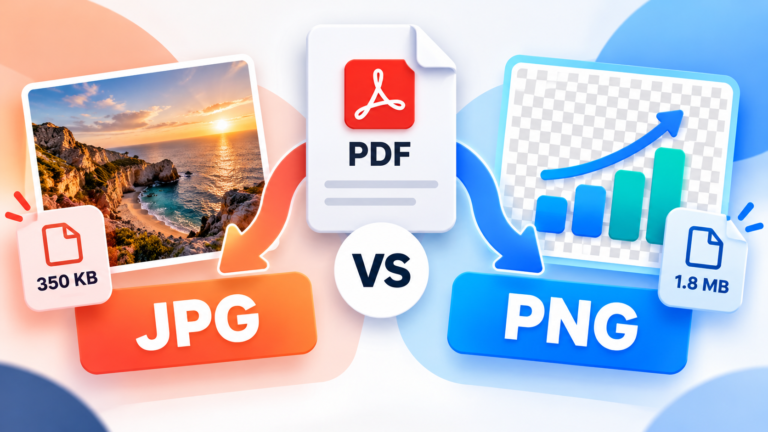
WebP is often compared with JPG and PNG because these formats are commonly used for website images.
| Feature | WebP | JPG | PNG |
|---|---|---|---|
| Lossy compression | Yes | Yes | No |
| Lossless compression | Yes | No | Yes |
| Transparency | Yes | No | Yes |
| Photographs | Excellent | Excellent | Suitable, often larger |
| Logos and graphics | Excellent | Limited for transparency | Excellent |
| Typical web use | Very versatile | Photographs | Graphics and transparency |
WebP is often a strong choice when you want efficient compression and transparency support in one format.
JPG remains useful for photographs and situations where compatibility with existing applications is important.
PNG is a dependable choice for lossless graphics and transparent images, although photographic PNG files can be much larger than their compressed alternatives.
There is no need to force every image into one format. The best choice depends on what the image contains and how it will be used.
6. When Should You Use WebP?
WebP is particularly useful when you want to optimize images for online display.
For blogs and content websites
If you publish articles with featured images, illustrations, and photographs, WebP can help reduce the amount of data visitors download.
This is especially useful when your website contains many images across multiple pages.
For online stores
Product images are important for online shopping, but large photographs can increase page weight.
WebP can help reduce the size of product images while maintaining enough detail for customers to inspect the items.
Always check that colors, textures, and other important product details remain accurate.
For website banners
Large banners can contribute significantly to the total download size of a webpage.
Using an appropriately sized WebP image can help reduce that overhead without removing the visual content.
For transparent graphics
WebP supports transparency, so it can be used for logos, icons, and other graphics that need transparent backgrounds.
If exact pixel preservation is important, consider lossless WebP or PNG.
For mobile-friendly websites
Smaller image downloads can be particularly useful for visitors using mobile connections or devices with limited bandwidth.
However, image format is only one part of the process. Responsive dimensions and appropriate loading behavior are also important.
7. When Should You Avoid WebP?
There are situations where another format may be more convenient.
When an application requires JPG or PNG: If a form or application doesn’t accept WebP, use one of the supported formats instead.
When working with legacy software: Older programs may handle JPG and PNG more reliably.
When you need a source file for editing: Keep your original image in the format that best suits your editing workflow. WebP doesn’t need to replace your original files.
When the file size improvement is negligible: If an image is already small and optimized, converting it may not provide a meaningful benefit.
When exact compatibility is required: If a specific system has strict format requirements, follow those requirements rather than choosing WebP automatically.
You can still use WebP on your website while retaining other formats for downloads, editing, or compatibility.
8. How to Convert an Image to WebP
If you have an existing JPG or PNG image, you can convert it to WebP using an image editor, an online conversion tool, or a WordPress optimization plugin.
The general process is straightforward:
- Open the image in a compatible tool.
- Choose the export or conversion option.
- Select WebP as the output format.
- Choose suitable quality settings if available.
- Save the converted image.
- Compare its file size and appearance with the original.
If you’re converting a photograph, start with a moderate lossy compression setting and check the result.
For logos, screenshots, or graphics that require exact pixel preservation, consider lossless WebP.
Remember that converting an already compressed JPG to WebP won’t restore information that was lost when the JPG was created. Keep the original file until you’re satisfied with the conversion.
9. How to Use WebP in WordPress
If your website runs on WordPress, WebP can be a useful part of your image optimization workflow.
Modern WordPress installations support WebP uploads, although available features may depend on your WordPress version, hosting environment, and plugins.
A simple workflow looks like this:
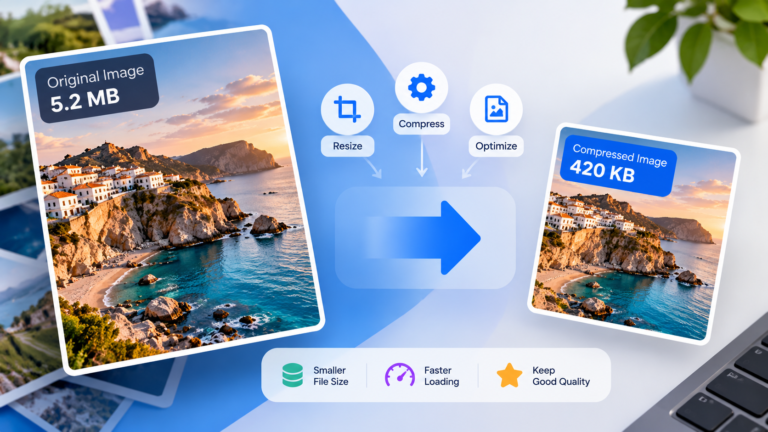
- Resize images to appropriate dimensions before uploading.
- Compress them using suitable settings.
- Save or convert them to WebP when it provides a useful benefit.
- Upload the images to your media library.
- Check that the images display correctly across your pages.
- Test your website’s performance after making changes.
Image optimization plugins can automate tasks such as compression, conversion, and delivery of optimized versions.
Before installing a new plugin, check whether your hosting provider or existing plugins already offer these features.
You should also retain original images when practical, particularly if you may need to edit or export them again later.
10. Does WebP Improve SEO?
WebP can contribute to better website performance by reducing image download sizes. This may help pages load more efficiently, particularly when images account for a large portion of the page’s resources.
Page performance and user experience are relevant to SEO, but using WebP alone doesn’t guarantee higher search rankings.
For a more complete approach, combine image optimization with:
- Appropriate image dimensions.
- Responsive image delivery.
- Lazy loading for suitable below-the-fold images.
- Descriptive alternative text.
- Efficient hosting and caching.
- Monitoring with performance tools such as Google PageSpeed Insights.
You should also ensure that important images remain accessible to search engines and that your pages provide useful content.
The goal is to improve the overall experience rather than treating image format as a standalone ranking solution.
11. Frequently Asked Questions
Is WebP better than JPG?
WebP often provides smaller files at comparable visual quality and supports transparency. JPG remains widely supported and can still be a practical option for photographs and general sharing.
Is WebP better than PNG?
WebP can produce significantly smaller files in many situations and supports both lossy and lossless compression. PNG remains useful for lossless graphics and workflows that specifically require PNG.
Does WebP reduce image quality?
It depends on the compression method. Lossy WebP discards some image information, while lossless WebP preserves the original pixel data.
Can all browsers open WebP images?
All major modern web browsers support WebP. Older software and specialized applications may have limitations.
Should I convert every image on my website to WebP?
Not necessarily. Prioritize images where WebP offers a meaningful improvement. Test the resulting file sizes and visual quality before converting large collections.
Can WebP have a transparent background?
Yes. WebP supports transparency, making it suitable for logos, icons, and other graphics that need transparent areas.
Is WebP suitable for printing?
WebP is primarily associated with web use. Some applications may support it, but JPG, PNG, TIFF, or other formats may be more convenient depending on the printing workflow and requirements.
Final Thoughts
WebP is a versatile image format that can help make websites more efficient without sacrificing unnecessary visual quality.
It supports lossy and lossless compression, transparency, and modern browser compatibility, making it suitable for many photographs, graphics, and website images.
Use it when it offers a useful balance between file size and image quality, but don’t assume that every image needs to be converted. Keeping the original files and testing your results will help you choose the right format for each situation.