How to Prepare Images for Email Without Large Attachments
How to Prepare Images for Email Without Large Attachments
Sending photos by email should be simple, but a few high-resolution images can quickly make a message too large to send. You might receive an attachment error, spend too long uploading files, or discover that the recipient cannot receive your message.
The good news is that you usually do not need to sacrifice much image quality to make photos easier to email. By choosing suitable dimensions, using the right file format, and compressing images before attaching them, you can keep your email manageable while preserving the details that matter.
In this guide, you will learn how to prepare images for email on Windows, Mac, and other devices, how to decide which compression settings to use, and when sharing a download link is a better option than attaching files.
Why Are Image Attachments So Large?
Photos taken with modern smartphones and digital cameras can contain millions of pixels and a substantial amount of image data. A single photograph may take several megabytes, while a collection of ten or twenty original photos can quickly reach dozens or even hundreds of megabytes.
Email providers also enforce attachment or total message-size limits. For example, personal Gmail accounts have a 25 MB sending limit, although limits can differ for work and school accounts. Outlook limits vary depending on the account, application, and organization. Google’s Gmail attachment guide explains the personal-account limit and how Gmail handles oversized messages.
There is another detail worth remembering: attachments are encoded when sent by email, which can increase the amount of data transmitted. As a result, a collection of files that appears to fit the advertised limit may still be too large.
Preparing images before attaching them helps reduce upload times, avoid delivery problems, and make messages easier for recipients to download.
1. Resize Images to Suitable Dimensions
One of the easiest ways to reduce an image’s file size is to resize it before sending it.
A photo straight from a modern phone might measure 4,000 pixels or more across. That resolution can be useful for printing or detailed editing, but it is often unnecessary when sharing a picture for someone to view on a screen.
Consider these practical starting points:
- 1,200–1,600 pixels on the longest side: Suitable for many everyday photos and general sharing.
- 1,600–2,000 pixels on the longest side: Useful when the recipient may need to zoom in or inspect more detail.
- Original dimensions: Better when the recipient needs the full-resolution photograph for printing, professional editing, or another specific purpose.
These are guidelines rather than strict rules. The right dimensions depend on how the recipient will use the image.
When resizing, keep the aspect ratio locked so the photo does not become stretched or distorted. Also, remember that changing the displayed dimensions inside an email application does not always reduce the actual attachment size. The underlying image file must be resized or compressed.
2. Choose the Right Image Format
The image format can make a noticeable difference to the final file size. You do not need to convert every photo into the same format, but it helps to understand the main options.
JPEG (JPG)
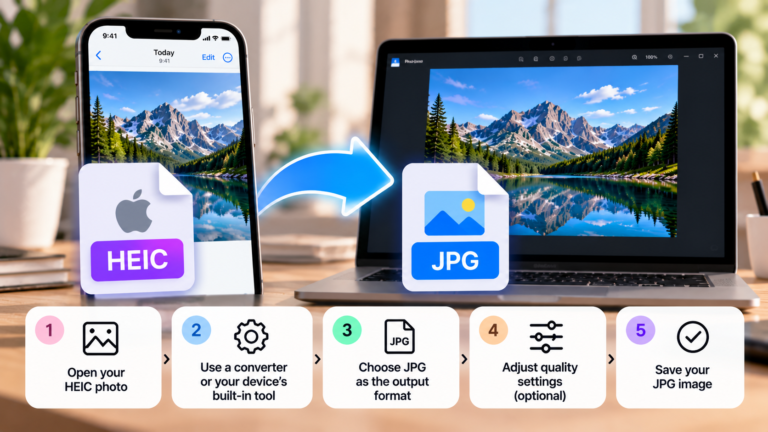
JPEG is a practical choice for photographs, holiday pictures, and images with lots of colours or gradients. It supports lossy compression, allowing you to reduce the file size by removing some image information.
For ordinary photo sharing, JPEG is usually a safe starting point because it is widely supported by devices and email applications.
PNG
PNG is useful for screenshots, diagrams, graphics with sharp edges, and images that require transparency. However, photographs saved as PNG files can be much larger than equivalent JPEG files.
If a photographic image is unnecessarily large as a PNG, converting it to JPEG may help. Check the result carefully, especially if the image contains text, transparent areas, or fine graphic details.
WebP
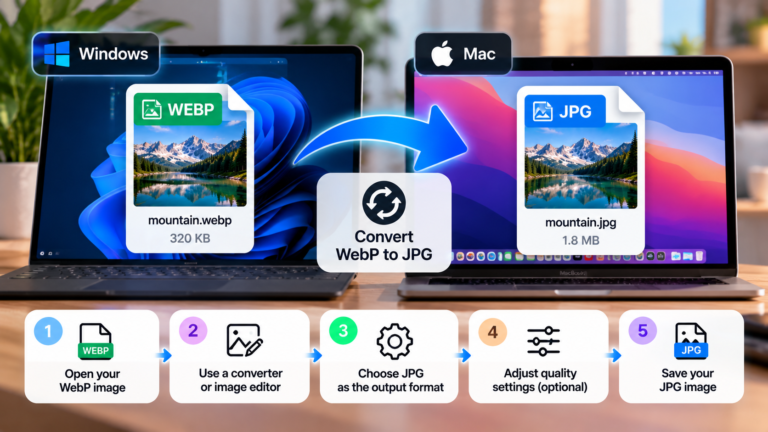
WebP can produce relatively small files while maintaining good visual quality. It supports lossy and lossless compression, as well as transparency.
However, if you are unsure which formats the recipient’s software supports, JPEG or PNG may be a simpler choice. WebP is worth considering when both sides can handle it.
A simple rule: Use JPEG for most photographs, PNG for graphics that need lossless quality or transparency, and WebP when its smaller file size is useful and compatibility is not an issue.
3. Compress Images Without Making Them Look Bad
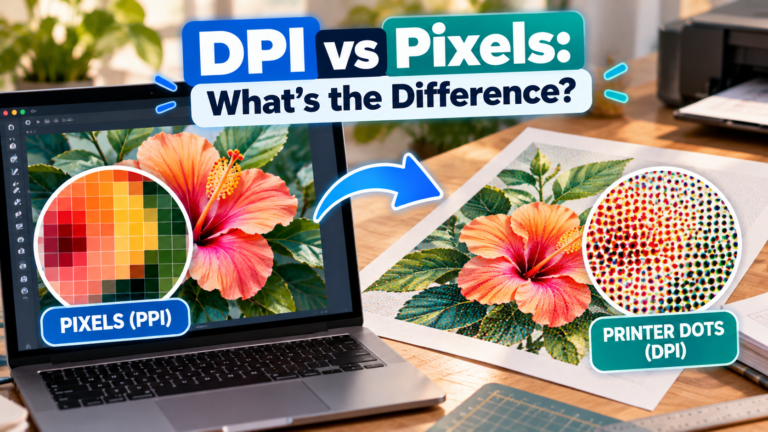
Resizing reduces the number of pixels in an image. Compression reduces the amount of data needed to store those pixels. Combining both techniques can produce a much smaller file than using either one alone.
For JPEG images, quality settings around 75–85% are a reasonable starting point for everyday sharing. The exact result depends on the original image, the encoder, and the content of the photograph.
A useful workflow is:
- Make a copy of the original photo.
- Resize it to suitable dimensions for the recipient.
- Export it as JPEG if it is an ordinary photograph.
- Start with a moderate-to-high quality setting.
- Compare the compressed image with the original at normal viewing size.
- Reduce the quality further only if the file is still too large.
Look closely at areas with fine detail, faces, text, and strong edges. If you notice obvious blockiness, colour banding, or blurred details, increase the quality setting or use a larger output size.
There is no single quality percentage that works for every image. The best setting is the one that achieves a useful file size without visibly damaging the details you need to preserve.
4. Compress Multiple Images in One Batch
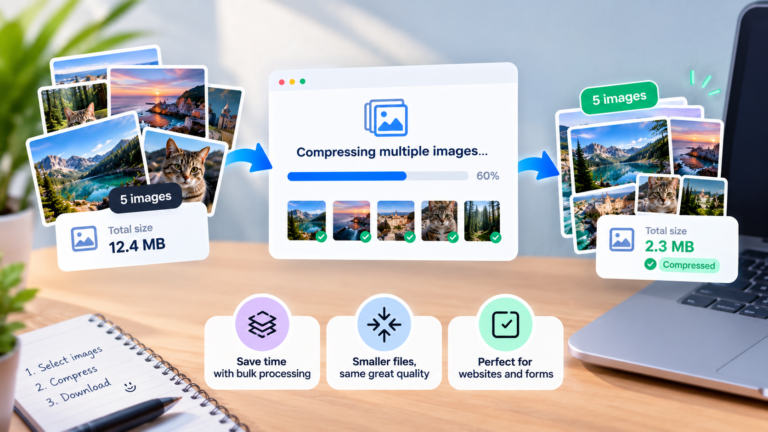
If you need to email several photos, processing them one by one can become tedious. Batch image tools allow you to resize or compress a group of images using the same settings.
This is especially helpful when preparing photos for a school assignment, work report, property listing, travel album, or customer email.
For a typical batch workflow:
- Select the photos you want to send.
- Make sure you have backups of the originals.
- Choose a target size or maximum dimension.
- Select an appropriate output format.
- Apply the settings to all selected images.
- Review a few representative results before attaching the entire batch.
- Check the combined size of the exported files.
For example, reducing ten photos from approximately 4 MB each to 500 KB each would lower their combined size from around 40 MB to about 5 MB. Actual results will vary depending on the original files and compression settings.
If you prefer not to install software, you can use a browser-based image compressor. For private, confidential, or sensitive photographs, however, consider an offline tool instead of uploading your images to a third-party website.
5. Use a Practical Target File Size
There is no universal maximum size for an individual photo attachment. What matters is the combined size of the message and the limits imposed by both the sender’s and recipient’s email services.
For everyday sharing, you can use the following approximate targets:
| Image purpose | Suggested starting target |
|---|---|
| Small preview or casual photo | 100–300 KB |
| Standard photograph | 300–800 KB |
| Detailed photograph | 800 KB–1.5 MB |
| High-resolution image for further work | Keep more detail or send a link |
These are practical starting points, not requirements. A simple image may look good below 100 KB, while a detailed landscape might need considerably more data to avoid visible artefacts.
It is usually better to choose a sensible target based on the image’s purpose than to force every photo below an arbitrary number.
If your recipient has requested a particular file size or resolution, follow those specifications instead.
6. Prepare Images on Windows and Mac
You do not always need specialist software to prepare photos for email. Built-in tools can handle basic resizing and exporting, although the available options depend on your operating system and application version.
On Windows
- Open the photo in an image editor such as Microsoft Paint.
- Use the resize option to reduce its dimensions while preserving the aspect ratio.
- Save a copy rather than overwriting the original.
- If the image is a photograph, consider exporting or saving the copy as JPEG.
- Check the new file size before attaching it to your email.
For more control over JPEG quality or batch processing, use an image editor or compression tool that offers those features.
On Mac
- Open the image in Preview.
- Select the option to adjust the image size.
- Enter a smaller width or height while maintaining proportions.
- Export a copy in an appropriate format, such as JPEG.
- Adjust the available quality setting and check the resulting file size.
The precise menu labels may vary by macOS version. If you cannot find a particular option, consult the help documentation for your installed version.
On a phone
Many phones offer built-in editing tools, and some email applications can resize large images during attachment. You can also use a dedicated image-resizing application.
Be careful when an email app asks whether to send an original or a smaller version. Choose the smaller version for routine sharing when full resolution is not required. Keep the original if you expect to need it later.
7. Check the Total Size Before Sending
After preparing your images, check the size of the files you intend to attach. Do not assume that each image being small enough means the entire email will fit within the limit.
For example, twelve photos at 1 MB each add up to approximately 12 MB before email overhead. A message with additional attachments or embedded images may be larger still.
Before sending, check these points:
- The combined attachment size is comfortably below the applicable limit.
- The recipient’s email service can accept the message.
- The exported images open correctly.
- Important details remain clear.
- The filenames are easy to understand.
- You have kept the originals if you might need them.
If the email still fails to send, try removing unnecessary attachments or reducing the file sizes further.
8. When Should You Send a Link Instead?
Sometimes, compression is not enough—or reducing the image quality would defeat the purpose of sending it.
A cloud-sharing link may be a better option when you need to send many high-resolution photographs, original camera files, or images intended for professional editing.
You can upload the files to a service such as Google Drive, OneDrive, Dropbox, or another trusted cloud provider, then share a link with the recipient.
Before sharing, check the access permissions. Make sure the intended recipient can open the files, and avoid creating a public link for sensitive content unless you specifically need that level of access.
A link can also make it easier to share a collection without attaching every image directly to the message. Keep in mind that recipients may need internet access or permission to download the files.
Common Mistakes to Avoid
Changing the image’s display size without reducing its file size. Making a picture appear smaller in the body of an email does not necessarily change the size of the underlying file.
Compressing every image to the lowest possible quality. Excessive compression can make photographs look blurry or introduce visible artefacts. Use the lowest compression level that still meets your needs, not simply the smallest number.
Converting everything to PNG. PNG is not automatically the best format for photographs. JPEG may produce a much smaller file for a similar-looking photo.
Forgetting about the combined attachment size. Several individually small files can still exceed an email service’s limit.
Overwriting the originals. Keep a copy of important photos before resizing or compressing them, especially if they might later be printed or edited.
Ignoring privacy. Removing unnecessary metadata may be worthwhile when sharing photos publicly. If the images contain private information, choose your sharing method carefully.
Final Thoughts
Preparing images for email does not have to be complicated. Start by resizing photos to dimensions that suit their intended use, choose an appropriate format, and apply moderate compression. Then check the size of the complete message before sending it.
For most everyday photographs, a resized JPEG with a sensible quality setting will provide a good balance between file size and appearance. When you need to share many images or preserve every detail, a cloud-sharing link may be the better solution.
The key is to prepare images for the way they will actually be used, rather than making every file as small as possible.
Frequently Asked Questions
What is the best image format for email attachments?
JPEG is usually a good choice for photographs because it is widely supported and offers efficient compression. PNG is better for some screenshots, diagrams, and images requiring transparency.
How small should photos be before emailing them?
There is no fixed requirement. For everyday sharing, starting around 300–800 KB per photograph can be practical, but the ideal size depends on the image’s dimensions, detail, and intended use.
Does resizing an image reduce its file size?
Usually, yes. Reducing the pixel dimensions often reduces the amount of data needed to store the image. The final result also depends on the image format and compression settings.
Can I email multiple photos at once?
Yes, as long as the total message stays within the applicable attachment limit. If the collection is too large, resize and compress the photos or share them through a cloud-storage link.
Will compressing a photo make it blurry?
It can, particularly when you use aggressive lossy compression or reduce the dimensions too much. Compare the compressed image with the original before sending it.
Is it better to compress photos or send a cloud link?
Compressing is convenient when you want recipients to receive ordinary photos directly in the email. A cloud link is often better for large collections, original-resolution files, or images that need to retain all their detail.