Image Dimensions vs File Size: What’s the Difference?
Image Dimensions vs File Size: What’s the Difference?
When working with digital images, you may come across terms such as image dimensions, resolution, and file size. They are related, but they do not mean the same thing.
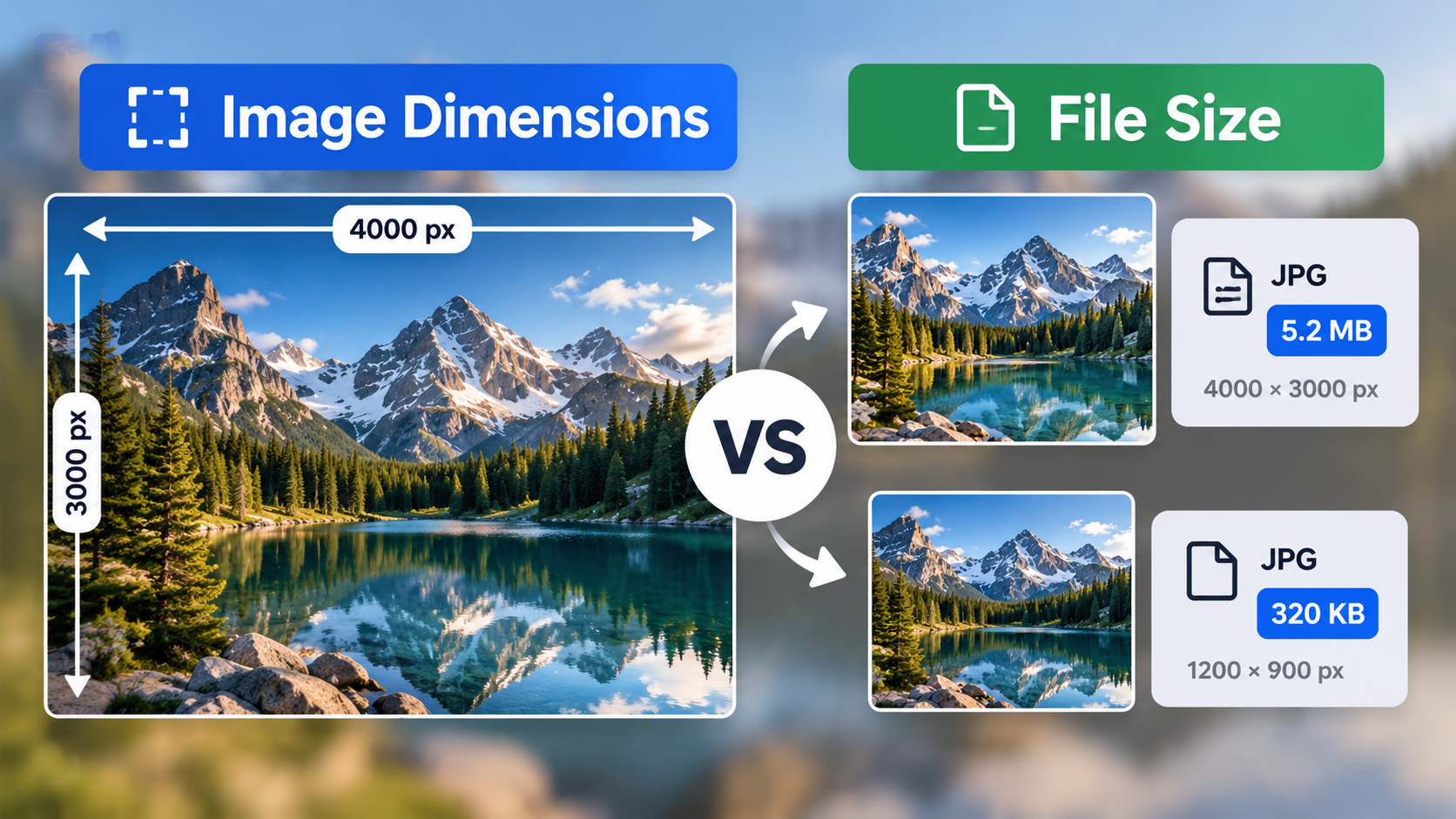
An image might measure 4000 × 3000 pixels and occupy several megabytes, while another image with the same dimensions might be much smaller. Similarly, two images with different dimensions can have almost identical file sizes.
Understanding these differences helps you choose the right image for a website, social media post, online form, or email attachment. It also makes it easier to decide whether you need to resize an image, compress it, or do both.
In this guide, we’ll explain what image dimensions and file size mean, how they affect one another, and how to change them without making common mistakes.
What Are Image Dimensions?
Image dimensions describe the width and height of a digital image in pixels.
A pixel is a small unit of visual information used to represent a digital image. The more pixels an image contains, the more image data it can potentially represent, although actual detail also depends on the source image and how it was captured or created.
Dimensions are usually written as width × height.
For example:
- 1920 × 1080 pixels is a common widescreen image size.
- 1200 × 800 pixels can be suitable for many website images.
- 4000 × 3000 pixels is a larger image containing 12 million pixels.
To calculate the total number of pixels, multiply the width by the height.
Example:
4000 × 3000 = 12,000,000 pixels, or 12 megapixels.
By comparison:
1200 × 900 = 1,080,000 pixels, or 1.08 megapixels.
The first image contains more than eleven times as many pixels as the second. However, this does not automatically mean it will have eleven times the file size. The format, compression settings, and content also influence how much storage the image occupies.
Why Do Image Dimensions Matter?
Dimensions help determine whether an image is suitable for its intended use.
A large photograph may be useful for printing or displaying at a large size. A small thumbnail may need far fewer pixels.
Using an image that is unnecessarily large for its display area can waste bandwidth. On the other hand, using an image that is too small can cause it to appear blurry when enlarged.
The right dimensions depend on where the image will be displayed and how much detail the viewer needs.
What Is Image File Size?
Image file size describes how much digital storage the image file occupies.
It is commonly measured in:
- Bytes (B): the basic unit of digital storage.
- Kilobytes (KB): commonly used for smaller files.
- Megabytes (MB): commonly used for larger images and photographs.
- Gigabytes (GB): more relevant to large collections of files and storage devices.
For practical purposes, you might encounter a photograph that occupies 4 MB, a compressed image that occupies 300 KB, or a small icon that occupies only a few kilobytes.
File size matters when uploading images, sending email attachments, storing photographs, and building websites. A smaller file generally requires less storage and less data to transfer.
However, the smallest file is not always the best result. Compression can affect visual quality, and some graphics need more data to preserve sharp edges or transparency.
What Determines an Image’s File Size?
Several factors influence the size of an image file:
Pixel dimensions: Images with more pixels often require more data, all else being equal.
Image format: JPG, PNG, WebP, and AVIF use different ways to encode image information.
Compression: Lossy compression discards some information to reduce file size, while lossless compression preserves the encoded image data.
Image content: A detailed photograph may compress differently from a simple graphic containing solid colours.
Metadata: Some files include camera details, timestamps, colour profiles, or other embedded information.
This is why two images with exactly the same dimensions can have very different file sizes.
Image Dimensions vs File Size: The Main Differences
The easiest way to understand the difference is to remember what each measurement tells you.
| Property | Image Dimensions | File Size |
|---|---|---|
| What it measures | Width and height in pixels | Amount of digital storage used |
| Common units | Pixels (px) | Bytes, KB, MB |
| What changing it does | Changes the pixel dimensions when resizing | Changes the amount of storage the file occupies |
| Main uses | Display size, pixel detail and suitability for a layout | Upload limits, storage and data transfer |
| How to change it | Resize or crop the image | Compress, convert, resize, or optimize the file |
| Does changing one always change the other? | No fixed relationship | No fixed relationship |
Dimensions and file size are connected, but they are not interchangeable.
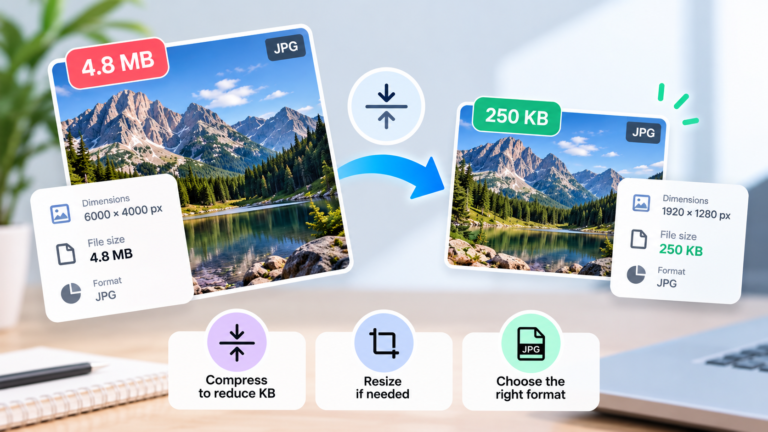
You can reduce the file size of a JPG while keeping its pixel dimensions unchanged. You can also resize an image and export it using different compression settings, causing the final file size to vary.
Can Two Images Have the Same Dimensions but Different File Sizes?
Yes. This is common.
Imagine two photographs, both measuring 1920 × 1080 pixels.
The first is saved as a JPG using moderate compression and occupies 450 KB. The second is saved as a PNG and occupies 2 MB.
These values are illustrative, not guaranteed results. The actual sizes depend on the images and encoding settings.
The difference occurs because the formats store image data differently. JPG uses lossy compression, which is often efficient for photographs. PNG uses lossless compression and supports transparency, but can produce larger photographic files.
Even two JPG files with the same dimensions can have different sizes because of their quality settings, image content, encoder, and metadata.
The key point: pixel dimensions alone do not tell you how large a file will be.
Can Two Images Have Different Dimensions but the Same File Size?
Yes. An image’s dimensions do not uniquely determine its file size.
For example, a simple graphic with large areas of solid colour may compress very efficiently, even at relatively large dimensions. A smaller photograph containing lots of texture and fine detail may need more data.
Compression settings and file formats can also make a major difference.
This means that a 500 KB image could be small and detailed, large and heavily compressed, or something in between. You cannot reliably determine an image’s dimensions or visual quality from file size alone.
If you need to know the dimensions, inspect the image properties or open it in an image editor.
What Is Image Resolution? Is It the Same as Dimensions?
The word resolution is used in several ways, which can make it confusing.
For digital images, people often use resolution to refer to pixel dimensions, such as 1920 × 1080. Strictly speaking, dimensions describe the number of pixels across the width and height.
Resolution can also refer to pixel density, often expressed as pixels per inch (PPI), particularly in printing and display contexts.
For example, an image that measures 1200 × 800 pixels can be printed at different physical sizes. Changing its print resolution metadata may change the intended print dimensions without necessarily changing the number of pixels stored in the file.
This distinction matters because changing a PPI value alone generally does not reduce the file size of an ordinary web image. To reduce the number of pixels, you need to resize the image. To reduce the amount of data stored, you may need compression or another form of optimization.
The term DPI is also commonly used in print discussions, but it refers to dots per inch in printing. For most everyday digital image tasks, start by checking the pixel dimensions.
How to Reduce Image File Size
If your image occupies too much storage or exceeds an upload limit, there are several ways to make it smaller.
1. Compress the Image
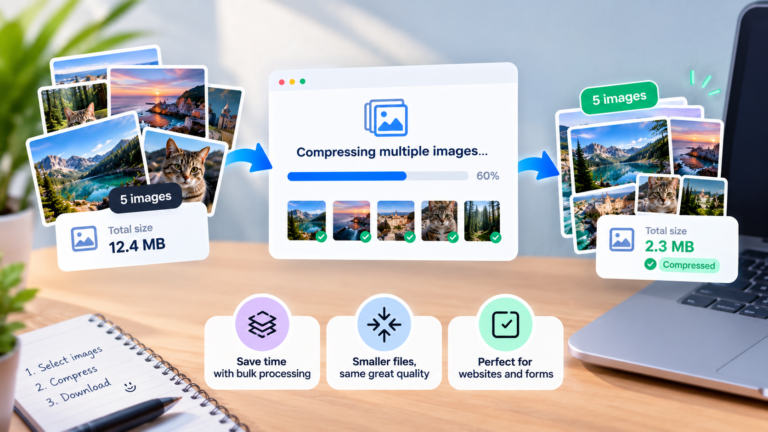
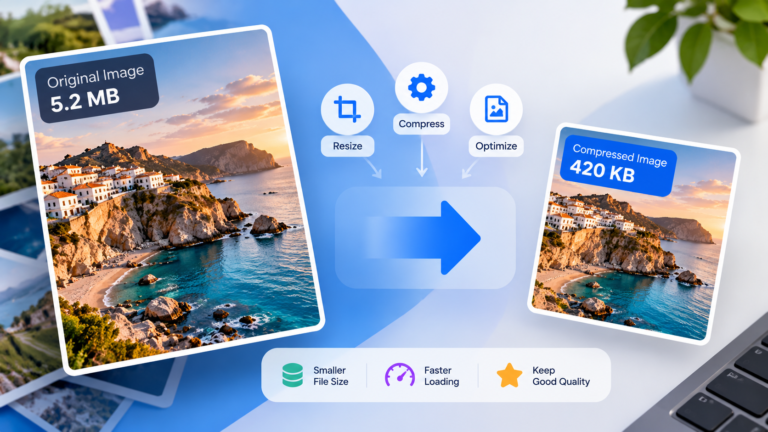
Compression changes how image information is stored. Depending on the format and compression method, you may be able to reduce file size without changing pixel dimensions.
For photographs, adjusting JPG or lossy WebP quality can produce smaller files. However, excessive compression can create visible artefacts.
For graphics where preserving image data matters, try lossless compression first. The reduction may be more limited, depending on the file.
2. Resize the Image
If the image contains more pixels than you need, resize it to dimensions appropriate for its intended use.
For example, a photograph that will appear as a small thumbnail may not need to retain its original camera dimensions. Reducing the number of pixels can often help lower the file size.
Keep the aspect ratio unless you intend to crop the image, and check that the result remains clear at its final display size.
3. Choose a Suitable File Format
The format can affect file size significantly.
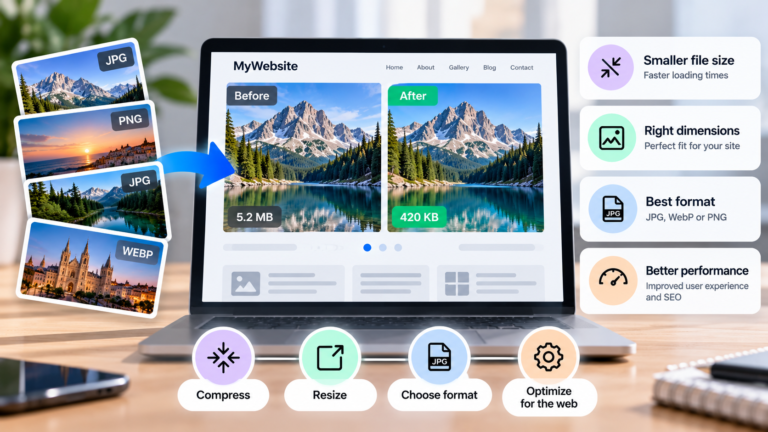
JPG is often suitable for photographs, PNG is useful for transparency and graphics with crisp edges, and WebP can be an efficient option for compatible websites.
Do not convert every image to the same format automatically. Check the requirements of the destination and compare the resulting file size and visual quality.
4. Remove Unnecessary Metadata
Some images contain metadata that is not necessary for their intended use. Removing it may reduce file size slightly and can also help protect privacy, particularly when metadata includes location information.
The effect on file size varies, and you should preserve information required by your workflow.
Which Should You Change: Dimensions or File Size?
The right action depends on the problem you’re trying to solve.
| Your Situation | What to Do |
|---|---|
| The image is too large in pixels for your website | Resize it to suitable dimensions |
| The image exceeds a strict upload limit | Compress it and consider resizing if appropriate |
| The image looks blurry when displayed | Check its dimensions and compression quality |
| The image takes up too much storage | Consider compression, resizing, or both |
| The website requires a particular width and height | Resize to the specified pixel dimensions |
| The website requires a specific maximum file size | Compress the image until it meets the limit while retaining acceptable quality |
| The image has a transparent background | Choose a format that supports transparency |
Sometimes, you only need to change one property. In other cases, resizing and compression work best together.
For example, if a website requires an image that is no wider than 1200 pixels and no larger than 300 KB, you must check both the dimensions and the resulting file size. Meeting one requirement does not guarantee that you’ll meet the other.
How to Check Image Dimensions and File Size
You can usually inspect these properties without installing specialized software.
On Windows
- Locate the image in File Explorer.
- Right-click the file and select Properties.
- Open the Details tab to view image dimensions, when available.
- Check the file’s size in the General tab or in File Explorer.
On macOS
- Locate the image in Finder.
- Select the image and press Command + I to open Get Info.
- Check its file size.
- Open the image in Preview and use the Inspector to view its dimensions.
The exact labels may vary depending on your operating system, file format, and application.
In a Browser
Some image editors and online image tools show dimensions and file size when you select or upload a file. Before uploading sensitive images, check whether the service processes files directly in your browser or sends them to a server.
Frequently Asked Questions
Does a larger image always have a larger file size?
No. Larger pixel dimensions often mean more data, but format, compression, image content, and metadata also affect file size. A larger image can sometimes be smaller than a lower-resolution image saved using a less efficient format or different settings.
Does reducing file size reduce image quality?
Not always. Lossless compression can reduce file size without discarding image information. Lossy compression may reduce visual quality, depending on the settings and the image. Resizing also reduces pixel dimensions and may remove detail.
If I change image dimensions, will the file size change?
Often, but not by a predictable amount. Resizing changes the number of pixels, which can affect file size when the image is exported. The final result also depends on the format and compression settings.
What is a good image size for a website?
There is no single ideal size for every website image. Choose dimensions based on the space where the image will appear, the display density, and whether users need to inspect fine details. Then optimize the file size without making the image visibly worse.
Is KB or pixels more important?
They measure different things. Pixels describe image dimensions, while KB describes the amount of storage the file uses. If a website sets a pixel requirement, focus on dimensions. If it sets a maximum upload size, focus on file size. Some destinations require both.
Does changing DPI or PPI reduce file size?
Changing a print-resolution value alone generally does not change the number of pixels stored or significantly reduce file size. To change pixel dimensions, resize the image. To reduce file size, use suitable compression or optimization.
Final Thoughts
Image dimensions and file size describe two different properties of a digital image. Dimensions tell you how many pixels it contains, while file size tells you how much storage it occupies.
If an image is too large for its intended display area, resize it. If it exceeds an upload limit, compress it. If both problems apply, adjust the dimensions and compression together.
Understanding the distinction makes it easier to prepare images for websites, online forms, email, social media, and everyday sharing while maintaining an appropriate balance between file size and visual quality.