How to Convert a Screenshot to JPG or PNG
How to Convert a Screenshot to JPG or PNG
Screenshots are useful for saving information, creating tutorials, reporting technical problems, and sharing what appears on your screen. However, sometimes you need to convert a screenshot to a different image format before uploading it to a website, sending it by email, or adding it to a document.
For example, you might have a PNG screenshot but need a JPG file to meet an upload requirement. Alternatively, you may have a JPG screenshot and want to convert it to PNG to preserve the decoded image pixels without additional lossy compression.
The good news is that you usually don’t need to install special software. Tools already included in Windows and macOS can handle most screenshot conversions.
In this guide, you’ll learn how to convert a screenshot to JPG or PNG, which format to choose, and how to avoid common mistakes that can affect image quality.
JPG vs PNG: Which Format Should You Choose for a Screenshot?
Before converting your screenshot, it’s worth understanding the difference between JPG and PNG.
Both formats are widely used, but they handle image data differently.
JPG: Smaller Files for General Use
JPG, also known as JPEG, uses lossy compression. This means it reduces file size by discarding some image information.
JPG is often a practical choice when you need a smaller file for an upload form, email attachment, or general sharing.
However, screenshots often contain small text, sharp edges, icons, and solid colors. These elements can show compression artifacts, especially when the image is exported at a low quality setting.
PNG: Better for Text and Sharp Edges
PNG uses lossless compression, which preserves the pixel values of the image being encoded.
This makes PNG particularly suitable for screenshots containing text, application interfaces, diagrams, tables, and technical instructions.
PNG files can be larger than JPG files, especially when the screenshot contains lots of detailed visual information.
Quick Comparison
| Feature | JPG | PNG |
|---|---|---|
| Compression | Lossy | Lossless |
| Typical file size | Often smaller | Often larger |
| Small text and sharp edges | May show compression artifacts | Preserves pixel details |
| Transparency | Not supported | Supported |
| Best for | Smaller files and general sharing | Screenshots, diagrams, and documentation |
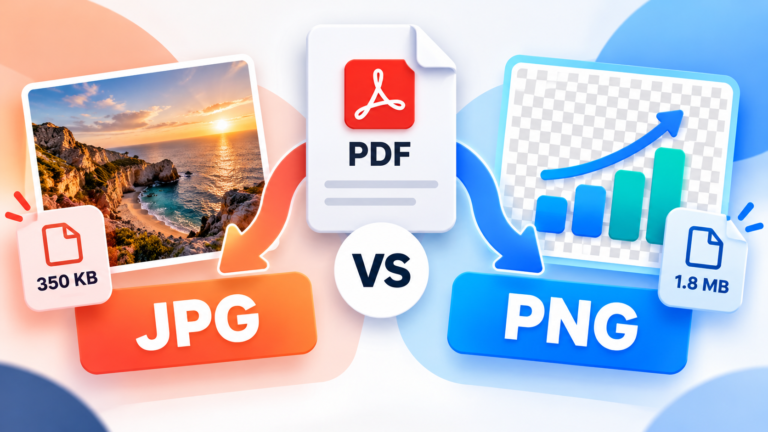
Which should you use? If your screenshot contains small text or a software interface, PNG is usually the better starting point. If a website requires JPG or you need a smaller attachment, JPG can work well when exported at an appropriate quality setting.
How to Convert a Screenshot to JPG on Windows
Windows includes Paint, a simple image editor that can export screenshots in different formats.
You can use this method for screenshots you’ve already saved, so there’s no need to capture your screen again.
Method 1: Using Microsoft Paint
Follow these steps to convert a screenshot to JPG:
- Find your screenshot in File Explorer.
- Right-click the file and select Open with > Paint.
- In Paint, click File > Save as.
- Select JPEG picture from the available file types.
- Choose a filename and the folder where you want to save the converted image.
- Click Save.
Your screenshot will now be saved as a JPG file.
The original image should remain unchanged if you save the converted version under a different filename.
Keep in mind that the exact labels may vary slightly between Windows versions. If JPEG isn’t available in the format list, use another image editor that explicitly supports JPEG export.
Method 2: Converting a New Screenshot
If you haven’t taken the screenshot yet, Windows also provides the Snipping Tool.
- Press Windows + Shift + S.
- Select the area of the screen you want to capture.
- Open the captured image in Snipping Tool.
- Save the screenshot.
- If necessary, open the saved file in Paint and select File > Save as > JPEG picture.
The available save formats can vary depending on your Windows version and application. If you don’t see a JPEG option, Paint is a straightforward alternative.
How to Convert a Screenshot to PNG on Windows
Converting a screenshot to PNG is almost identical to converting it to JPG.
- Open the screenshot in Microsoft Paint.
- Click File > Save as.
- Select PNG picture.
- Choose a destination folder and filename.
- Click Save.
Paint will create a PNG version of the image.
This can be useful if you have a JPG screenshot that you want to store in a lossless format before making further edits. However, converting JPG to PNG cannot restore details that were already lost during the original JPG compression.
If the original screenshot is already PNG, you don’t need to convert it again unless you have a specific reason to do so.
How to Convert a Screenshot to JPG or PNG on Mac
macOS includes Preview, which can open images and export them in different formats.
Convert a Screenshot to JPG
- Find your screenshot in Finder.
- Double-click the image to open it in Preview. If another app opens it, right-click the file and choose Open With > Preview.
- Click File > Export.
- Select JPEG from the Format menu.
- Choose a filename and destination.
- Click Save.
Your screenshot will be exported as a JPG-compatible JPEG image.
If you see a quality slider, adjust it according to your needs. Higher quality settings generally produce larger files, while lower settings can introduce more visible compression artifacts.
Convert a Screenshot to PNG
To export your screenshot as PNG:
- Open the image in Preview.
- Click File > Export.
- Choose PNG from the Format menu.
- Select where to save the file.
- Click Save.
This creates a PNG copy of the screenshot.
Most standard macOS screenshots are already saved as PNG, so check the file format before converting. Some newer capture workflows and settings may produce other formats.
How to Convert a Screenshot on iPhone or Android
You can also convert screenshots on a smartphone, although the steps depend on the device and the applications installed.
On iPhone
On iPhone, screenshots are normally stored in the Photos app. Depending on your screen-capture settings, standard SDR screenshots use PNG, while HDR screenshots can use HEIF.
To export an existing screenshot as JPG:
- Open the screenshot in Photos.
- If needed, use the Share menu to send it to an image editor that supports JPEG export.
- Choose an option such as Export JPEG, Save as JPG, or an equivalent format selection.
- Save the converted copy.
- Check the saved file to confirm that it is actually JPEG.
The available options depend on the installed apps and iOS version. If Photos doesn’t offer JPEG export directly, you can transfer the screenshot to a Mac or Windows computer and use Preview or Paint.
To get a PNG screenshot on a compatible iPhone, open Settings > General > Screen Capture and select SDR, if that option is available. New screenshots will then use PNG.
On Android
Android devices have different Gallery apps and image-editing options, so the exact steps may vary by manufacturer.
Try the following:
- Open your screenshot in Gallery, Google Photos, or another image editor.
- Look for Edit, Export, or Save a copy.
- If the app offers a format selector, choose JPG or PNG.
- Save the converted image under a new filename.
- Open the file details to confirm its format.
If your phone doesn’t offer the format you need, transfer the screenshot to a computer and use an editor that supports the required output format.
For private screenshots containing account details, passwords, or personal messages, an offline editor is preferable to an unfamiliar online converter.
Can You Convert a Screenshot Without Losing Quality?
Yes, but the result depends on the source format and the conversion method.
If you convert a PNG screenshot to another lossless format or export it to PNG without changing the image, you can preserve its decoded pixel values.
Converting PNG to JPG is different because JPG uses lossy compression. It may reduce the file size, but it can also affect small text, fine lines, and other details.
Similarly, converting JPG to PNG won’t restore the image information that was discarded when the JPG was originally created.
To get the best result:
- Keep a copy of the original screenshot.
- Use PNG when exact pixel preservation matters.
- If you need JPG, avoid excessively low quality settings.
- Inspect small text and sharp edges after conversion.
- Avoid repeatedly saving the same image in lossy formats.
Why Is My Converted Screenshot Larger Than the Original?
A screenshot can become larger after conversion, even if you expected it to shrink.
For example, converting a JPG screenshot to PNG may increase the file size because PNG uses lossless compression, which is often less efficient for photographs and some complex images.
Other factors can also affect the final size, including the dimensions, image content, metadata, and encoder settings.
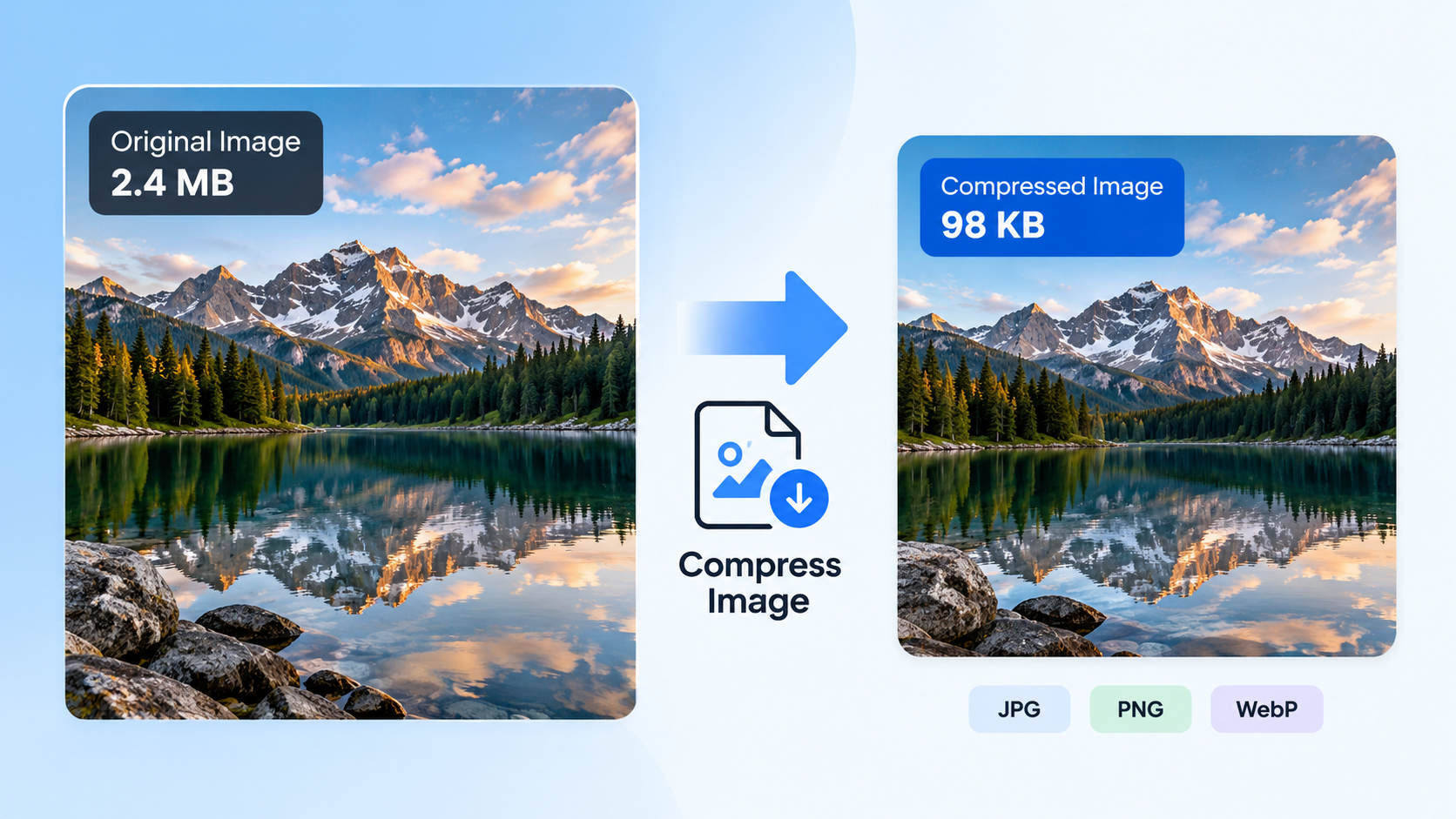
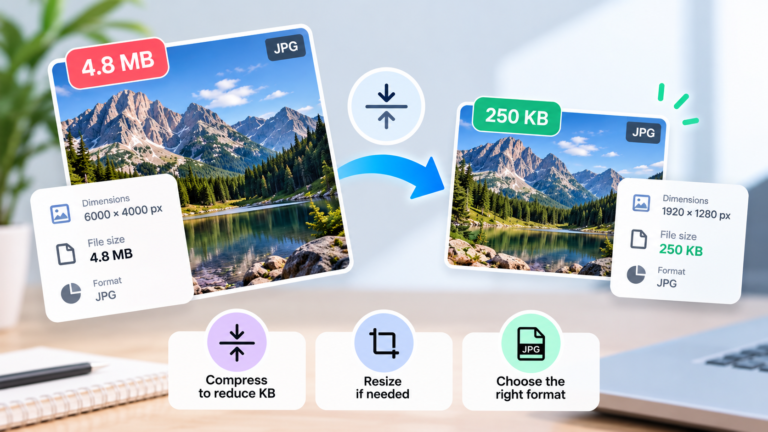
If you need a smaller screenshot, try exporting it as JPG with a suitable quality setting. You can also crop unnecessary parts of the image or reduce its dimensions if the full resolution isn’t needed.
For screenshots containing small text, however, don’t reduce the quality too aggressively. A slightly larger file may be worth keeping if it makes the content easier to read.
Common Mistakes When Converting Screenshots
A few simple mistakes can prevent you from getting the result you want.
Renaming the File Instead of Converting It
Changing screenshot.png to screenshot.jpg doesn’t convert the image. It only changes the filename.
You need to use an editor’s Save as or Export function to encode the image in the new format.
Overwriting the Original Screenshot
Saving directly over the original can make it harder to recover the best-quality version later.
Whenever possible, save the converted image under a different name and keep the original until you’ve checked the result.
Choosing JPG for Text-Heavy Screenshots Without Checking the Result
JPG is useful for reducing file size, but compression artifacts can affect the readability of small text.
If the screenshot is intended for technical documentation, tutorials, or software instructions, PNG is usually a safer choice.
Assuming PNG Will Always Produce a Smaller File
PNG isn’t designed to produce the smallest possible file in every situation. A PNG screenshot may be much larger than its JPG equivalent.
Choose the format based on your requirements rather than file size alone.
Frequently Asked Questions
Are screenshots JPG or PNG by default?
It depends on the device and capture settings. Windows screenshot tools commonly use PNG, standard Mac screenshots are typically PNG, and iPhone screenshots use PNG in SDR mode. Some devices and workflows can produce other formats.
Is JPG or PNG better for screenshots?
PNG is usually better for screenshots containing text, diagrams, and sharp edges because it preserves pixel information. JPG can be useful when a smaller file is required.
Can I convert a screenshot to JPG for free?
Yes. You can use Microsoft Paint on Windows or Preview on macOS without paying for additional software. Smartphone users can use an editor that supports JPEG export.
Does converting PNG to JPG reduce quality?
It can. JPG uses lossy compression, which may introduce artifacts or soften details. The effect depends on the quality setting and the image itself.
Can I convert JPG to PNG without making the image blurry?
You can save the decoded JPG image as PNG without adding further lossy compression, provided you don’t resize or otherwise alter the image. However, PNG cannot recover details that were lost when the JPG was created.
Final Thoughts
Converting a screenshot to JPG or PNG is straightforward once you know which tool to use.
On Windows, Microsoft Paint provides a simple way to export images in either format. On Mac, Preview offers the same functionality through its Export menu. Smartphone users can use an image editor with an explicit format-selection option.
For screenshots containing text and interface elements, PNG is generally a good choice. If you need a smaller file for an upload or email, JPG may be more suitable.
Most importantly, use Save as or Export rather than simply renaming the file, and keep the original screenshot until you’ve checked the converted version.