PDF to JPG vs PDF to PNG: Which Should You Choose?
PDF to JPG vs PDF to PNG: Which Should You Choose?
Need to convert a PDF into an image but aren’t sure whether to choose JPG or PNG? Both formats can turn PDF pages into image files, but they have different strengths when it comes to file size, image quality, and the type of content you want to preserve.
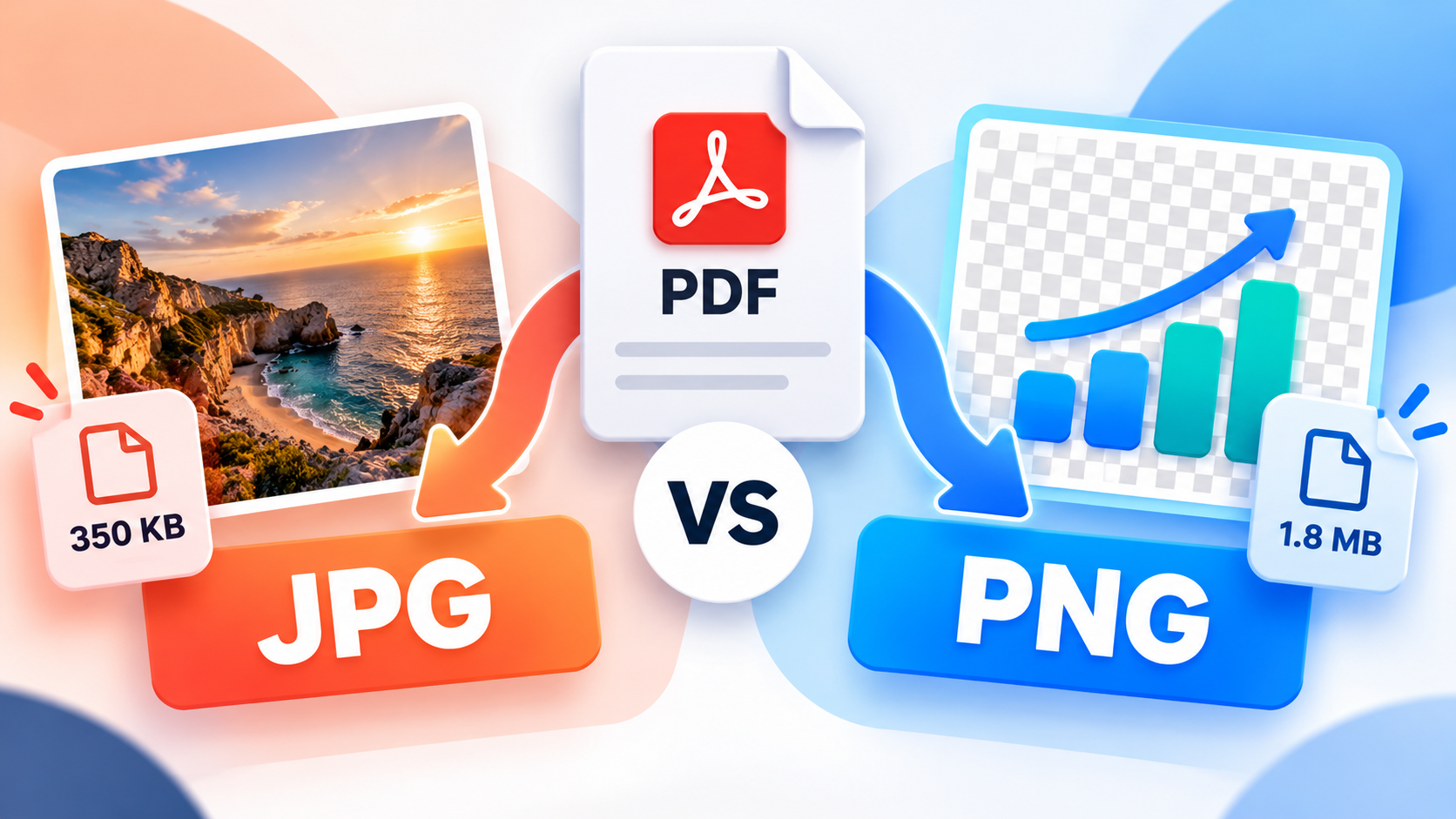
JPG is often a good choice for photographs and documents that contain many images. PNG is usually a better option for screenshots, diagrams, charts, and pages where clear text and sharp edges matter.
The right format depends on how you plan to use the converted image. In this guide, we’ll compare PDF to JPG vs PDF to PNG, explain the main differences, and help you choose the best format for sharing, printing, presentations, and online use.
What Is the Difference Between PDF to JPG and PDF to PNG?
When you convert a PDF page into an image, the page is generally rendered as a raster image made up of pixels. Instead of working with a PDF page containing text, graphics, and other elements, you get an image representing how that page looks.
The main difference is how the resulting image is compressed and stored.
JPG (JPEG) uses lossy compression. It discards some image information to reduce file size, which often makes it suitable for photographs and realistic images.
PNG uses lossless compression. It preserves the encoded pixel data, making it useful for text-heavy pages, charts, diagrams, and graphics where sharp details matter.
The MDN image format guide explains these differences and the typical use cases for each format.
PDF to JPG vs PDF to PNG: Quick Comparison
| Feature | PDF to JPG | PDF to PNG |
|---|---|---|
| Compression | Lossy | Lossless |
| Typical file size | Often smaller | Often larger for detailed pages |
| Photographs | Usually a good choice | Can work, but may use more storage |
| Text and fine lines | Can show compression artefacts | Often preserves crisp edges better |
| Charts and diagrams | Suitable for some uses | Often preferable when details matter |
| Transparency | JPG does not support transparency | PNG supports transparency |
| Sharing online | Useful for compact image files | Useful when clarity is more important |
| Multiple PDF pages | Usually creates a separate image per page | Usually creates a separate image per page |
These are general tendencies, not guarantees. The final size and appearance depend on the original PDF, the conversion resolution, and the export settings.
When Should You Convert a PDF to JPG?
JPG is often the better choice when you want a relatively small image file and the page contains photographs or other continuous-tone imagery.
Because JPG uses lossy compression, it can reduce the amount of data needed to represent an image. This makes it practical for sharing visual documents or inserting page previews into presentations and websites.
Best Uses for PDF to JPG
Consider JPG when you need to:
- Share a page containing photographs through messaging or email.
- Create image previews of a report or brochure.
- Insert a PDF page into a presentation.
- Publish a visual page online where file size matters.
- Convert image-heavy documents into more compact image files.
For example, imagine a PDF containing a travel brochure with several photographs. Exporting its pages as JPG images may provide a practical balance between file size and visual appearance.
Advantages of PDF to JPG
Smaller files in many situations. JPG often produces smaller files than PNG when converting photographic content.
Convenient sharing. Compact images are easier to attach, upload, or place in documents when size matters.
Broad compatibility. JPG is supported by common browsers, operating systems, office applications, and image editors.
Disadvantages of PDF to JPG
The main drawback is lossy compression. Depending on the quality setting, the resulting image may show blurred details, blocky patterns, or artefacts around text and sharp edges.
JPG also does not support transparency.
If the PDF page contains small text, thin lines, tables, or detailed diagrams, a heavily compressed JPG may be harder to read than a PNG.
Tip: If you’re converting an invoice, a scanned form, or a page containing small print, inspect the result at normal viewing size before deciding that JPG is suitable.
When Should You Convert a PDF to PNG?
PNG is often a better choice when preserving fine details and sharp edges is more important than minimizing file size.
Because PNG uses lossless compression, it preserves the encoded pixel data when the image is saved and decoded correctly. This makes it useful for pages that contain text, diagrams, charts, and interface screenshots.
The W3C PNG specification describes PNG as a lossless format that supports an optional alpha channel for transparency.
Best Uses for PDF to PNG
Consider PNG when you want to:
- Export charts or diagrams from a PDF.
- Capture a page containing small text.
- Place a technical illustration into a design.
- Preserve sharp edges in screenshots.
- Work with graphics that will be edited further.
- Minimize lossy compression artefacts around text and lines.
For example, if a PDF contains a detailed technical diagram with labels and thin connecting lines, PNG is often a sensible starting point.
Advantages of PDF to PNG
Lossless image storage. PNG does not discard image information through lossy compression.
Clear lines and text. It is often suitable for content where sharp edges and readable details matter.
Transparency support. PNG can support transparent pixels, although whether a converted PDF page has a transparent background depends on the conversion tool and its settings.
Disadvantages of PDF to PNG
PNG can produce larger files than JPG, particularly when converting photograph-heavy pages.
This can become inconvenient if you’re exporting a large PDF into dozens or hundreds of images. The combined storage requirement may be significant.
PNG is not automatically sharper in every practical situation, either. A low-resolution PNG export can still look blurry because the image may not have enough pixels to represent the original page clearly.
Tip: Use an appropriate export resolution as well as the right format. PNG cannot restore details that were lost because the page was rendered at insufficient resolution.
Which Format Produces Smaller Files?
JPG often creates smaller files when the PDF contains photographs or other detailed visual content. PNG often preserves more image information but may require more storage for comparable page dimensions.
However, there is no fixed rule that every JPG will be smaller than its PNG equivalent.
The result depends on several factors:
- Page content: Photographs, text, flat-colour graphics, and diagrams compress differently.
- Export resolution: More pixels generally mean more image data to store.
- Compression settings: JPG quality settings affect the balance between file size and visual quality.
- Conversion software: Different tools can use different encoders and default settings.
- Colour and detail: Complex images may behave differently from simple graphics.
If file size is your priority, export a representative page as both JPG and PNG and compare the results. Check the appearance as well as the size before choosing a format for the entire document.
Which Format Preserves Text and Details Better?
If your PDF contains small text, tables, technical diagrams, or detailed charts, PNG is often a safer starting point because its compression is lossless.
JPG can still work well for many documents, particularly when exported at high quality and sufficient resolution. However, its lossy compression can introduce artefacts around small letters, thin lines, and high-contrast edges.
The important distinction is that both JPG and PNG exports generally turn the page into an image. Neither format automatically preserves the original text as selectable, searchable PDF text.
For instance, after converting a PDF page into a PNG, you may see perfectly readable text in the image, but you generally cannot select individual words in the same way that you could in the original PDF.
If you need searchable text, editable paragraphs, or accessible document structure, consider exporting the PDF to a suitable document format or using optical character recognition (OCR) where appropriate.
If your goal is simply to share a visual representation of the page, JPG or PNG may be all you need.
Does Conversion Resolution Matter?
Yes. The export resolution can have as much influence on the result as the file format.
A PDF page contains content that can include text, vector graphics, and images. When you render the page as a raster image, the converter must choose how many pixels to use to represent the page.
If the output has too few pixels, small text may become difficult to read. If it has many pixels, the image may be clearer when enlarged but can also require more storage.
A practical approach is to match the export resolution to the intended use.
| Intended Use | Recommended Approach |
|---|---|
| Small image preview | Use dimensions sufficient for the displayed size |
| Sharing a page online | Choose a balance between readability and file size |
| Technical diagram with small labels | Use sufficient resolution and consider PNG |
| Photograph-heavy page | Try JPG at a suitable quality setting |
| Detailed document intended for printing | Check print requirements before choosing resolution |
There is no single resolution that works for every PDF. A page containing large photographs and minimal text has different requirements from a page full of small tables.
How to Convert a PDF to JPG or PNG
The exact steps depend on the application, but the general process is straightforward.
1. Open a Trusted PDF Conversion Tool
Choose a desktop application or an online conversion service that supports exporting PDF pages as images.
If you’re working with confidential documents, check the service’s privacy practices before uploading anything. Consider an offline application if your documents must remain on your device.
2. Select the PDF
Choose the PDF you want to convert.
If it contains multiple pages, decide whether you need every page or only a selection. Many converters can export each page as a separate image.
3. Choose JPG or PNG
Select JPG when a compact photograph-oriented output is your priority.
Select PNG when lossless image storage and sharp details are more important.
Some tools also let you adjust image quality or resolution. If those options are available, choose settings appropriate to your document and intended use.
4. Export the Pages
Start the conversion and wait for the tool to finish.
When you export a multi-page PDF, many applications produce one image for each page. Some may package the images into a ZIP file for convenient downloading.
Adobe’s official guide to converting PDFs to image formats documents the process of selecting formats such as JPEG and PNG in Acrobat.
5. Check the Results
Open the exported images and verify that:
- The correct pages have been converted.
- Text is readable at the intended display size.
- Photographs and graphics look acceptable.
- No page is missing or unexpectedly cropped.
- The file size is suitable for your needs.
If the output is too large, try a different format or adjust the export resolution and quality. If small text is difficult to read, use a higher resolution or a less aggressive compression setting.
Common Mistakes When Choosing PDF to JPG vs PDF to PNG
Choosing JPG only because you want a smaller file
JPG is often compact, but strong compression can make detailed text and diagrams harder to read. If the content must remain precise, compare a PNG export before making your decision.
Assuming PNG always produces a better result
PNG preserves the pixel data created by the converter, but it cannot compensate for a low-resolution export. The output can still look blurry if the page is rendered with too few pixels.
Converting a PDF page when you only need one embedded image
If the PDF contains a photograph or illustration that you want to reuse, extracting that individual image may be more appropriate than converting the entire page. Some PDF applications provide an option to export embedded images separately.
Expecting the converted image to retain selectable text
A page exported as a raster image generally no longer contains the page’s text as individually selectable text. Use OCR or another suitable format if text extraction or editing is your objective.
Ignoring file size when converting an entire PDF
A multi-page PDF can generate many image files. High-resolution PNG exports may occupy much more storage than expected, so test a representative page before converting a large document.
Frequently Asked Questions
Is PDF to JPG or PDF to PNG better?
JPG is often a good choice for photographs and smaller image files. PNG is often preferable for text-heavy pages, diagrams, and graphics where preserving sharp edges matters. The better option depends on the document and your intended use.
Is PNG higher quality than JPG?
PNG uses lossless compression, while JPG uses lossy compression. PNG preserves encoded pixel data, but the visible difference depends on the content, the JPG quality setting, and the resolution used for conversion.
Will converting a PDF to JPG reduce its file size?
It can, particularly when converting image-heavy pages into JPG files. The result depends on export resolution, JPG quality, and the original PDF. The total size of all exported images may still be larger than the original PDF if the pages are exported at high resolution.
Can I convert a multi-page PDF to separate JPG or PNG images?
Yes. Many conversion tools export each PDF page as a separate image. Some tools let you select specific pages, while others process the entire document.
Can I convert a PDF to PNG with a transparent background?
PNG supports transparency, but a normal PDF page export often renders the page against a solid background. Whether a transparent background can be produced depends on the PDF content and the converter’s capabilities and settings.
Will text remain selectable after converting PDF pages into images?
Generally, no. The text becomes part of the raster image rather than remaining selectable text in the original PDF structure. If you need editable or searchable text, use a document conversion workflow or OCR when appropriate.
Which format should I use for a presentation?
JPG may be suitable for photographs and background images where file size matters. PNG can be a better option for diagrams, screenshots, or graphics containing fine text and sharp edges. Check the appearance of the exported image at presentation size.
Final Thoughts
When choosing between PDF to JPG and PDF to PNG, start by considering what the page contains and how you’ll use the image.
Choose JPG when a compact, photograph-oriented image is your priority. Choose PNG when preserving fine details and avoiding lossy compression are more important.
Also consider export resolution, the number of pages, and the amount of storage the resulting images will require. Most importantly, remember that converting a PDF page into an image generally removes the original text’s selectable and searchable structure.
The best format is the one that meets your file-size requirements while keeping the exported page clear and suitable for its intended purpose.