How to Resize an Image Without Stretching It
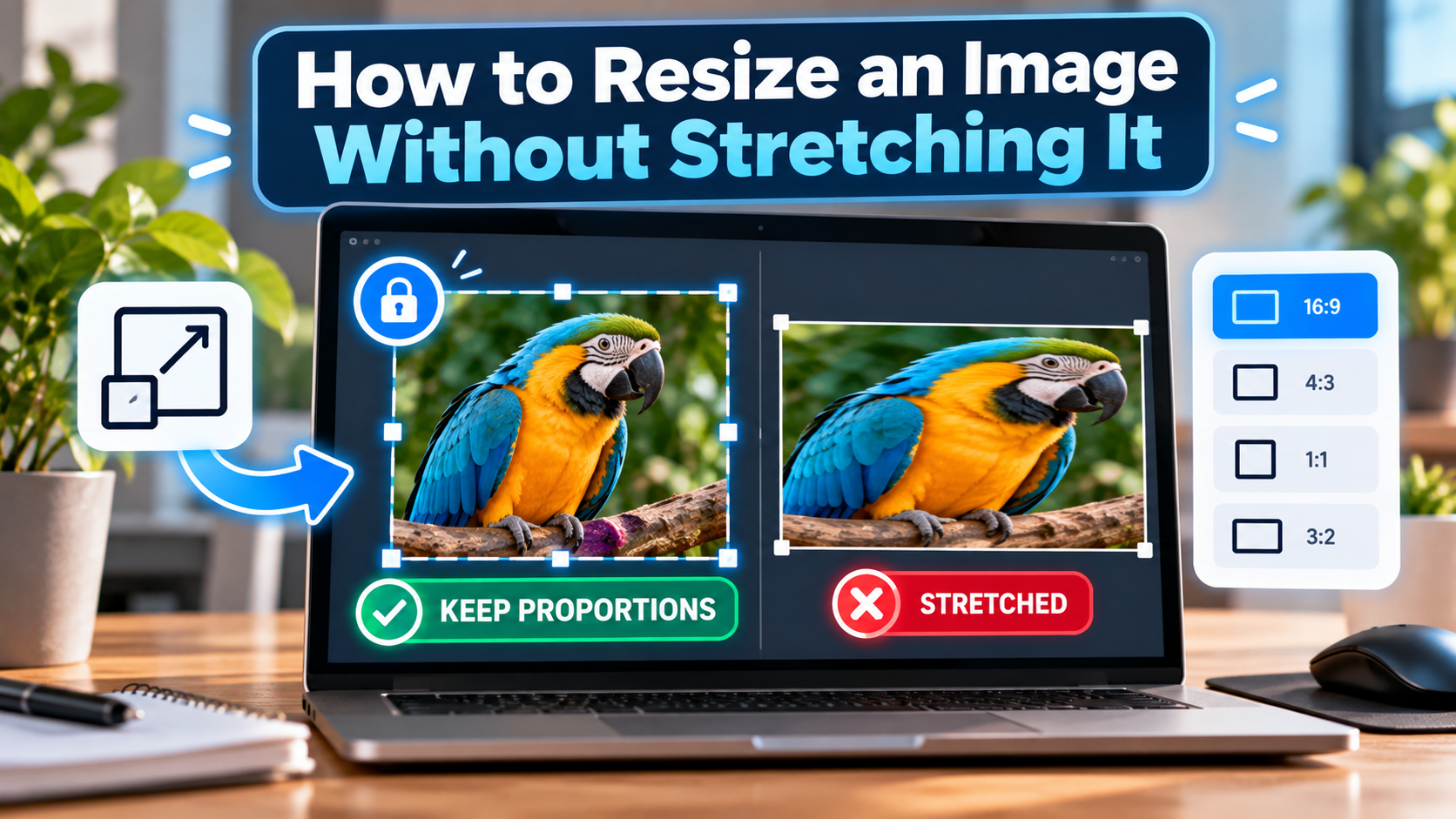
How to Resize an Image Without Stretching It
Have you ever resized an image only to discover that everything looks wider, thinner, or completely out of proportion? It is a common problem, especially when you need an image to fit a specific size for a website, social media post, presentation, or online form.
The good news is that you can resize an image without stretching it by keeping its original proportions. You just need to understand how image dimensions work and which resizing option to use.
In this guide, you’ll learn how to resize images without distortion, how to maintain the correct aspect ratio, and what to do when you need an exact width and height.
Why Do Images Get Stretched When Resized?
Every image has a width and a height, usually measured in pixels. The relationship between these two measurements is called the aspect ratio.
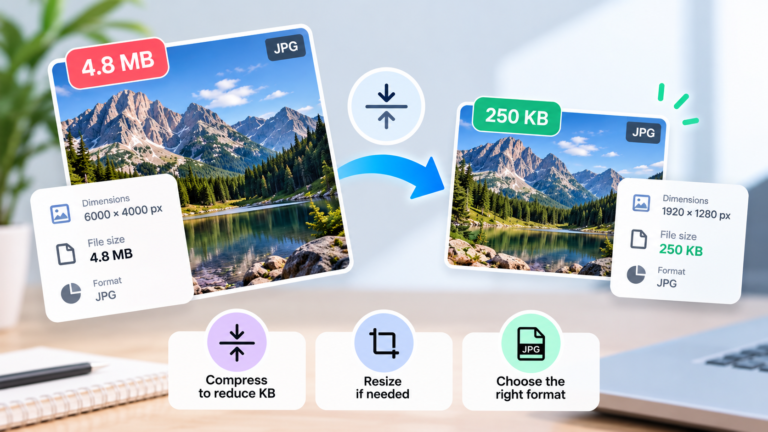
For example, an image that measures 2400 × 1600 pixels has a 3:2 aspect ratio. If you resize it to 1200 × 800 pixels, it keeps the same proportions and looks natural.
However, if you change the dimensions to 1200 × 1200 pixels without cropping the image, the software has to stretch or squash the content to fill the new dimensions.
This can cause several problems:
- Faces can look wider or thinner than they should.
- Circles may turn into ovals.
- Logos and icons can become distorted.
- Objects may look unnaturally tall or short.
- Text and graphics may appear incorrectly proportioned.
The solution is simple: keep the original aspect ratio when resizing an image.
What Is an Aspect Ratio?
An aspect ratio describes the relationship between an image’s width and height. It determines the overall shape of the image, regardless of its actual pixel dimensions.
Here are some common examples:
| Aspect ratio | Example dimensions | Common use |
|---|---|---|
| 1:1 | 1000 × 1000 px | Square images and profile pictures |
| 4:3 | 1600 × 1200 px | Traditional photographs |
| 3:2 | 1800 × 1200 px | Photography |
| 16:9 | 1920 × 1080 px | Videos and widescreen content |
| 4:5 | 1080 × 1350 px | Portrait-oriented social media posts |
Images with the same aspect ratio can have different resolutions while maintaining the same shape.
For example, 1920 × 1080 and 1280 × 720 are both 16:9 images. The second image is smaller, but neither needs to be stretched to achieve those dimensions.
How to Resize an Image Without Stretching It
The easiest method is to use an image editor that allows you to lock the aspect ratio.
When this option is enabled, changing the width automatically adjusts the height, or vice versa. This prevents the image from becoming distorted.
Step 1: Check the Original Image Dimensions
Before resizing, find the original width and height.
For example, imagine your image measures:
- Width: 2400 pixels
- Height: 1600 pixels
- Aspect ratio: 3:2
These dimensions provide a reference for calculating the correct size.
Step 2: Choose the New Width or Height
Decide how large the image needs to be.
If you want the image to be 1200 pixels wide, you don’t need to guess the new height. Simply preserve the original aspect ratio.
For a 2400 × 1600 image, reducing the width to 1200 pixels also reduces the height to 800 pixels.
The final dimensions will be 1200 × 800 pixels.
Step 3: Enable the Aspect Ratio Lock
Open the image in your preferred editor and look for an option such as:
- Maintain aspect ratio
- Lock proportions
- Constrain proportions
- Scale proportionally
Some applications display a chain or padlock icon next to the width and height fields.
Enable this option before entering your new dimensions. The software should calculate the matching dimension automatically.
Step 4: Preview the Result
Before saving, check whether the image still looks natural.
Pay attention to faces, circles, logos, and other objects whose shapes are easy to recognize. If something looks wider or thinner than the original, check that the aspect ratio is locked.
Step 5: Save the Resized Image
Save the resized image as a new file whenever possible. This allows you to keep the original in case you need a different size later.
Choose an appropriate format, such as JPG for many photographs or PNG for graphics that need lossless storage.
How to Calculate the Correct Image Dimensions
If your image editor doesn’t automatically maintain proportions, you can calculate the new dimensions yourself.
Use these formulas:
New height = Original height × New width ÷ Original width
Alternatively:
New width = Original width × New height ÷ Original height
Let’s use a practical example.
Your original image measures 3000 × 2000 pixels, and you want to reduce its width to 1500 pixels.
New height = 2000 × 1500 ÷ 3000
New height = 1000 pixels
Your resized image should therefore measure 1500 × 1000 pixels.
Both dimensions have been reduced by the same factor, so the original 3:2 aspect ratio is preserved.
How to Resize an Image Without Stretching It in Windows
Windows includes built-in tools that can resize images without requiring additional software.
Using Microsoft Paint
- Find your image in File Explorer.
- Right-click it and choose Open with > Paint.
- Click the Resize option in the toolbar. In many versions, you can also press Ctrl + W.
- Choose whether to resize by percentage or pixels.
- Make sure Maintain aspect ratio is enabled.
- Enter the new width or height.
- Click OK and check the result.
- Use File > Save as to save a separate copy.
For example, if your image is 1600 × 1200 pixels and you set the width to 800 pixels, the height should automatically become 600 pixels.
If the aspect ratio option is disabled, be careful when entering both dimensions manually because you could distort the image.
How to Resize an Image Without Stretching It on Mac
Mac users can resize images using Preview, which is included with macOS.
- Find the image in Finder and open it in Preview.
- Click Tools > Adjust Size.
- Choose pixels as the measurement unit if you want to control the image dimensions.
- Make sure Scale proportionally is enabled.
- Enter the desired width or height.
- Check the automatically calculated dimension.
- Click OK and export or save a copy of the image.
Preview can also offer preset sizes and resolution options. If your goal is to change the number of pixels, make sure you’re adjusting the image dimensions rather than only changing its print resolution.
The exact interface may vary slightly depending on your macOS version.
What If You Need an Exact Width and Height?
Sometimes, preserving the aspect ratio isn’t enough. A website, profile picture, or upload form may require an image with exact dimensions, such as 1080 × 1080 pixels.
If your original image has a different aspect ratio, you cannot keep every part of the image, preserve its proportions, and fill the new dimensions without adding empty space.
You have three main options.
Option 1: Crop the Image
Cropping removes the parts of the image that don’t fit the required shape.
For example, if you have a landscape photograph and need a square image, you can crop it to a square before resizing it to 1080 × 1080 pixels.
This is usually the best choice for profile pictures, product thumbnails, and social media images when you want the entire frame filled.
Option 2: Add Padding
Padding adds space around the image so that it fits inside a larger canvas without changing its proportions.
For example, a 1200 × 800 image can fit inside a 1200 × 1200 canvas by adding 200 pixels of space above and below, assuming the image is centered.
The added space can be white, black, transparent, or another background color, depending on the format and your requirements.
This method is useful when you need to preserve the entire image, such as for product photos or documents.
Option 3: Fit the Image Inside a Frame
Some image editors offer options called Fit, Contain, or Fit inside.
These options resize the image proportionally so that the whole picture fits within a specified width and height. If the aspect ratios differ, some empty space may remain.
This is useful when you have maximum dimensions but don’t want to crop any content.
Avoid choosing Stretch when you want to preserve the original proportions.
Does Resizing an Image Reduce Its Quality?
Resizing can affect image quality, but the result depends on whether you’re making the image smaller or larger.
Making an Image Smaller
When you reduce the dimensions, some pixels are removed or combined. A good resizing algorithm can keep the result looking sharp at its new size, although fine details may disappear.
This is generally straightforward when reducing a high-resolution photograph for a website.
Making an Image Larger
When you enlarge an image, the software has to estimate additional pixels. This can make the image look softer or blurrier, especially if the original resolution is low.
Increasing the dimensions doesn’t automatically restore details that weren’t present in the original image.
For the best results, start with the largest, highest-quality version available and resize it to the dimensions you actually need.
Common Mistakes to Avoid
When resizing images, a few mistakes can lead to distorted or poor-quality results.
- Changing width and height independently: This changes the aspect ratio and can stretch the content.
- Confusing cropping with resizing: Resizing changes pixel dimensions, while cropping removes part of the image.
- Enlarging a small image too much: This can make details look soft or pixelated.
- Saving over the original: Keeping a master copy makes it easier to create different sizes later.
- Ignoring the target dimensions: Check the requirements of the website or platform before resizing.
- Compressing the image too aggressively: Even correctly resized images can look poor if exported with excessive lossy compression.
Frequently Asked Questions
How do I resize an image without stretching it?
Enable the aspect ratio lock in your image editor and change only the width or height. The other dimension should adjust automatically to preserve the original proportions.
Can I resize an image to 1080 × 1080 without stretching it?
Yes. You can crop the image to a square first, or fit the entire image inside a square canvas with padding. The best option depends on whether you can remove any content.
Why does my image look stretched after resizing?
The width and height were probably changed independently, resulting in a different aspect ratio. Reopen the original and resize it with the proportions locked.
Does resizing an image change its file size?
Yes. Reducing the pixel dimensions often makes the file smaller, but the exact result depends on the format, compression settings, image content, and metadata.
Is cropping better than stretching?
If you need to fill a frame with a different aspect ratio, cropping is generally better than stretching because it preserves the proportions of the remaining content. However, use padding or fit inside if you need to keep every part of the original image.
Can I resize an image without losing quality?
You can often reduce an image’s dimensions while maintaining good visual quality, but downscaling removes pixel information. Enlarging also cannot automatically recover missing detail. Keep the original file whenever possible.
Final Thoughts
Resizing an image without stretching it is easy once you understand aspect ratios.
The most important rule is to keep the original proportions by locking the width and height together. If you need an exact shape that differs from the original, crop the image or add padding instead of forcing it to fit.
Whether you’re preparing images for a website, social media, or an online form, choosing the right resizing method will help your pictures look natural and professional.
Keep the aspect ratio locked, check the result before saving, and always keep a copy of your original image.