How to Reduce Image File Size Without Losing Much Quality
Large image files can be difficult to upload, share, or use on a website. They take up more storage space and can increase the amount of data a webpage needs to load.
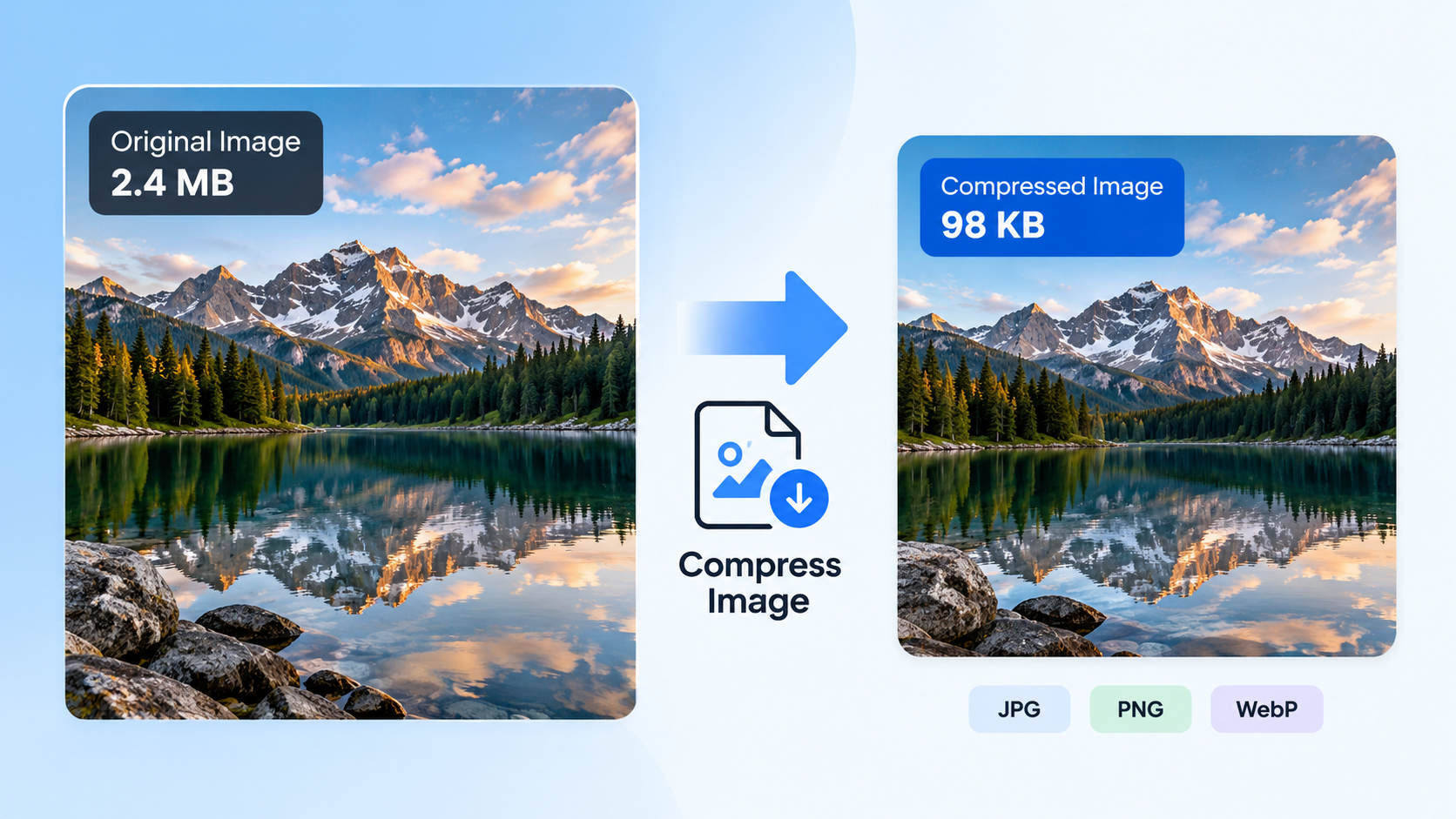
The good news is that you can often make an image much smaller while keeping it looking sharp. The key is choosing the right file format, adjusting the image dimensions when necessary, and applying compression carefully.
In this guide, you’ll learn how to reduce image file size without noticeably affecting visual quality, which image formats to use, and how to avoid common compression mistakes.
What Determines an Image’s File Size?
Before compressing an image, it helps to understand why some files are much larger than others.
Several factors affect the final file size:
- Pixel dimensions: A 4000 × 3000 image contains far more pixels than a 1000 × 750 image.
- File format: JPG, PNG, and WebP use different methods to store image data.
- Compression settings: Some settings preserve all image information, while others discard information to produce smaller files.
- Image complexity: A detailed photograph can behave differently from a simple graphic with a few solid colours.
- Metadata: An image may contain information such as camera settings, timestamps, or location data.
These factors interact with one another. There is no single setting that produces the smallest possible file for every image while preserving identical visual quality.
The best approach is to identify what you need the image for and then make the smallest changes necessary to meet those requirements.
How to Reduce Image File Size Without Losing Much Quality
Follow these steps to find a good balance between file size and image appearance.
1. Choose the Right Image Format
The file format is one of the first things to consider when optimizing an image.
| Image Format | Best Use Cases | Main Advantage | Main Limitation |
|---|---|---|---|
| JPG / JPEG | Photographs and realistic images | Usually offers a good balance between file size and visual quality | Uses lossy compression and does not support transparency |
| PNG | Screenshots, diagrams, text-heavy graphics and transparent images | Lossless compression preserves image information | Can produce large files, especially for photographs |
| WebP | Website photographs, graphics and images with transparency | Supports both lossy and lossless compression | Check whether the software or destination supports it |
| SVG | Logos, icons and scalable diagrams | Vector graphics remain sharp when resized | Not suitable as a direct replacement for ordinary photographs |
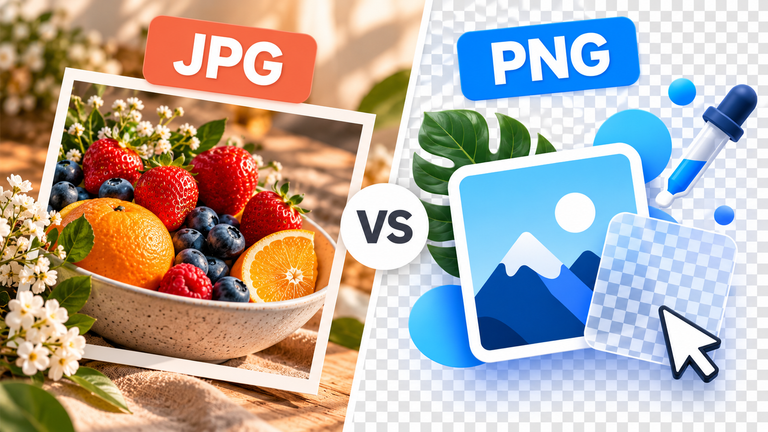
JPG is often a practical choice for photographs because it can reduce their size substantially. PNG is useful when precise edges, text, or transparency matter. WebP can be a good alternative when the destination supports it.
According to the MDN image format guide, the best format depends on the image’s content, compression requirements, browser support, and features such as transparency.
Tip: Do not convert every image to the same format automatically. Choose the format based on how the image will be used.
2. Resize the Image to Its Actual Display Dimensions
Resizing is one of the most effective ways to reduce the amount of data an image contains.
Imagine that you have a photograph measuring 4000 × 3000 pixels, but it will only appear in a small area on a webpage. Keeping all those pixels may be unnecessary if the image will never be displayed at its original dimensions.
Before resizing, ask yourself:
- Where will the image be used?
- Does the destination require specific dimensions?
- Will users need to zoom in or inspect fine details?
- Is the image intended for a small thumbnail or a large display?
If the image is larger than necessary, reduce its dimensions while maintaining its aspect ratio. This avoids stretching or distorting the subject.
However, do not reduce dimensions simply to achieve the smallest possible file. Images intended for detailed viewing, high-resolution displays, or printing may require more pixels.
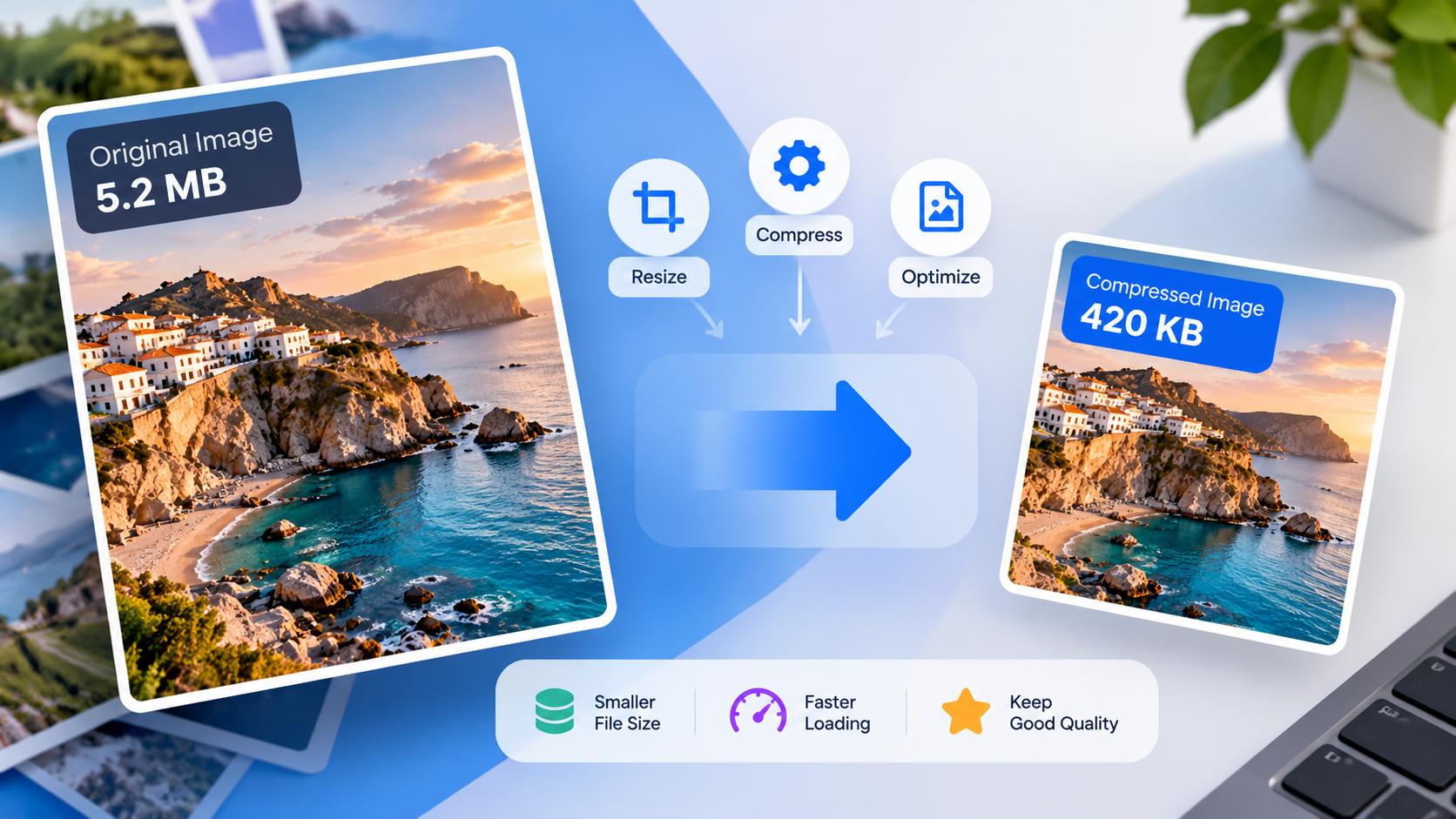
Important: Resizing changes the image’s pixel dimensions. Compression can reduce its file size without necessarily changing those dimensions. Depending on the image, combining both methods can provide a better result than using either one alone.
3. Adjust the Compression Quality Gradually
If the file is still too large after choosing an appropriate format and size, adjust the compression settings.
With lossy formats such as JPG, reducing the quality setting generally reduces the file size but also discards more image information. At moderate settings, the differences may be difficult to notice. At aggressive settings, artefacts, blurred edges, and colour distortions can become visible.
Use a gradual approach:
- Start with a relatively high quality setting.
- Export or compress the image.
- Check the resulting file size.
- View the image at its intended display size.
- Inspect fine details at higher magnification.
- Reduce the quality slightly only if you need a smaller file.
A quality setting around 80% can be a reasonable starting point for a JPG photograph when the tool offers a percentage slider. It is not a universal recommendation: different encoders interpret quality settings differently, and some images need higher settings than others.
Look at faces, text, hair, fine lines, gradients, and textured areas. These details can reveal compression artefacts that are easy to miss when viewing the image as a small thumbnail.
The objective is not to reach the lowest possible file size. It is to find the smallest file that still looks good for its intended purpose.
4. Use Lossless Compression When Image Accuracy Matters
Lossless compression reduces file size without discarding image information. When decoded, the image data is reconstructed exactly.
This approach is particularly useful when working with:
- Screenshots containing small text.
- Diagrams and charts.
- Logos with sharp edges.
- Pixel-based graphics.
- Images that need transparent backgrounds.
PNG supports lossless compression, while WebP also offers a lossless mode.
Lossless compression does not guarantee a dramatic reduction in file size. The result depends on the image’s content and how efficiently the data can be stored. A detailed photograph may remain relatively large even after lossless optimization.
The W3C PNG specification describes PNG as a format designed for lossless storage of raster images, including support for transparency.
If preserving every pixel is essential, prioritize lossless processing over aggressive lossy compression.
5. Try WebP for Compatible Websites and Applications
If your image is intended for a website or another destination that supports WebP, this format is worth testing.
WebP supports both lossy and lossless compression and can also preserve transparency. Depending on the image and settings, it may produce a smaller file than a comparable JPG or PNG.
Google’s WebP documentation explains its compression methods and image features.
To test whether WebP is a good option:
- Keep a copy of the original image.
- Convert it to WebP using a suitable quality setting.
- Compare the resulting file size with the original.
- Inspect the image for visible differences.
- Confirm that the application or website where you will use it supports WebP.
Do not assume that every WebP file will be smaller than every JPG or PNG file. The result depends on the source image, the encoder, and the selected compression mode.
For a website, make sure that the delivery method and any fallback formats meet the needs of your target browsers and users.
6. Remove Unnecessary Metadata When Appropriate
Images sometimes contain metadata that is not needed for their intended use.
Depending on the file and software, metadata may include:
- Camera make and model.
- Camera settings.
- Capture date and time.
- GPS coordinates.
- Colour profile information.
- Other descriptive fields.
Removing unnecessary metadata can sometimes reduce the file size. The amount saved varies, and metadata removal alone may not make a large image significantly smaller.
There is also a privacy benefit to reviewing metadata before sharing photographs publicly. GPS information, for example, could reveal where a photograph was taken.
Be careful when removing colour profiles or other information that affects how an image is displayed. Do not remove data blindly if accurate colour reproduction or other metadata is important for your workflow.
7. Compare the Original and Compressed Versions
Never judge compression only by the file size.
A useful optimization process compares the original image with the exported version. Ideally, view them side by side and at the size at which people will actually see them.
Check the following:
- Sharpness: Are important details still clear?
- Text: Are letters and fine lines readable?
- Colours: Are there noticeable shifts or unwanted artefacts?
- Gradients: Do smooth transitions show visible bands?
- Transparency: Does the image retain its transparent background if needed?
- Dimensions: Are the width and height still suitable?
- File size: Did the operation produce a meaningful reduction?
Keep the original file so that you can try a different format or compression setting if necessary.
If the compressed version looks noticeably worse, increase the quality setting, use a lossless approach, or reconsider the dimensions.
Best Image Compression Method for Different Situations
The right approach depends on what you are trying to achieve.
| Situation | Recommended First Step |
|---|---|
| A large photograph | Try JPG or WebP compression |
| An image for a website | Match its dimensions to the display area and test WebP where supported |
| A screenshot containing text | Try lossless optimization and preserve readable text |
| A logo with a transparent background | Keep a transparency-compatible format such as PNG or WebP |
| A file that must meet a strict upload limit | Resize if appropriate, then adjust compression gradually |
| An image that must preserve its exact pixel data | Use lossless compression |
| A photograph containing sensitive location information | Review metadata before sharing |
These are starting points rather than guarantees. Always check the destination’s format requirements and verify the final result.
Common Mistakes to Avoid
Compressing the same JPG repeatedly
Repeated lossy exports can introduce additional quality degradation. Whenever possible, return to the original file before trying new compression settings.
Choosing the lowest quality setting immediately
The lowest setting may produce a small file, but it can make the image unsuitable for its intended purpose. Adjust quality gradually instead.
Resizing without checking the aspect ratio
Changing width and height independently can stretch faces, distort products, or alter the proportions of graphics. Keep the aspect ratio unless you deliberately want to crop or stretch the image.
Converting formats without checking the result
Changing formats can affect transparency, visual quality, compatibility, and file size. Always inspect the exported image and confirm that the destination accepts the new format.
Treating file size as the only measure of success
The smallest file is not necessarily the best one. A successful result meets the size requirements while remaining useful and visually appropriate.
Frequently Asked Questions
Can I reduce an image’s file size without losing quality?
Yes, in some cases. Lossless compression can reduce file size without discarding image information. Resizing, metadata removal, and different compression methods may also help, depending on the image. However, if you use lossy compression, some image information is discarded even when the result looks almost identical.
What is the best format for compressing images?
There is no single best format for every image. JPG is often practical for photographs, PNG is useful for lossless graphics and transparency, and WebP offers both lossy and lossless options. The best choice depends on the image and where it will be used.
Does reducing image dimensions lower file size?
Often, yes. An image with fewer pixels usually contains less image data to store. The exact reduction depends on the format, content, and encoding method.
Is WebP better than JPG?
WebP can produce smaller files at comparable visual quality in many situations, but the result depends on the image and encoding settings. Compatibility and the requirements of the destination also matter.
Why does my compressed image look blurry?
The compression may be too aggressive, or the image may have been resized to dimensions that are too small for its intended display. Try a higher quality setting, larger dimensions, or a different format.
Should I remove image metadata?
Remove metadata when it is unnecessary, particularly if you want to reduce the information attached to a photograph before sharing it. Keep metadata that your workflow requires, and consider privacy implications when it contains location or personal information.
Can I use compressed images on a website?
Yes, provided they have suitable dimensions and quality and use formats supported by the website and its visitors’ browsers. Choosing appropriate image sizes and formats can reduce the amount of data a page needs to load.
Final Thoughts
Reducing image file size without noticeably affecting quality is mainly about choosing the right combination of format, dimensions, and compression settings.
Start by checking whether your image is larger than it needs to be. Then choose an appropriate format, adjust compression gradually, and compare the final output with the original. Use lossless compression when exact image data matters, and review metadata before sharing sensitive photographs.
A smaller file is useful, but the best result is one that meets your size requirements while remaining clear, accurate, and suitable for its intended use.