How to Reduce a PDF File Size for Email
How to Reduce a PDF File Size for Email
Trying to email a PDF, only to discover that the file is too large to attach? This can happen with scanned documents, image-heavy reports, presentations saved as PDFs, and files containing high-resolution graphics.
The good news is that you can often reduce a PDF’s file size enough to send it by email. The best method depends on what’s inside the document: a PDF containing photographs may respond well to image compression, while a text-based document may not shrink as much.
In this guide, you’ll learn how to compress a PDF for email, which methods to try first, how to avoid making the document difficult to read, and what to do when the file is still too large to attach.
Why Is My PDF Too Large to Email?
PDF files can contain much more than text. They may include scanned pages, photographs, diagrams, embedded fonts, vector graphics, and other resources.
Some common reasons for a large PDF include:
- High-resolution images: Scanned pages and photographs can account for much of the file’s size.
- Scanned documents: A PDF made from page images may contain large amounts of image data.
- Embedded resources: Fonts, graphics, colour profiles, and other resources can contribute to file size.
- Unoptimized content: A document may contain image data or other resources that could be stored more efficiently.
- Many pages: Longer documents often contain more data, although page count alone does not determine file size.
Understanding what’s making your PDF large helps you choose an appropriate solution instead of repeatedly compressing the file without seeing much improvement.
What Is the Email Attachment Size Limit?
Email providers impose limits on the total size of messages or their attachments. The exact limit can depend on the service, account type, and administrator settings.
For example, Google’s official documentation states that personal Gmail accounts can send attachments totalling up to 25 MB. If the total exceeds that limit, Gmail automatically replaces the attachment with a Google Drive link. Google Workspace accounts may have different limits set by their administrators. See Gmail’s attachment instructions.
Microsoft documents a 25 MB attachment limit for Outlook.com, although other Outlook configurations and business email systems can have different limits. Check the requirements of your particular account in Microsoft’s Outlook.com guidance.
Keep in mind that a provider’s message-size limit may include the email body and encoding overhead, not just the file’s size on your computer. A PDF that is close to the stated limit may therefore still fail to send.
If you need to attach the document directly, aim comfortably below the applicable limit.
How to Reduce a PDF File Size for Email
Try these methods in order, starting with compression before making changes that could affect the document’s appearance or content.
1. Compress the PDF
PDF compression is usually the most direct solution.
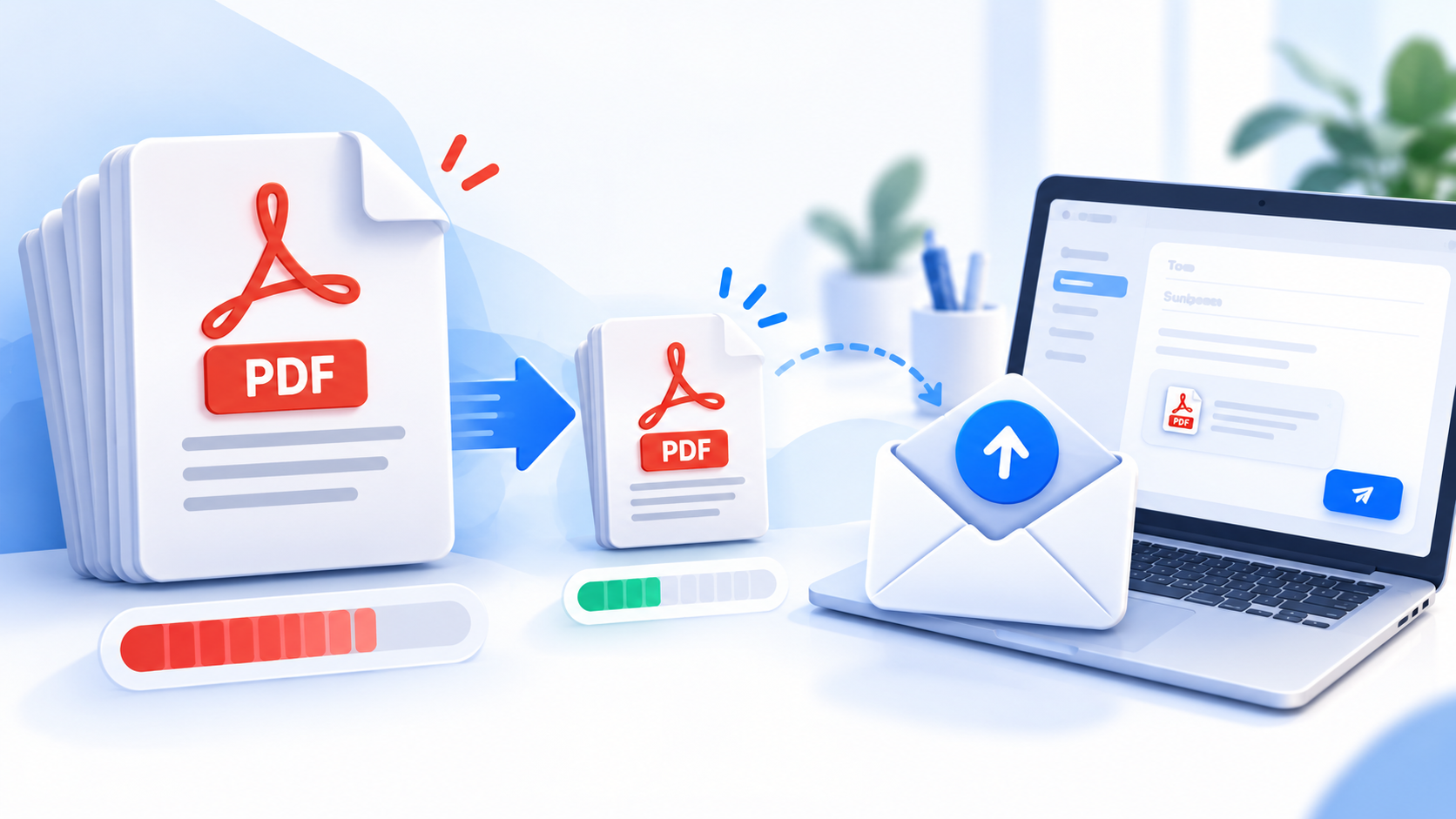
A PDF compressor analyses the document and attempts to reduce its size. Depending on the tool, it may optimize images, remove unnecessary data, or store certain resources more efficiently.
A typical workflow looks like this:
- Make a copy of the original PDF.
- Open a trusted PDF compression tool.
- Select the PDF you want to reduce.
- Choose a suitable compression setting, if one is available.
- Run the compression process and download the result.
- Check the new file size.
- Open the compressed PDF and inspect important pages before sending it.
Some tools offer low, medium, and high compression settings. Higher compression may produce a smaller file, but if it reduces image quality, fine print and scanned text can become harder to read.
Start with a moderate setting and increase compression only if necessary.
Important: Compression does not guarantee a dramatic reduction. If your PDF is already well optimized or contains mostly text, the improvement may be modest.
2. Reduce the Resolution of Images in the PDF
If your document contains large photographs or high-resolution scans, its images may account for much of its file size.
Reducing the resolution of those images can help, particularly when the document is only intended for screen viewing.
For example, a report containing large photographs may not need the same image resolution as a document intended for high-quality printing.
Before reducing image resolution, consider:
- Whether people need to zoom in and examine fine details.
- Whether the document contains small text within images.
- Whether the PDF will be printed.
- Whether diagrams and charts need to remain sharp.
Keep a copy of the original and compare the result at normal reading size and at higher magnification. If scanned text becomes difficult to read, use less aggressive compression or retain a higher-resolution copy.
3. Optimize the PDF with a Desktop Application
Desktop PDF software can provide more control than a basic compression tool.
For example, Adobe Acrobat offers a reduced-size PDF feature. Its current instructions describe the option under Menu → Save as Other → Reduced Size PDF on Windows, with a similar option under the File menu on macOS. Menu names may vary by version.
You can consult Adobe’s official guide to reducing PDF file size.
A desktop application may be useful when:
- The document contains many high-resolution images.
- You need to control compatibility with PDF readers.
- You want to compare different optimization settings.
- You need to process several PDFs using consistent settings.
Some advanced features may require a paid application or subscription. Check the features available in your installed software before assuming that every option is included.
4. Re-export the Original Document with Suitable Settings
If you created the PDF from a Word document, presentation, spreadsheet, or design application, you may be able to reduce its size by exporting it again with more suitable settings.
For example:
- Open the original editable document.
- Look for the application’s PDF export or save options.
- Choose a screen-friendly or minimum-size setting if appropriate.
- Export a new PDF.
- Compare its file size and appearance with the previous version.
This approach can be more effective than repeatedly compressing a finished PDF because the original application may have access to the source images and document structure.
However, export settings vary between applications. Check that links, fonts, page layouts, and other important elements are preserved.
5. Remove Unnecessary Pages or Content
Sometimes, a PDF is too large because it contains pages or resources that the recipient does not need.
If appropriate, consider creating a separate copy containing only the relevant pages.
You might also be able to remove unnecessary blank pages, duplicated content, or oversized images that are not needed in the final document.
Do not remove information simply to reach a file-size target. Ensure that the recipient still receives the complete and accurate document they need.
6. Split the PDF into Smaller Files
If the document is very large and must retain its original quality, splitting it into smaller PDFs may be a better option than aggressive compression.
For example, a long report could be divided into separate sections, provided that the recipient can use them independently.
Before splitting the file:
- Decide where each section should begin and end.
- Use clear filenames so the recipient knows the order.
- Keep the original complete PDF.
- Check that each resulting file opens correctly.
Remember that several attachments still contribute to the total email size. Splitting a document into three files does not solve the problem if the combined attachments remain above your provider’s limit.
If direct attachments are still too large, sharing a cloud-storage link may be easier.
What If Your PDF Is Still Too Large?
If the compressed file still exceeds the email limit, don’t immediately apply the strongest possible compression. Consider the following alternatives.
Use a Cloud Storage Link
You can upload the PDF to a trusted cloud-storage service and share a link instead of attaching the document directly.
Common options include Google Drive, Microsoft OneDrive, and Dropbox.
The basic process is:
- Upload the PDF to your cloud-storage account.
- Set the sharing permissions appropriately.
- Copy the sharing link.
- Send the link by email.
- Check that the recipient has permission to open or download the file.
Be careful with confidential documents. A publicly accessible link may allow people other than the intended recipient to access the file. Use restricted sharing where possible and review permissions before sending the email.
Check Whether Your Email Account Has a Different Limit
A work or school account may have limits set by its administrator. Your email application may also impose restrictions that differ from those of the provider’s website.
If an attachment fails even after compression, check the error message and your provider’s current rules. You may need to use an approved file-sharing service or ask your administrator about the applicable limits.
Keep an Original Copy
Always retain the uncompressed original, especially when sharing contracts, invoices, academic documents, business reports, or scanned records.
That way, you can return to the original if the compressed copy is difficult to read or if you need to produce a version suitable for printing.
How to Compress a PDF Without Making Text Hard to Read
Smaller files are useful, but the document still needs to be readable.
Follow these tips when choosing compression settings:
Use moderate compression first. Test the result before applying more aggressive settings.
Check small text. Inspect footnotes, tables, page numbers, and scanned text at a comfortable reading size.
Pay attention to scanned documents. If the PDF consists of photographs or scans of pages, aggressive image compression may make letters blurry.
Keep vector content sharp. Text and vector graphics do not always need the same treatment as photographs. Avoid flattening or rasterizing an entire document unnecessarily.
Compare the original and compressed copies. Check important pages and ensure that figures, signatures, diagrams, and embedded images remain useful.
Choose a separate version for email when appropriate. You can keep a high-quality original for printing or archiving and use an optimized copy for routine sharing.
There is no single compression percentage that guarantees both a specific file size and perfect quality. The best settings depend on the document.
Common Mistakes When Compressing PDFs
Expecting every PDF to shrink dramatically
A PDF containing many high-resolution photos may compress considerably, while a document made mostly of text may show a much smaller reduction. Already optimized files can also be difficult to shrink further.
Compressing the same file repeatedly
Repeatedly processing an already compressed document may produce little benefit and can reduce image quality if lossy compression is applied again. Whenever possible, start with the original PDF and compare the results.
Assuming a ZIP file will solve the problem
You can place a PDF inside a ZIP archive, but PDFs often already contain compressed data. As a result, ZIP compression may reduce their size only slightly.
ZIP is worth trying when you need to package several files together, but it is not a reliable substitute for PDF optimization.
Ignoring document security
PDFs may contain personal information, signatures, financial details, or confidential business records. Before using an online service, review how it handles files, whether processing occurs in your browser or on a server, and whether uploaded files are retained.
For sensitive documents, use a trusted local application or an approved service.
Deleting the original file
Always keep the original until you have confirmed that the compressed copy opens correctly and contains all the required information.
Frequently Asked Questions
How can I reduce a PDF to send by email?
Start with a trusted PDF compressor and use a moderate compression setting. Check the resulting size and inspect the document. If it remains too large, try optimizing the source document, splitting it into logical sections, or sending a secure cloud-storage link.
What is the best PDF size for email?
There is no universal ideal size. The correct limit depends on your email provider, account type, and message settings. Check the rules for your account and aim below the maximum so that the message can be sent successfully.
Will compressing a PDF reduce its quality?
It can, particularly when the process reduces the quality or resolution of embedded images. Some optimizations reduce file size without visibly affecting the document. Always inspect the result before sending it.
Can I compress a scanned PDF?
Yes. Scanned PDFs often contain page images that can be optimized. However, aggressive compression can make scanned text difficult to read, so compare the result carefully.
Why is my PDF still large after compression?
The file may already be optimized, contain high-resolution images, or include resources that cannot be reduced much further without affecting quality. Try re-exporting the original document, adjusting image resolution where appropriate, or sharing a link instead.
Does converting a PDF to ZIP reduce its size?
Sometimes, but the reduction may be small because PDFs commonly contain compressed data already. ZIP archives are more useful for packaging files together than for substantially shrinking an already optimized PDF.
Is it safe to compress a PDF online?
That depends on the service and how it processes files. Check its privacy policy and file-retention practices. For confidential documents, consider using a trusted local application instead of uploading the file to an unfamiliar website.
Final Thoughts
Reducing a PDF file size for email is usually a matter of finding the right balance between compression, readability, and the requirements of your email account.
Start with moderate PDF compression, inspect the result, and make further changes only when necessary. If the document must retain its original quality or remains too large, consider splitting it into logical sections or sharing it through a trusted cloud-storage service.
The goal is not simply to make the PDF as small as possible. It is to create a file that is easy to send, opens reliably, and remains useful to the person receiving it.