Why Can’t I Select Text in My PDF?
Why Can’t I Select Text in My PDF?
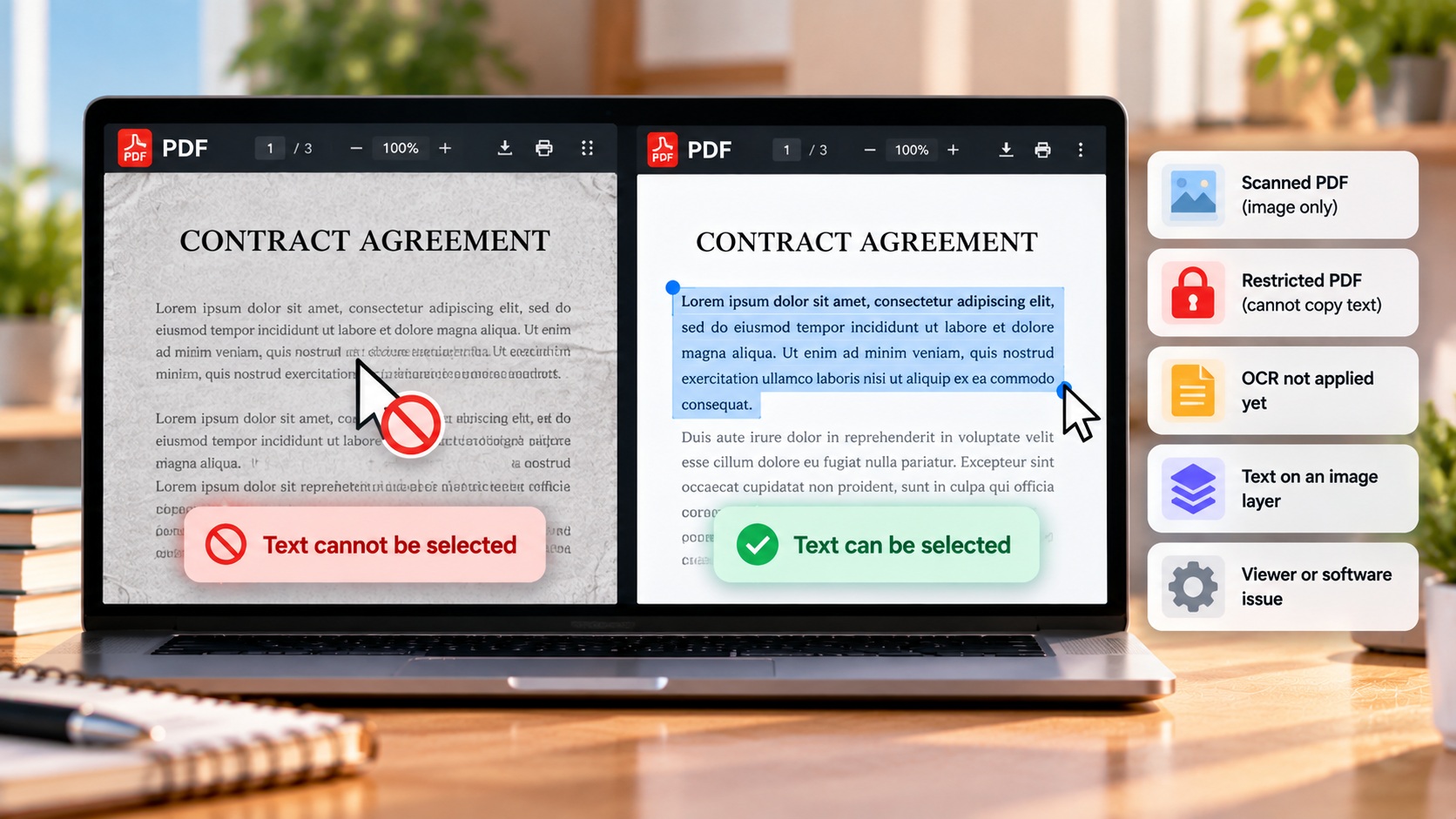
You open a PDF, try to highlight a sentence, and nothing happens. You can clearly see the words on the screen, but you cannot select them, copy them, or paste them into another document.
This can be frustrating, especially when you need to quote a paragraph, extract information, or edit a document.
The good news is that this problem usually has a straightforward explanation. Your PDF might contain scanned images instead of actual text, copying might be restricted, or your PDF viewer might be causing the problem.
In this guide, you will learn why you cannot select text in a PDF and how to fix each possible cause.
Why Can’t I Select Text in My PDF?
There are several reasons why text selection might not work. The most common ones are:
- The PDF is a scanned document: The page contains an image of the text rather than selectable characters.
- The document has security restrictions: The author may have disabled copying or other operations.
- The text is part of an image: The PDF might contain screenshots, photographs, or flattened pages.
- The text layer is damaged or missing: The document may have been exported incorrectly or processed in a way that removed its text.
- Your PDF viewer has a problem: You might be using the wrong selection tool or an application that does not handle the file correctly.
Identifying the cause first is important because each problem requires a different solution.
1. Check Whether Your PDF Is a Scanned Document
One of the most common reasons you cannot select text is that the PDF was created from a scan.
When a paper document is scanned, the resulting PDF may contain a picture of each page rather than actual text. Your computer displays the words, but it does not necessarily recognize them as individual characters.
This often happens with scanned contracts, receipts, books, handwritten notes, and documents photographed with a phone.
How to check
- Open the PDF in your usual viewer.
- Click and drag across a sentence.
- Try searching for a word using Ctrl + F on Windows or Linux, or Command + F on Mac.
- If you cannot select the words or find them, the page might be image-only.
If the PDF looks like a photograph of a page, that is another clue, but appearance alone is not conclusive.
You can learn more in our guide, How to Check Whether a PDF Is Searchable or Just a Scan.
How to fix it with OCR
To make the text selectable, you usually need OCR, which stands for optical character recognition.
OCR software analyzes the text visible in an image and creates a machine-readable text layer. This allows you to search for words and often copy them without changing the overall appearance of the page.
For example, Adobe Acrobat provides an OCR workflow:
- Open the scanned PDF in Acrobat.
- Select All tools.
- Open Scan & OCR.
- Choose In this file.
- Select the relevant pages and language if prompted.
- Choose Recognize Text.
- Save the processed document and try selecting the text again.
The available features may depend on your Acrobat version and subscription. You can follow Adobe’s official instructions for recognizing text in scanned PDFs.
Important: OCR is not perfect. Review names, dates, numbers, and other important details after processing the document.
2. Check Whether Copying Is Restricted
Sometimes the PDF contains real, selectable text, but the author has applied security settings that restrict copying.
For example, a protected document might allow you to read and search its contents while preventing you from copying text into another application.
How to check PDF permissions
If you use Adobe Acrobat Reader, open the document and look for the document’s security or permissions information in its properties.
In Acrobat, you can generally find this under Menu → Document Properties → Security, although the exact menu names can vary by version.
Look for restrictions related to copying or extracting content.
If copying is explicitly prohibited, the problem is not necessarily a missing text layer.
How to fix it
If you are the document owner, use the appropriate security settings or the original source file to create a version with the permissions you need.
If someone else supplied the PDF, ask them for an unrestricted copy or an alternative format, such as the original Word document.
Do not assume that every restriction can or should be removed. If the document is protected for legitimate reasons, you may need the owner’s permission.
3. Make Sure You Are Using the Correct Selection Tool
A PDF viewer can have several different tools, including hand navigation, text selection, image selection, and annotation tools.
If the hand tool is active, dragging the mouse may move the page instead of highlighting words.
Try these steps
- Open the PDF in a desktop PDF reader.
- Look for a text selection tool, often represented by a cursor or text-selection icon.
- Select the tool and drag across a short sentence.
- If the text becomes highlighted, try copying it.
- If it still does not work, open the same PDF in another trusted viewer.
Some applications automatically switch between selecting text and images depending on what is underneath the cursor.
If selection works in another application, the original viewer may be responsible for the issue.
4. The Text Might Be Part of an Image
Not every PDF page that looks like a normal document contains actual text.
For example, someone might create a page in a graphic design application, take a screenshot, or export a document as an image before placing it in a PDF.
The final page may look perfectly sharp, but the words are still part of the image.
This is different from a typical digital PDF in which the text is stored as characters and rendered using fonts.
How to fix it
If the words are part of an image, OCR is usually the most practical solution.
However, the results depend on the image quality. Blurry text, unusual fonts, handwriting, and low-resolution scans can make recognition less accurate.
If you still have the original Word document or other editable source, exporting that file directly to PDF is often better than applying OCR to an image.
5. The PDF May Have a Damaged or Incorrect Text Layer
A PDF can contain text that is difficult to select or extract because of problems with its internal structure.
For example, a file may have been generated by a poorly configured conversion tool, processed by multiple applications, or created with unusual font encoding.
In these cases, the words might appear correctly on screen even though the underlying text behaves unexpectedly.
How to troubleshoot it
Try the following:
- Open the PDF in another trusted viewer.
- Check whether you can select text on different pages.
- Try searching for a word that appears clearly in the document.
- If you have the original document, export it to a new PDF.
- If the problem affects only one file, try saving a new copy using a trusted PDF application.
If the text is missing entirely, OCR may help. If the PDF already contains text but the encoding is incorrect, simply running OCR may not be the best solution.
For important documents, keep a copy of the original before attempting repairs.
6. The PDF Opens Correctly but Text Selection Still Fails in Your Browser
Sometimes a PDF behaves differently in a browser than it does in a dedicated PDF application.
Browser viewers can have their own selection behavior, extensions can interfere with pages, and a file may not render correctly in a particular application.
Try this quick fix
- Download the PDF to your device if you trust its source.
- Open it in a dedicated PDF reader.
- Test text selection again.
- If the problem disappears, the browser viewer may be responsible.
- If it persists across different viewers, investigate the document itself.
You can also try updating your PDF reader or browser and reopening the file.
Avoid installing unknown extensions or downloading software from unfamiliar websites just to solve a selection problem.
How to Identify the Cause Quickly
Use this table to narrow down the problem.
| What happens? | Possible cause | What to try |
|---|---|---|
| Dragging selects the entire page as one image | Scanned or image-based PDF | Apply OCR |
| You can highlight text but cannot copy it | Copying restrictions | Check document permissions |
| The page moves when you drag | Hand tool is active | Switch to text selection |
| Only certain pages are affected | Mixed scanned and digital content | Test those pages and apply OCR where needed |
| Selection fails in one viewer but works in another | Viewer compatibility issue | Update or change the viewer |
| Text is selected incorrectly or pasted as strange characters | Damaged text layer or font encoding | Re-export the original or investigate the PDF structure |
These are diagnostic clues rather than absolute rules. A PDF can have more than one problem at the same time.
Can You Select Text in a PDF Without Installing Software?
Yes, sometimes.
If the PDF already contains selectable text, you may be able to open it in your browser or an existing PDF viewer and copy the text directly.
If the document is image-only, you need an OCR-capable tool to recognize its text. Some online tools provide this feature, but consider privacy before uploading your file.
For confidential documents, a trusted offline application is generally the more cautious option.
Is It Safe to Use an Online OCR Tool?
Online OCR tools can be convenient, but they may require you to upload the document to a remote server.
If the PDF contains financial records, identity information, contracts, or other sensitive content, check the provider’s privacy policy and file-retention rules before uploading it.
When possible, use a reputable desktop application that processes the document locally.
For more guidance, see our article Are Online PDF Converters Safe to Use?
Frequently Asked Questions
Why can I see the words but not select them?
The page may contain an image of the words rather than actual text. Applying OCR can create a text layer that allows the words to be selected and searched.
Why can I select text but not copy it?
The PDF may have security restrictions that prevent copying, even though the text is selectable. Check the document’s permissions or request an unrestricted copy from its owner.
Does every scanned PDF need OCR?
If you want to search for, select, or extract the text from an image-only scan, OCR is generally necessary. If you only need to view the document, you may not need to process it.
Will OCR change the appearance of my PDF?
OCR can add a text layer while preserving the original page images, so the document may look almost identical afterward. The exact result depends on the software and its settings.
Can I make a PDF editable after OCR?
OCR can make recognized text selectable and searchable, and some applications can use it to create editable content. However, the layout may not be reproduced perfectly, especially in complex documents with tables, columns, or unusual formatting.
Final Thoughts
If you cannot select text in a PDF, start by checking the simplest explanations.
Make sure the correct selection tool is active, try another viewer, and check whether the document contains scanned images. If the text is part of an image, OCR can often make it searchable and selectable. If copying is restricted, you may need an alternative version from the document’s owner.
The key is to identify the cause before trying to repair the file.
A PDF can look completely normal while containing no selectable text at all. Once you know whether the problem comes from a scan, a security restriction, or the viewer itself, finding the right solution becomes much easier.