How to Split a PDF into Separate Files
How to Split a PDF into Separate Files
Have you ever downloaded a PDF only to discover that it contains dozens of pages, even though you only need a few of them? Maybe you have a long report that needs to be divided into chapters, a document with several invoices, or a collection of scanned pages that should be saved separately.
You don’t need to recreate the documents or copy their contents manually. You can split a PDF into separate files using an online tool, a desktop application, or software already available on your computer.
In this guide, you’ll learn how to split a PDF into individual pages or smaller documents, choose specific page ranges, work on Windows and Mac, and keep your files organized.
Why Split a PDF into Separate Files?
Splitting a PDF means dividing one document into two or more smaller PDF files. Depending on the tool you use, you can separate every page, select specific page ranges, or divide the document at particular points.
This can be useful in several situations:
- Separating invoices: Save each invoice from a large PDF as an individual file.
- Dividing a report into chapters: Create smaller documents that are easier to share or review.
- Extracting specific pages: Keep only the pages you need for an application, assignment, or presentation.
- Sharing documents: Send one relevant section instead of the entire document.
- Organizing scanned files: Separate multiple documents that were scanned together.
- Managing large PDFs: Divide a document into smaller sections when a website or email service has file size restrictions.
The best method depends on whether you want every page saved separately, a few selected pages extracted, or a large document divided into several sections.
How to Split a PDF Online
Using an online PDF splitter is often the quickest option if you don’t want to install additional software.
Step 1: Choose a PDF splitting tool
Open a PDF splitting service in your browser. For example, Adobe offers an online tool for dividing PDF documents.
You can find it here: Adobe Acrobat Online PDF Splitter.
Before uploading your document, check the tool’s file size limits, account requirements, and privacy policy. If your PDF contains confidential information, consider using an offline application instead.
Step 2: Upload your PDF
Select the PDF you want to split from your computer or drag it into the upload area if the service supports drag and drop.
Wait for the document to load. Some tools display page thumbnails, while others let you enter page numbers or choose a splitting method.
Step 3: Choose where to split the document
Depending on the tool, you may be able to split the PDF in different ways.
For example, if your document contains 12 pages, you could divide it into three files containing four pages each. Alternatively, you could create a separate file for every page or split the document after specific pages.
Choose the option that matches your goal and check the page ranges before continuing.
Step 4: Split the PDF
Click the button labelled something like Split, Divide, or Continue. The tool will process the document and create the separate PDF files.
Some online services require you to sign in before downloading the results, and their available features may vary.
Step 5: Download and check your files
Download the resulting documents. If the service provides several files in a ZIP archive, extract the archive to access them.
Open a few of the new PDFs to confirm that the pages are correct, the files open properly, and the output names make sense.
Keep the original document until you’ve checked the results.
How to Split a PDF into Individual Pages
If you need each page saved as its own PDF, look for an option such as Split every page or One file per page.
For example, a five-page document could produce these files:
document_page_1.pdfdocument_page_2.pdfdocument_page_3.pdfdocument_page_4.pdfdocument_page_5.pdf
The actual filenames depend on the application you’re using.
This method is useful for scanned documents, individual certificates, forms, or pages that need to be shared separately.
Remember that a page saved as its own PDF may still contain the same text and images as the original. Splitting a document doesn’t automatically compress its contents or make every output file smaller by a predictable amount.
How to Split a PDF by Page Range
Sometimes you don’t want to create a separate file for every page. Instead, you might want to divide a document into meaningful sections.
Imagine you have a 30-page report containing three chapters:
- Pages 1–10: Introduction and background
- Pages 11–20: Main report
- Pages 21–30: Conclusions and references
You can split the document into three files using these page ranges:
| Output file | Pages |
|---|---|
Introduction.pdf | 1–10 |
Main-Report.pdf | 11–20 |
Conclusions.pdf | 21–30 |
Look for a page range or custom split option in your PDF tool. Enter the required page numbers and make sure the ranges don’t accidentally skip or duplicate pages.
Some tools use the printed page number shown on the document, while others count pages according to their actual position in the PDF. If the document has a cover page or Roman numerals, check which numbering system the tool uses.
How to Split a PDF on Windows
Windows users can split PDF files using a desktop PDF editor or a dedicated utility.
Option 1: Use Adobe Acrobat
If you have a version of Adobe Acrobat that supports splitting PDFs, follow these steps:
- Open your PDF in Acrobat.
- Select Organize Pages.
- Choose Split.
- Select how you want to divide the document, such as by page count, file size, or top-level bookmarks.
- Open Output Options to choose the destination folder and filenames.
- Click Split and wait for the process to finish.
- Open the resulting PDFs to check them.
The exact menus may vary by version, and some splitting features require a paid plan. You can check Adobe’s official PDF splitting guide for more details.
Option 2: Use PDFsam Basic
PDFsam Basic is a free, open-source desktop application that supports PDF splitting on Windows, macOS, and Linux. It processes files locally, so you don’t need to upload them to an online service.
To split a PDF with PDFsam Basic:
- Download the application from the official PDFsam website.
- Open PDFsam Basic and select the Split tool.
- Add the PDF you want to divide.
- Choose a splitting method, such as splitting after every page or at specified page numbers.
- Select the output folder and configure the filenames if needed.
- Click Run.
- Check the generated files.
This is a good option if you regularly work with PDFs or want to split documents without relying on a browser-based service.
How to Split a PDF on Mac
Mac users have a built-in option for separating pages from a PDF: Preview.
Step 1: Open the PDF in Preview
Locate your PDF in Finder. Open it with Preview by double-clicking it if Preview is your default PDF reader, or by choosing Open With > Preview from the context menu.
Step 2: Display page thumbnails
In Preview, open the View menu and display the page thumbnails in the sidebar.
You should now see the document’s pages listed vertically.
Step 3: Select the pages you need
Click the thumbnail of a page you want to extract. To select multiple pages, use the appropriate modifier key while clicking additional thumbnails.
Check that you’ve selected the correct pages before moving them.
Step 4: Create a separate PDF
Drag the selected page thumbnails out of the Preview sidebar and drop them onto your desktop or into a Finder folder. Depending on the macOS version and the way you perform the drag, Preview can create a new PDF containing the selected pages.
Alternatively, use Preview’s print and PDF export options to save selected pages as a separate document.
Step 5: Check the new file
Open the resulting PDF and make sure it contains the correct pages. Rename it with a clear filename and leave the original untouched until you’ve confirmed everything is correct.
Preview is useful for simple page extraction. If you need to split a long PDF automatically into many files, a dedicated application may be faster.
How to Split a PDF on Linux
Linux users can choose between graphical PDF applications and command-line tools.
Use a graphical application
PDFsam Basic is one option for splitting PDFs on Linux. It allows you to choose where to divide a document, specify page ranges, and save the output files to a folder.
Download it from the official PDFsam website and follow the instructions for your distribution.
Use the command line with qpdf
If you’re comfortable using the terminal, qpdf can create a new PDF containing a selected page range.
For example, to extract pages 1 through 5 from input.pdf into a new file called part1.pdf, run:
qpdf input.pdf --pages . 1-5 -- part1.pdfTo extract pages 6 through 10 into a second file, run:
qpdf input.pdf --pages . 6-10 -- part2.pdfThese commands create separate PDFs containing the specified page ranges. They assume qpdf is installed and that the input file is in your current working directory. Page numbers refer to the PDF’s actual page positions, starting at 1.
If you want to split a large document into many files automatically, a graphical application or a script designed for your specific workflow may be more convenient.
How to Split a PDF Without Uploading It
You don’t have to upload your document to a website to split it.
Desktop applications such as PDFsam Basic can process PDFs directly on your computer. This can be particularly helpful when your files contain personal information, financial documents, contracts, medical paperwork, or confidential business records.
When using an online tool, check its privacy policy and how it handles uploaded files. Don’t assume that every browser-based service processes documents locally.
For sensitive documents, using a trusted offline tool is often the simplest way to keep the files under your control.
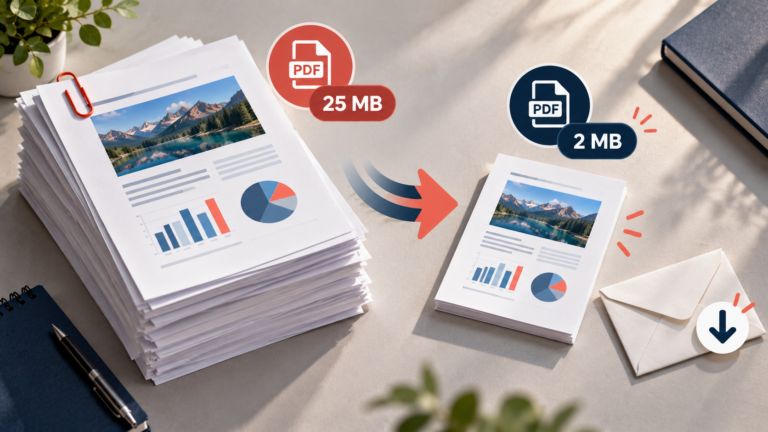
Does Splitting a PDF Reduce Its File Size?
Not necessarily. Splitting a PDF separates its pages into different files, but it doesn’t automatically compress the content.
The total size of all the resulting PDFs may be similar to the original document’s size, although the exact result depends on the software and how it handles shared resources.
For example, if you split a 20 MB PDF into four documents, each containing a different part of the original, the four files might still add up to approximately the same total size.
If your goal is to make a document easier to upload, splitting it can help when the website imposes a maximum size per file. If the goal is to reduce the amount of storage used, you’ll probably need a separate PDF compression step.
For more information, see our guide on Why PDF Compression Sometimes Barely Reduces File Size.
Common Problems When Splitting PDF Files
Splitting PDFs is usually straightforward, but a few issues can occur.
The output files contain the wrong pages
This can happen if you entered the wrong page numbers or confused the document’s printed page numbers with its actual PDF page positions.
Before splitting, confirm the ranges and check the first and last page of each section after the process finishes.
The PDF is password-protected
Some applications may ask for a password before allowing you to split an encrypted document.
If you have permission to modify the PDF, use the appropriate password and a tool that supports its security settings. Don’t try to bypass protections on documents you aren’t authorized to modify.
The output files are still too large
A PDF split into several parts may still contain high-resolution images, scanned pages, and other large elements.
If you need each output to meet a size limit, choose a tool that supports splitting by file size or compress the files afterward. A size-based split may be approximate, so check the actual size of each output before uploading it.
The files have confusing names
Some applications generate filenames automatically, which can make it difficult to tell which file contains which pages.
Choose descriptive names when possible, such as Invoice-001.pdf or Report-Chapter-2.pdf. If the tool supports automatic numbering, use it to keep the files in order.
Bookmarks or interactive elements behave differently
Bookmarks, links, form fields, comments, and other interactive elements may not be preserved identically by every application.
If these features are important, check the output and choose software that supports the relevant elements. Don’t assume that splitting a document guarantees that every interactive feature will behave exactly as before.
Tips for Getting the Best Results
Before splitting a PDF, keep these practical tips in mind:
- Choose the right splitting method: Use individual pages for separate documents and page ranges for chapters or sections.
- Keep the original file: Don’t overwrite or delete it until you’ve checked the results.
- Use clear filenames: Include a page range, chapter name, or document type in the filename.
- Check page numbering: Make sure the selected numbers correspond to the pages you actually need.
- Protect confidential documents: Prefer trusted offline tools when privacy is important.
- Check file sizes: If you need to meet an upload limit, verify the size of each resulting PDF.
- Review the output: Open the new files and check their contents before sharing them.
Frequently Asked Questions
Can I split a PDF into individual pages for free?
Yes. Several free tools can save each page as a separate PDF. PDFsam Basic is one desktop option, while some online services also provide page-splitting features. Check the limitations and privacy terms of any online service you use.
Can I split a PDF without installing software?
Yes. You can use an online PDF splitter through your browser. However, some services require an account, impose file limits, or require uploading your document to their servers.
Can I split a PDF into two files?
Yes. Choose the point where the document should be divided. For example, if a PDF has 20 pages, you could create one file containing pages 1–10 and another containing pages 11–20.
Can I extract only certain pages from a PDF?
Yes. Use a page extraction feature or specify the page ranges you want to keep. Some applications allow you to extract several non-consecutive pages into one new document.
Will splitting a PDF affect its quality?
Simply separating pages generally doesn’t require lowering image or text quality. However, the result depends on how the chosen tool processes the document, so check the output if preserving quality is important.
Can I split a PDF by file size?
Yes. Some desktop PDF applications let you divide a document into files with a target size. The resulting sizes may not be exact, so check each file before using it for an upload with a strict limit.
Can I split a PDF and then merge some pages again?
Yes. You can split a document, keep the sections you need, and merge selected pages or files later. For example, you could separate a large report into chapters and then combine only two chapters into a new document.
Final Thoughts
Splitting a PDF into separate files is an easy way to extract the pages you need, organize long documents, and make files more convenient to share.
For a quick task, an online PDF splitter can be enough. If you need more control, work with confidential information, or split documents regularly, a desktop application such as PDFsam Basic is worth considering.
Always double-check the page ranges, use clear filenames, and keep the original document until you’ve verified the results. With the right method, even a long PDF can be divided into smaller, well-organized files in just a few minutes.