Can You Merge PDFs with Different Page Sizes?
Can You Merge PDFs with Different Page Sizes?
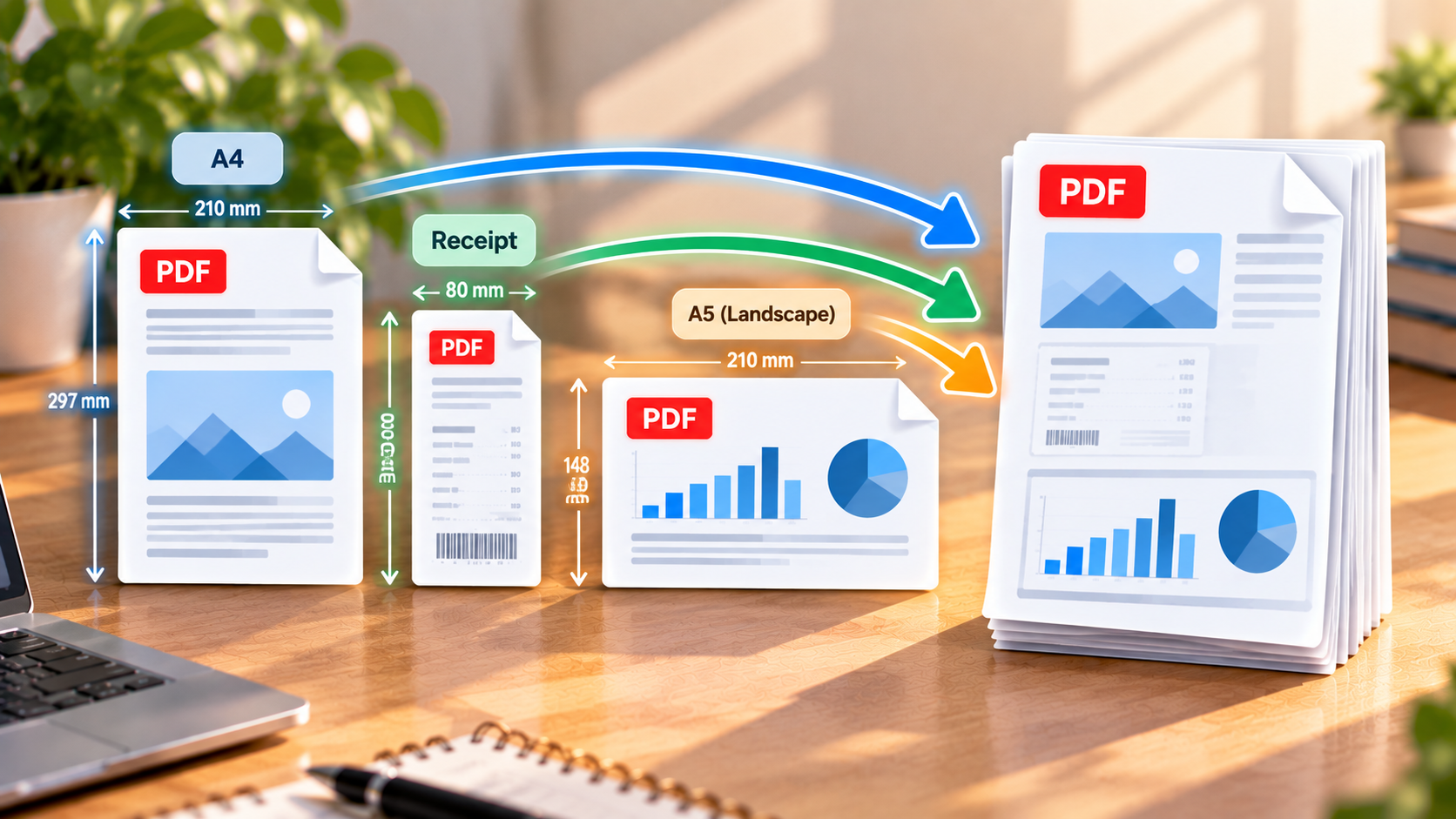
Yes, you can merge PDF files with different page sizes into a single document. For example, you can combine an A4 report, a landscape presentation, and a scanned receipt without necessarily resizing every page to match.
The important thing is choosing a PDF tool that handles different page dimensions correctly. Some tools preserve the original page sizes, while others offer options to scale or normalize pages during the process.
In this guide, you’ll learn how to merge PDFs with different page sizes, what happens to the original layout, how to make the pages consistent when needed, and how to avoid common problems when combining documents.
Can You Merge PDFs with Different Page Sizes?
Yes. A single PDF can contain pages with different dimensions and orientations.
For example, one document might contain:
- A4 portrait pages measuring 210 × 297 mm.
- A4 landscape pages measuring 297 × 210 mm.
- A5 pages measuring 148 × 210 mm.
- Small scanned receipts.
- Large diagrams or technical drawings.
When you combine these documents, the resulting PDF can retain the different page sizes. You don’t necessarily need to convert every page to the same dimensions.
This is useful when combining reports with charts, adding receipts to invoices, attaching certificates to applications, or including landscape spreadsheets in a portrait document.
However, the result depends on the merging software and its settings. Always check whether your chosen tool preserves the original dimensions or changes them during the merge.
What Happens When You Merge PDFs with Different Page Sizes?
When PDFs are combined, their pages are placed into a single document in the order you choose. Each page can retain its own dimensions and orientation, depending on the tool.
Imagine combining three files:
| Original document | Page size | Orientation |
|---|---|---|
| Main report | A4 | Portrait |
| Financial charts | A4 | Landscape |
| Receipt | Small custom size | Portrait |
The merged PDF can contain all three types of pages without forcing them into the same dimensions.
This means the receipt can remain small, the charts can stay landscape, and the main report can retain its portrait layout.
There are two important things to understand:
Page size is not the same as zoom level. A small page may appear smaller on your screen because the PDF viewer is displaying it at the same zoom level as a larger page. That doesn’t necessarily mean the page has been resized.
Page size is not the same as printed paper size. Even if a PDF contains pages with different dimensions, you can often print them using a common paper size by choosing an appropriate scaling option in the print dialog.
How to Merge PDFs with Different Page Sizes Online
An online PDF merger can be a convenient option if you only need to combine a few files.
Step 1: Choose a PDF merger
Select a trusted online tool that supports combining PDFs. Before uploading your files, check whether the tool preserves the original page dimensions or automatically resizes pages.
Some services may offer limited control over page sizes, so check their features before starting.
Step 2: Upload your PDF files
Select all the documents you want to combine.
For example, you might upload:
Main-Report.pdfLandscape-Charts.pdfReceipts.pdf
Wait for the files to load and make sure all the documents you need are included.
Step 3: Arrange the documents in the correct order
Move the files into the order you want them to appear in the final PDF.
If the tool displays page thumbnails, use them to check the document’s structure before merging. You may also be able to rearrange individual pages.
For example, you could place the main report first, followed by the charts and then the receipts.
Step 4: Check the page size settings
If the tool offers options for page size or scaling, review them carefully.
If you want to preserve the original dimensions, avoid options that explicitly resize every page to a common size unless that is what you intend to do.
Not every online merger provides this level of control. If preserving exact dimensions is important, consider using a desktop application that lets you inspect the resulting PDF.
Step 5: Merge and download the PDF
Click the merge or combine button and wait for the process to finish.
Download the resulting PDF and open it in a PDF reader. Check a few pages from each original document, especially where the page sizes change.
Make sure the content hasn’t been unexpectedly cropped, scaled, or rotated.
How to Merge PDFs with Different Page Sizes Using Adobe Acrobat
Adobe Acrobat allows you to combine several documents into one PDF and rearrange the pages before saving.
Step 1: Open the Combine Files tool
Open Adobe Acrobat and select Combine files.
Add the PDFs you want to merge. You can select several files at once or add them individually.
Step 2: Arrange the files
Move the documents into the desired order. If necessary, expand a file to see its individual pages and adjust their positions.
Adobe’s combine workflow supports previewing, arranging, moving, and removing pages before creating the final document. <Cite refs={[«turn616100search2»]}/>
Step 3: Review the conversion options
Depending on the version and the file types you’re combining, Acrobat may offer output settings that affect the final file size and conversion quality.
If your source files are already PDFs and you want to retain their existing quality, review the available settings rather than automatically selecting an option that reduces file size.
Do not assume that a file size setting also guarantees identical page dimensions. If the exact size of each page matters, inspect the merged document after saving.
Step 4: Combine and save
Click Combine and save the new document.
Open the merged PDF and check a portrait page, a landscape page, and any smaller pages, such as receipts. Confirm that their content remains visible and that the page sizes are suitable for your needs.
You can find the official instructions here: Combine files into one PDF in Acrobat.
How to Merge PDFs with Different Page Sizes for Free
If you prefer a free desktop application, PDFsam Basic is worth considering.
PDFsam Basic is free and open-source software for Windows, macOS, and Linux. It supports merging PDFs locally on your computer, without uploading your documents to an online service. <Cite refs={[«turn616100search3»]}/>
To merge PDFs with different page sizes:
- Download PDFsam Basic from the official PDFsam website.
- Open the application and select Merge.
- Add the PDFs you want to combine.
- Arrange the files in the desired order.
- Configure the available merge settings.
- Choose the output file and destination.
- Run the merge process.
- Open the resulting PDF and inspect the page dimensions.
PDFsam Basic is useful for combining documents and selecting page ranges. However, if you specifically need to resize pages visually or normalize them to a common size, check whether you need a different application or edition.
Don’t assume that every PDF utility preserves or normalizes page sizes in exactly the same way. Verify the output if dimensions are important for printing or technical work.
Should You Keep Different Page Sizes or Make Them All the Same?
The best choice depends on what you want to do with the final PDF.
Keep the original page sizes
Preserving the original dimensions is usually the better choice when the size of the content matters or when the source documents were designed for different purposes.
For example, keep the original sizes when:
- Combining receipts with a financial report.
- Adding certificates to an application.
- Including landscape charts in a portrait report.
- Preserving technical drawings with specific dimensions.
- Combining scanned documents without altering their layout.
This approach avoids unnecessary scaling and helps preserve the original appearance.
Make every page the same size
You may prefer a uniform page size when the PDF will be printed, bound, or presented as a consistent document.
For example, converting every page to A4 may be useful for a report that needs to be printed on standard office paper.
However, resizing can affect the content’s scale. A small receipt enlarged to A4 may become easier to read but could look pixelated if it was scanned at low resolution. A large drawing reduced to A4 may become difficult to read.
If you need uniform dimensions, choose a tool that lets you control how the page content is scaled and positioned.
How to Make All PDF Pages the Same Size
If you’ve already merged your documents and want consistent page dimensions, you can use a PDF editor with page resizing features.
For example, PDFsam Visual supports scaling or resizing pages to predefined sizes such as A4 and A3, as well as custom dimensions. It also offers options for adapting page content to the new size. <Cite refs={[«turn616100search5»]}/>
The general process is:
- Open the PDF in an application that supports page resizing.
- Select the pages you want to adjust.
- Choose a target size, such as A4.
- Decide how the content should fit the new dimensions.
- Apply the changes and save the file.
- Review the result for cropping, scaling, or readability issues.
Depending on the tool, you may be able to fit the content inside the new page, scale it proportionally, or use other layout options.
If preserving the original content’s proportions matters, avoid stretching pages independently in the horizontal and vertical directions.
How Different Page Sizes Affect Printing
A PDF containing mixed page sizes can still be printed, but the result depends on your printer and print settings.
For example, an A4 report may contain a landscape chart and a narrow receipt. If you print everything on A4 paper, the printer or PDF reader may scale some pages to fit.
Common print options include:
- Fit: Scales the page content to fit within the printable area.
- Actual size: Prints the page at its original dimensions, where supported by the selected paper and printer.
- Custom scale: Lets you choose a specific scaling percentage.
If the page is larger than the paper, printing at actual size may crop parts of it. If the page is smaller, it may occupy only part of the paper.
For mixed-size documents, preview the print job before printing. This helps you check that small pages remain readable and large pages aren’t accidentally cropped.
Common Problems When Merging PDFs with Different Page Sizes
Some pages look much smaller than the others
This can be normal if the original pages have different dimensions.
A receipt may be much narrower than an A4 page, for example. Your PDF reader may also display different pages at the same zoom percentage, making the smaller pages appear tiny.
If you need all pages to look more uniform, use a page resizing tool. Otherwise, preserve the original dimensions and adjust the viewer’s zoom when reading.
The page sizes changed after merging
Your merging tool may have resized or normalized the pages during processing.
Check the application’s settings and look for options that mention page size, scaling, or normalization. If you need the original dimensions, try a tool that preserves the source page sizes and merge the files again.
Some content is cropped
Cropping can occur when pages are scaled or fitted incorrectly, or when the source PDF already contains content outside the visible page area.
Check the output settings and inspect the affected pages. If the content is still cropped, try merging the files without resizing them, or use a PDF editor that lets you control how the content fits the page.
Landscape pages appear sideways
Landscape orientation is not automatically an error. A page can be wider than it is tall and still be correctly oriented.
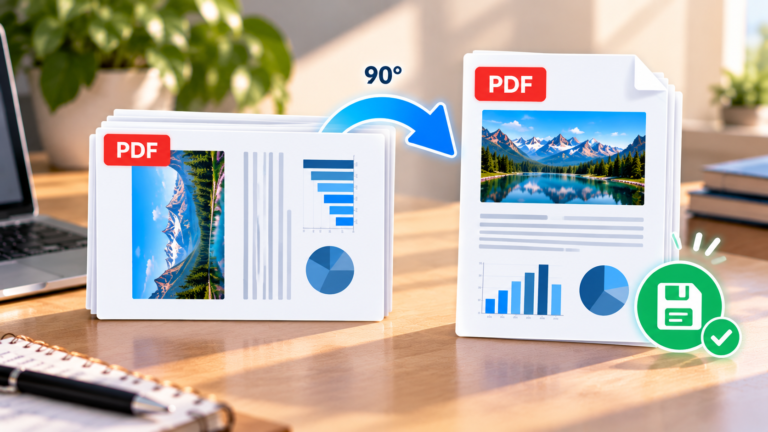
If the content itself is rotated incorrectly, use a PDF rotation tool to correct it. If you only want to make the page dimensions uniform, use a resizing tool instead.
The merged PDF is too large
Combining files doesn’t necessarily reduce their total size. Large scanned pages and high-resolution images can make the final PDF quite large.
If the resulting document exceeds an email or upload limit, consider compressing it separately.
Read our guide on How to Compress a PDF Without Making Text Hard to Read for more information.
The document looks different when printed
Your PDF viewer or printer may be scaling pages to fit the selected paper size.
Check the print preview and the paper size settings. If preserving the original dimensions is important, choose an appropriate paper size or use actual-size printing where possible.
Tips for Merging PDFs with Different Page Sizes
Before combining your documents, keep these tips in mind:
- Check the original page sizes: Identify unusually small, large, or landscape pages before merging.
- Choose the correct merge settings: Avoid automatic resizing if you want to preserve the original dimensions.
- Arrange pages carefully: Make sure the documents appear in the right order.
- Inspect the output: Check pages from every source file, especially where the dimensions change.
- Resize only when necessary: Uniform page sizes are useful for some print workflows but aren’t always required.
- Preview before printing: Mixed page sizes may need different paper or scaling settings.
- Keep a backup: Save the original PDFs until you’ve confirmed the merged document is correct.
Frequently Asked Questions
Can a single PDF contain both A4 and A3 pages?
Yes. A PDF can contain pages with different dimensions, including A4 and A3. Whether those dimensions remain unchanged after merging depends on the software and settings used.
Will merging PDFs with different sizes reduce quality?
Merging existing PDFs doesn’t inherently require reducing their quality. However, some tools offer options that resize or recompress content. If quality matters, choose suitable settings and check the result.
Do I need to convert every PDF to A4 before merging?
No. You can often combine documents while preserving their original page sizes. Convert everything to A4 only if you need a uniform layout for printing or another specific purpose.
Can I merge portrait and landscape PDFs?
Yes. A single PDF can contain both portrait and landscape pages. The pages don’t all need to use the same orientation.
Can I merge small receipts with a large report?
Yes. You can combine small receipts with a report, although the receipt pages may remain physically smaller than the report pages. If you want them to occupy a full A4 sheet, use a tool that lets you resize or position the page content.
How do I print a PDF with different page sizes on the same paper?
Use the print dialog to select a common paper size and an appropriate scaling option, such as Fit. Check the print preview to make sure no important content is cropped.
Can I change the page sizes after merging the PDFs?
Yes. A PDF editor with page resizing features can change selected pages or the entire document to a standard or custom size. Check the output to make sure the content remains readable and proportional.
Final Thoughts
Merging PDFs with different page sizes is entirely possible, and you usually don’t need to resize every page before combining the documents.
If you want to preserve the original layout, choose a tool that keeps the source dimensions. If you need a uniform document for printing, use a PDF editor that can resize pages while controlling how the content fits.
The most important step is to inspect the merged PDF before sharing or printing it. Check the page order, orientation, dimensions, and readability to make sure the final document works exactly as you intended.