How to Remove Pages from a PDF
How to Remove Pages from a PDF
Have you ever received a PDF with blank pages, duplicate content, or sections you don’t need? Maybe you want to remove an outdated page from a report or delete a few unnecessary pages before sending a document to someone.
You don’t need to recreate the entire PDF to fix these problems. With the right tool, you can remove individual pages, delete several pages at once, and save a cleaner version of the document in just a few minutes.
In this guide, you’ll learn how to remove pages from a PDF online, on Windows, and on Mac. We’ll also explain how to delete blank pages, keep your original file safe, and avoid common mistakes.
Why Remove Pages from a PDF?
Removing unnecessary pages can make a PDF easier to read, share, and manage. It can also help you prepare a document for an online submission or email attachment.
Here are some common reasons to remove PDF pages:
- Delete blank pages: Remove empty pages accidentally added during scanning or document creation.
- Remove duplicate content: Get rid of repeated pages that make a document unnecessarily long.
- Clean up reports: Remove outdated information, unnecessary appendices, or sections that aren’t relevant to the reader.
- Prepare forms: Keep only the pages required for an application or submission.
- Reduce file size: Removing pages can make a PDF smaller, especially when the deleted pages contain large images.
- Organize scanned documents: Remove unwanted pages after scanning several documents together.
Before deleting anything, make sure the pages aren’t required for legal, administrative, or submission purposes. If you’re unsure, save a separate copy first.
How to Remove Pages from a PDF Online
Using an online PDF editor is often the easiest option if you only need to remove a few pages.
Step 1: Choose an online PDF tool
Open a trusted service that supports deleting PDF pages. For example, Adobe provides an online tool for removing unwanted pages.
You can find it here: Adobe Acrobat — Delete Pages from a PDF.
Before uploading your document, check whether the service requires an account, imposes file limits, or stores uploaded files on its servers. If your PDF contains confidential information, an offline application may be a better choice.
Step 2: Upload your PDF
Select the PDF you want to edit from your computer. If the tool supports drag and drop, you may be able to drag the file into the browser window.
Wait for the document to load. Most page management tools display thumbnails of the individual pages so you can see what you’re about to remove.
Step 3: Select the pages you want to delete
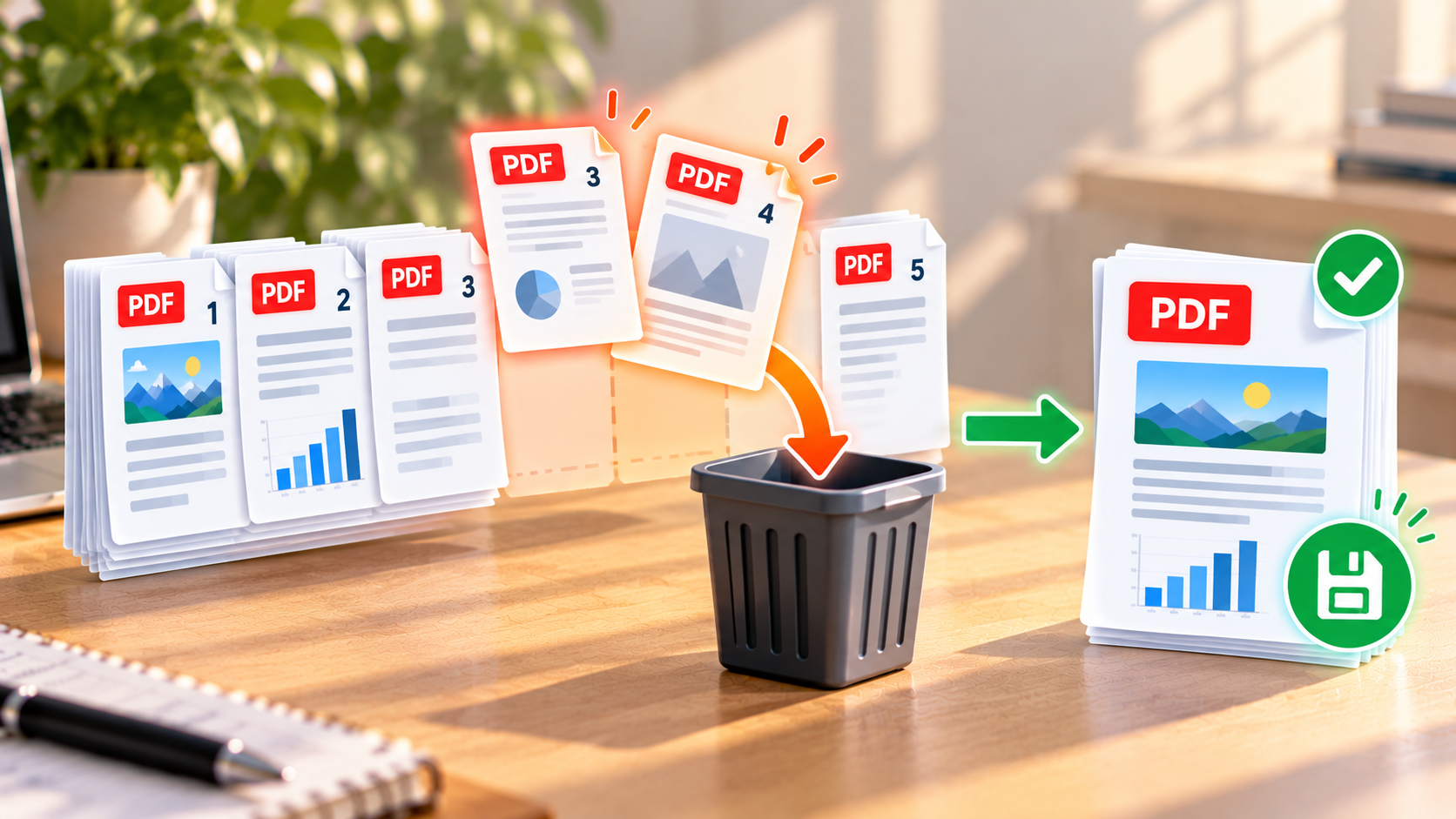
Find the pages you no longer need and select their thumbnails.
For example, if a 15-page report contains blank pages at positions 4 and 11, select those two pages.
Take a moment to check their contents. Page numbers can change as you edit a document, so use the thumbnails rather than relying only on a page number you noted earlier.
Step 4: Delete the selected pages
Click the Delete, Remove Pages, or trash bin icon, depending on the tool.
Some services ask you to confirm the action before removing the pages. Check your selection carefully before confirming.
Step 5: Save the modified PDF
Once the unwanted pages have been removed, download or save the updated document.
If possible, give it a new name, such as cleaned-report.pdf, instead of overwriting the original.
Finally, open the saved PDF and check that the correct pages have disappeared and the remaining content is still in the right order.
How to Remove Pages from a PDF on Windows
Windows users can remove PDF pages using a desktop PDF editor or a dedicated PDF utility.
Option 1: Use Adobe Acrobat
Adobe Acrobat provides an Organize Pages feature for deleting individual pages or selecting multiple pages at once.
Follow these steps:
- Open the PDF in Adobe Acrobat.
- Select All tools > Organize pages.
- Find the page thumbnails.
- Select the page or pages you want to remove.
- Click the Delete icon and confirm the action if prompted.
- Save the modified PDF.
You can also enter page numbers or ranges in the page selection field in supported versions. For example, you might select pages 3 and 7, or a range such as pages 10–12.
The exact interface may vary by version, and some PDF editing features require a paid subscription. See Adobe’s official instructions for deleting PDF pages.
Option 2: Use a desktop PDF application
Other PDF editors also provide page deletion features. Look for a tool that allows you to view page thumbnails, select individual pages, and save a modified copy.
Before installing an application, check whether page deletion is included in its free version. Download software from its official website or another trusted source.
For sensitive documents, a desktop application that processes files locally can be a practical alternative to uploading them to an online service.
How to Remove Pages from a PDF on Mac
Mac users can remove PDF pages using a compatible PDF editor. Preview is useful for viewing PDFs and handling basic page tasks, but its editing options differ from those of dedicated PDF applications.
Step 1: Open the PDF
Locate your file in Finder and open it with a PDF application that supports page deletion.
Adobe Acrobat and other PDF editors provide dedicated page organization tools.
Step 2: Display the page thumbnails
Open the page organization view or thumbnail sidebar.
This makes it easier to identify the pages you want to remove without having to scroll through the document one page at a time.
Step 3: Select the unwanted pages
Click the thumbnail of the page you want to delete.
If you need to remove several pages, check whether your application supports selecting multiple thumbnails. Some tools let you select a continuous range or individual pages using keyboard modifiers.
Step 4: Delete the pages
Choose the Delete or Remove Pages command. Confirm the action if the application asks you to.
Make sure you haven’t selected any pages that need to remain in the document.
Step 5: Save the updated PDF
Use the application’s Save or Export options to preserve the changes.
If you want to keep the original document, save the edited version under a different filename. Reopen the saved file to confirm that the pages have been removed correctly.
How to Remove Blank Pages from a PDF
Blank pages are among the most common reasons people need to edit a PDF. They can appear after scanning documents, exporting files from office applications, or combining several PDFs.
If you only have one or two blank pages, you can usually remove them manually.
- Open the PDF in a page organization tool.
- Review the page thumbnails.
- Identify the blank pages you don’t need.
- Select those pages and delete them.
- Save the document and check the result.
Some desktop tools can detect blank pages automatically. For example, PDFsam Visual includes a feature for selecting white pages, which can be useful when working with scanned documents.
You can learn more on the official PDFsam page deletion guide.
Be careful when using automatic detection. A page containing only a signature, a small amount of text, or a faint scanned mark may look blank at thumbnail size but still contain important information.
How to Remove Multiple Pages at Once
If you need to delete several pages, selecting them together is usually faster than removing each page individually.
For example, imagine a 30-page report where pages 5, 6, and 7 contain an outdated section.
With a compatible PDF editor, you can:
- Open the page organization view.
- Select pages 5–7 or enter the range directly.
- Click Delete.
- Confirm the selection.
- Save the modified PDF.
If the pages aren’t consecutive, some tools allow you to select them individually using a keyboard modifier. For example, you might remove pages 3, 8, and 14 in one operation.
Always review the selected thumbnails before deleting them. Removing several pages at once is convenient, but an incorrect selection can remove content you intended to keep.
Can You Remove Pages from a PDF Without Uploading It?
Yes. You can use a desktop PDF editor that processes documents locally on your computer.
One option is PDFsam Visual, which allows you to select unwanted pages and save a new PDF without uploading your files to an online server.
This can be particularly useful if your documents contain:
- Financial statements or invoices.
- Contracts and business records.
- Personal correspondence.
- Identification documents.
- Confidential work or school material.
If you choose an online service, check its privacy policy and how it handles uploaded documents. A tool running in your browser does not necessarily process files locally.
For sensitive PDFs, using a trusted offline application is often the more straightforward choice.
Does Removing Pages Reduce PDF File Size?
It can. When you remove pages, the resulting document no longer needs to contain the deleted page content, so its file size may decrease.
However, the amount of space saved depends on what’s on those pages and how the PDF was constructed.
For example, deleting several pages containing high-resolution photographs may reduce the file size considerably. Removing a page with only a few lines of text might make very little difference.
If your main goal is to make a PDF smaller for an email or online form, removing unnecessary pages can help. If the file is still too large afterward, you may need to compress it separately.
For more information, read our guides:
- How to Compress a PDF Without Making Text Hard to Read
- Why PDF Compression Sometimes Barely Reduces File Size
- How to Make a PDF Smaller for an Online Form
What Is the Difference Between Removing and Extracting PDF Pages?
Removing and extracting pages are related, but they don’t mean the same thing.
Removing pages means deleting them from the document you’re editing. The remaining pages stay in the PDF.
Extracting pages means copying selected pages into a new PDF. Depending on the tool, you may also have the option to delete those pages from the original document.
For example, if you have a 20-page report and want to save page 8 separately:
- Use extraction to create a new PDF containing page 8.
- Use deletion if you want page 8 removed from the original report.
- Use extraction with a delete-after-extract option if you want both results in one operation.
If you only want to save a page without changing the original document, read our guide on How to Extract One Page from a PDF.
Common Problems When Removing PDF Pages
I deleted the wrong page
If you haven’t saved the document yet, your application may let you undo the deletion.
Otherwise, reopen the original PDF and repeat the operation with the correct selection. This is one reason it’s useful to save a separate copy before making changes.
The deleted pages are still visible
You might be looking at the original document instead of the modified version, or the changes may not have been saved.
Check the filename and save the edited PDF. Then close and reopen it to verify that the pages have disappeared.
I can’t delete pages from my PDF
Some PDFs have security restrictions that limit editing. You may also be using a viewer that doesn’t support page deletion.
Check the document’s security settings and make sure your application includes PDF editing features. If you’re authorized to modify a protected document, use the appropriate password and a compatible tool.
I removed a page, but the page numbers look wrong
The displayed page positions change when you delete pages. For example, what was originally page 8 may become page 7 after you remove the page before it.
This is normal. Review the remaining content and check any printed page numbers or references within the document.
The PDF is still too large
Removing pages doesn’t guarantee that the document will meet a particular file size limit.
If the remaining pages contain high-resolution images or scanned content, try compressing the PDF after deleting unnecessary pages. Always check readability after compression.
I accidentally removed an important page
If the changes are still reversible, use the undo function. Otherwise, reopen the original document and create a new edited copy.
If you no longer have the original, check whether your application, cloud storage service, or backup system has an earlier version available.
Tips for Removing PDF Pages Safely
Before deleting pages, keep these practical recommendations in mind:
- Keep a backup: Save an untouched copy of the original PDF.
- Check the thumbnails: Confirm the content of every page you select.
- Use page ranges carefully: Make sure the numbers match the actual page positions in the PDF.
- Review blank pages: Don’t delete a page automatically just because it looks mostly empty.
- Save under a new name: This makes it easier to recover if something goes wrong.
- Check the final document: Open the saved PDF and review the pages around each deletion.
- Protect confidential information: Prefer a trusted offline tool when privacy matters.
Frequently Asked Questions
Can I remove pages from a PDF for free?
Yes. Some online PDF tools and desktop applications offer page deletion features for free. Check the available features and limitations before choosing a tool.
Can I delete several pages from a PDF at once?
Yes. Many PDF editors let you select multiple page thumbnails or enter page numbers and ranges. You can then delete all selected pages in one operation.
Can I remove a blank page from a PDF?
Yes. You can select the blank page and delete it manually. Some applications also include automatic blank-page detection.
Will removing pages change the original PDF?
That depends on how you save the file. Some applications modify the open document, while others create a new output file. To be safe, save a separate copy and keep the original until you’ve checked the result.
Can I remove pages from a password-protected PDF?
Some protected documents restrict editing. If you’re authorized to modify the document, use the appropriate password and an application that supports its security settings.
Does deleting PDF pages reduce file size?
Often, yes, because the deleted page content is removed from the resulting document. However, the amount saved varies depending on the content and the software used.
Can I remove pages from a PDF on my phone?
Yes. Some mobile PDF editors support deleting pages, although the feature may require a subscription. Check the app’s editing capabilities before starting.
Final Thoughts
Removing pages from a PDF is an easy way to clean up a document, get rid of blank pages, and keep only the information you need.
For an occasional task, an online PDF editor may be enough. If you work with confidential documents or want to avoid uploading files, an offline application such as PDFsam Visual is worth considering.
Before finishing, check the pages you’ve selected, save the updated document, and open it again to verify the result. Keeping a backup of the original PDF can also save you time if you ever need to restore a deleted page.