Why PDF Compression Sometimes Barely Reduces File Size
Why PDF Compression Sometimes Barely Reduces File Size
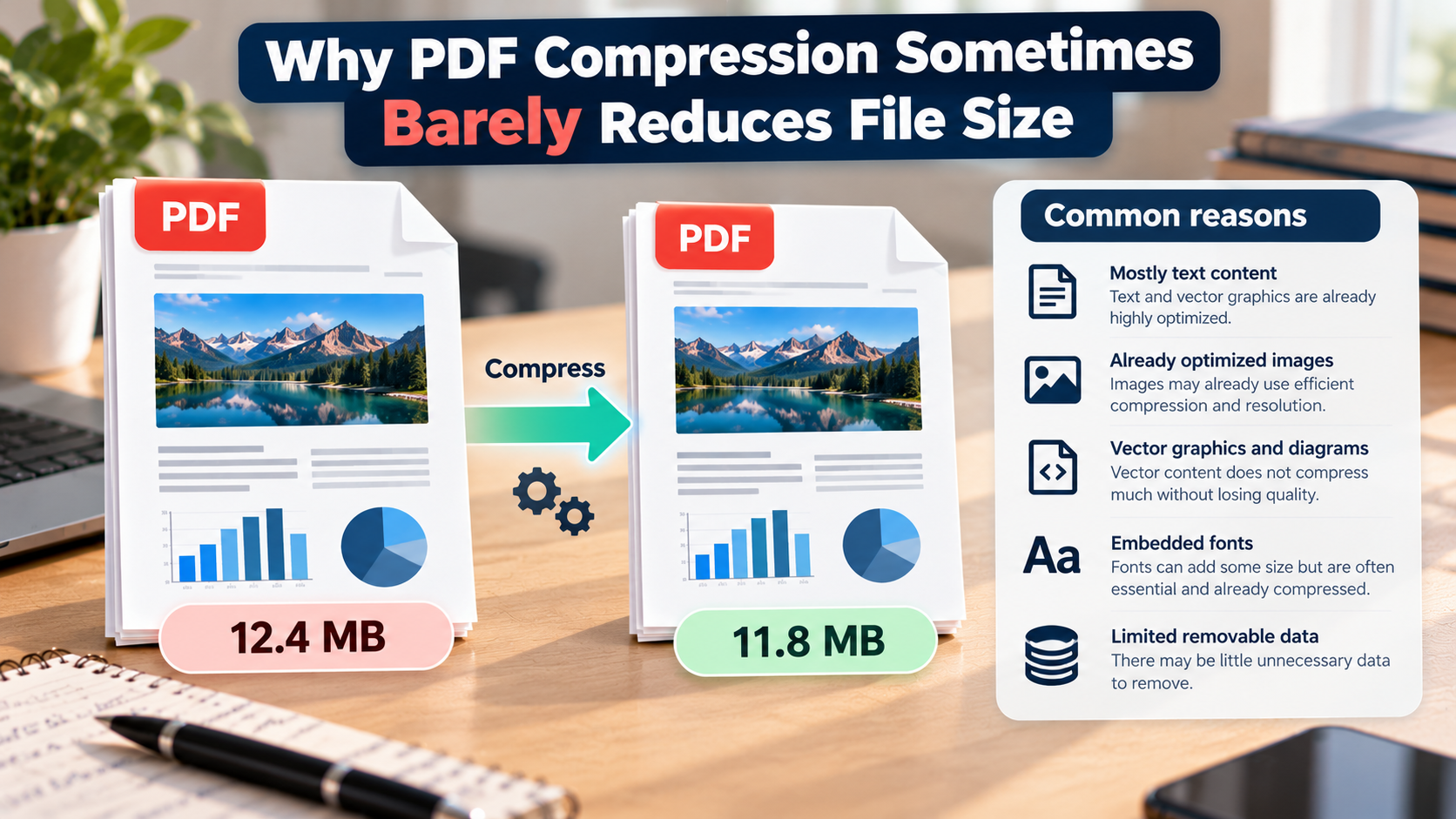
Have you ever compressed a PDF, waited for the process to finish, and discovered that the file is almost the same size as before? You might have started with a 12 MB document and ended up with an 11 MB file, even though you expected a much bigger reduction.
This does not necessarily mean the compression tool is broken. Some PDFs are already optimized, contain very little compressible data, or use content that cannot be reduced much without affecting quality.
The good news is that you can often identify why compression is not working as expected and choose a better approach.
In this guide, we will explain why PDF compression sometimes barely reduces file size, how to identify the main cause, and what you can do to make your document smaller.
1. Your PDF Is Already Compressed
One of the most common reasons for a small reduction is that the PDF has already been optimized.
Modern applications such as word processors and document editors often compress images and organize PDF data efficiently when exporting a file. If you compress that PDF again using similar settings, there may be very little unnecessary data left to remove.
For example, imagine exporting a report from a document editor using a reduced-size PDF setting. You then upload it to a compression tool that applies similar image and file optimization methods.
The second tool may only reduce the file by a small percentage because much of the available savings have already been achieved.
What you can do:
- Check whether the PDF was already exported using a reduced-size setting.
- Try a tool with more detailed optimization options.
- Compare the original and compressed file sizes.
- Avoid repeatedly compressing the same file with identical settings.
If the document is already efficient, a small reduction may be the best result available without sacrificing quality.
2. The PDF Contains Mostly Text
A PDF containing mostly selectable text may be surprisingly difficult to shrink.
Text characters, basic vector graphics, and document structure can be stored relatively efficiently. A 50-page text document may therefore be smaller than a five-page PDF containing several high-resolution photographs.
If your PDF consists mainly of paragraphs, headings, and simple tables, an image-focused compressor may have little to work with.
For example, a text-based report might decrease from 800 KB to 760 KB after compression. That is a modest reduction, but it does not automatically indicate a problem.
By comparison, a PDF containing large scanned images may offer more opportunities for significant savings.
What you can do:
- Check whether the PDF contains photographs or scanned pages.
- Avoid expecting large reductions from a document that is already mostly text.
- Remove unnecessary pages or embedded content if they are not required.
- Use structural optimization rather than aggressively reducing image quality.
If the document is already small, it may be better to leave it as it is instead of making the text or graphics worse for a minimal reduction.
3. The Images Are Already Optimized
Images are often one of the largest contributors to PDF file size. However, their presence does not guarantee that compression will make a big difference.
A PDF may contain JPEG images that were already compressed before they were added to the document. If those images have a suitable resolution and efficient compression, another pass may save very little space.
Some compression tools also focus on removing redundant document data rather than re-encoding images. If the images are responsible for most of the file size, such a tool may produce only a small reduction.
What you can do:
- Use a PDF optimizer that supports image downsampling and image compression.
- Check whether the images have a higher resolution than you actually need.
- If appropriate, reduce the resolution of large images.
- Choose a suitable image compression method for photographs or illustrations.
Be careful when recompressing images that already use lossy compression. More aggressive settings may introduce blur or visible artefacts without delivering a worthwhile reduction.
Adobe explains how image resolution, compression methods, and quality settings affect PDF optimization in its official PDF Optimizer documentation.
4. Your Compression Tool Uses Limited Settings
Not every PDF compressor works in the same way.
Some tools offer a simple compression button and automatically select settings. Others let you control image resolution, compression quality, fonts, document objects, and unnecessary data.
If the tool only applies a basic optimization process, it may not address the elements responsible for most of your PDF’s size.
For example, a document containing large scanned pages may need image downsampling, while a PDF with redundant objects may benefit more from structural cleanup.
What you can do:
- Check which optimization options your current tool supports.
- Look for settings related to images, resolution, and document cleanup.
- Try another reputable tool if the current one makes almost no difference.
- Compare the results before choosing the smallest file.
Adobe Acrobat Pro, for example, provides advanced PDF optimization options for images, fonts, transparency, objects, and other document data.
You can read more in Adobe’s guide to reducing PDF file size with advanced options.
5. The PDF Contains Scanned Pages
Scanned PDFs can be large because each page may be stored as an image rather than as selectable text.
A colour scan captured at a high resolution can contain a substantial amount of data. However, the result depends on how the scan was created and whether the images have already been compressed.
If a PDF contains large, high-resolution scans, reducing their resolution or changing the colour mode may help. If the scans have already been optimized, the improvement may be much smaller.
What you can do:
- If you still have the paper original, consider scanning it again at an appropriate resolution.
- Use grayscale instead of colour when colour is unnecessary.
- Avoid excessively high scanning resolutions for documents intended only for on-screen reading.
- Use OCR when you need searchable text, but remember that OCR alone does not guarantee a smaller PDF.
- Inspect small text, signatures, stamps, and numbers after optimization.
For ordinary documents, a moderate scan resolution may be sufficient, but official paperwork and detailed records may require more information. Do not reduce quality so far that the document becomes difficult to read.
6. The PDF Contains Fonts, Vector Graphics, or Other Content
Not every large PDF is dominated by photographs.
Some documents include embedded fonts, detailed vector illustrations, transparency effects, form fields, annotations, or other resources. These elements may contribute to the file size, but they do not all respond to the same compression methods.
For example, a vector diagram can remain sharp at different zoom levels because it is represented using geometric information rather than a fixed grid of pixels. Reducing its resolution is not necessarily the right way to optimize it.
Embedded fonts may also be necessary to preserve the document’s appearance on other devices.
What you can do:
- Use a PDF optimizer that can inspect different types of document content.
- Remove genuinely unnecessary resources if your tool supports it.
- Avoid deleting fonts or interactive elements unless you understand the consequences.
- Preserve accessibility information and form functionality when they are required.
The best optimization method depends on which elements actually occupy the space, not simply on how many pages the PDF contains.
7. Your Compression Settings Prioritize Quality
Sometimes a compressor barely reduces the file because it is designed to preserve image quality.
This can be a good thing. A document containing high-resolution photographs, detailed diagrams, or scanned official paperwork may need to retain its original appearance.
A conservative compression setting may avoid reducing image resolution or applying aggressive lossy compression. The result can be a relatively small reduction, but with less risk of damaging the content.
If your priority is a much smaller file, you may need to accept some changes to image quality or resolution.
What you can do:
- Start with moderate compression and compare the result.
- Increase compression gradually if the file is still too large.
- Check small text and fine details after each attempt.
- Keep the original so you can return to it if quality becomes unacceptable.
The goal should be to find a practical balance between file size and quality rather than choosing the strongest compression setting automatically.
8. The PDF Contains Redundant or Unnecessary Data
PDFs can contain additional data that does not contribute directly to the visible pages.
Depending on how the file was created and edited, it may include duplicate objects, unused resources, thumbnails, metadata, or other information.
Some optimization tools can remove or reorganize these elements. However, not all PDFs contain enough redundant data for this to make a major difference.
For example, removing a small amount of metadata from a 20 MB PDF filled with photographs is unlikely to produce a dramatic reduction.
What you can do:
- Use a tool that supports PDF cleanup or object optimization.
- Remove unnecessary attachments or pages if permitted.
- Check whether the PDF contains resources that are no longer needed.
- Avoid deleting information that is important for navigation, accessibility, or document functionality.
Adobe’s PDF Optimizer includes options for discarding selected objects and user data, as well as cleaning up the document structure.
How to Find Out What Is Making Your PDF So Large
If compression barely changes the file size, the next step is to identify what is actually taking up the space.
Use this simple checklist.
Step 1: Check the original file size
Right-click the PDF and check its properties on Windows, or use Get Info on macOS.
Record the original size so you can compare it with the compressed version.
Step 2: Check whether the text is selectable
Open the PDF and try selecting a paragraph with your cursor.
If you can select individual words, the document probably contains actual text. If you can only select an entire page as an image, it may be a scan.
Some PDFs contain a mixture of selectable text and scanned images, so this is a useful clue rather than a definitive test.
Step 3: Inspect the images
Look for photographs, scanned pages, screenshots, and detailed illustrations.
If the document is mostly text, large image reductions may not be possible. If it contains many high-resolution images, an optimizer with image controls may be more useful.
Step 4: Try a different optimization method
If your current compressor barely changes the file, use a tool with more control over image resolution, compression, and document cleanup.
Change one setting at a time when possible so you can see what actually helps.
Step 5: Compare the results
Check the new file size and open the compressed PDF.
Make sure the text is readable, all required pages remain present, and any links or form fields still work.
If the file barely shrinks and the document remains clear, further compression may not be worthwhile.
What If You Need to Reach a Specific File Size?
Sometimes a small reduction is not enough because a website requires the PDF to be below a specific limit.
For example, your document might need to be under 5 MB for an online form, but compression only reduces it from 12 MB to 11 MB.
In that situation, try these options in order:
- Use an optimizer with adjustable image compression.
- Reduce the resolution of images that contain more detail than necessary.
- Convert colour scans to grayscale if the document does not require colour.
- Remove pages or attachments that are genuinely unnecessary.
- Re-export the PDF from the original document using suitable settings.
- If the submission rules allow it, split the document into separate files.
Do not remove mandatory content simply to reach the size limit. If the document must remain complete and the portal has a strict maximum, follow the portal’s instructions or contact its support team.
For a more detailed guide, see How to Make a PDF Smaller for an Online Form.
Common Mistakes to Avoid
Compressing the same file repeatedly. Repeating similar compression settings often produces little improvement and can degrade images.
Choosing maximum compression immediately. This may damage image quality without solving the underlying problem.
Assuming every PDF contains large images. Text-heavy PDFs may have very little compressible image data.
Using a tool that cannot optimize the relevant content. An image-focused compressor may not help much with a document dominated by other elements.
Removing important content. Fonts, bookmarks, metadata, and form elements may be necessary for the document’s intended use.
Judging success only by file size. The smallest file is not always the best result if it becomes difficult to read.
Final Thoughts
PDF compression sometimes barely reduces file size because the document is already optimized, contains mostly text, or uses images that have already been compressed efficiently. In other cases, the tool simply may not offer the settings needed to reduce the elements responsible for most of the file size.
Start by identifying what your PDF contains. Then choose an optimization method that targets the relevant content, whether that means reducing image resolution, cleaning up unnecessary objects, or exporting the document again.
If the file remains almost the same size, that does not necessarily indicate a problem. It may simply mean there is little unnecessary data left to remove without sacrificing quality.
The best approach is to understand what is taking up space, keep a copy of the original, and only apply stronger compression when the expected reduction is worth the trade-off.
Frequently Asked Questions
Why does my PDF only shrink by a few kilobytes?
Your PDF may already be optimized, contain mostly selectable text, or use images that are already efficiently compressed. If there is little unnecessary data, only a small reduction may be possible.
Can a PDF compressor make a file larger?
Yes, this can happen if the tool re-encodes content inefficiently or adds overhead that outweighs the savings. Try a different optimization method and keep the smaller version only if the result is useful.
Does compressing a PDF multiple times make it smaller?
Not necessarily. Repeating similar settings may produce little additional reduction. Repeated lossy image compression can also degrade quality, so it is better to return to the original file before trying different settings.
Why are scanned PDFs difficult to compress?
Scanned PDFs often store pages as images. Their size depends on resolution, colour information, and image compression. If the scans are already optimized, further reductions may be limited.
Should I convert a PDF to grayscale to reduce its size?
Grayscale can help when colour information is unnecessary, particularly for scanned documents. However, only use it when colour is not required for the document’s purpose.
What should I do if compression cannot reduce my PDF enough?
Try an advanced optimizer, reduce unnecessary image resolution, remove content that is not required, or export the PDF again from its source. If you need to meet an upload limit, check the submission rules before removing any required information.