How to Resize Multiple Images at Once
How to Resize Multiple Images at Once
Resizing images one by one can take a lot of time, especially when you have dozens of photos to prepare for a website, an online store, or a project. The good news is that you don’t need to open every image individually. With batch image resizing, you can change the dimensions of multiple pictures in a single operation.
Whether you’re using Windows, Mac, or an online tool, resizing several images at once is straightforward once you know which method to choose.
In this guide, you’ll learn how to resize multiple images at once, how to keep their original proportions, and how to avoid common mistakes that can affect image quality.
What Does It Mean to Resize Images in Bulk?
Bulk image resizing, also called batch resizing, means applying the same resizing settings to multiple image files at once.
For example, imagine you have 50 photographs that are each 4000 pixels wide. If you need smaller versions for your website, you could resize them all to a maximum width of 1200 pixels in one operation instead of editing each photo separately.
Depending on the tool, you may be able to:
- Set a specific width or height.
- Resize images by a percentage.
- Maintain the original aspect ratio.
- Create resized copies without replacing the originals.
- Process several supported image formats.
- Choose an output folder or filename pattern.
Batch resizing is especially useful for website owners, photographers, students, and anyone who regularly works with large collections of images.
How to Resize Multiple Images at Once on Windows
One of the easiest ways to resize multiple images on Windows is to use Microsoft PowerToys. Its Image Resizer utility adds a resizing option directly to File Explorer, so you don’t need to open each photo in an image editor.
Method 1: Use Microsoft PowerToys Image Resizer
Follow these steps:
- Install PowerToys. Download Microsoft PowerToys from its official Microsoft source and install it.
- Open your image folder. Navigate to the folder containing the pictures you want to resize.
- Select multiple images. Hold
Ctrlwhile clicking individual files, or useCtrl + Ato select all files in the folder. - Open the context menu. Right-click the selected images and choose the Image Resizer option. On Windows 11, you may need to open the classic context menu to find it.
- Choose a size. Select a preset or enter custom dimensions.
- Check the options. Make sure the settings match your needs and that you aren’t overwriting the originals unless you intend to.
- Start resizing. Confirm the operation and check the resulting files.
PowerToys can create resized copies and supports options for fitting images into dimensions, filling a target area, or stretching them. For ordinary photographs, the Fit option is generally the safest choice when you want to preserve the entire image without distortion.
Keep in mind that Fill can crop the image to fill the requested dimensions, while Stretch can change its proportions. Choose carefully if you need every part of the original photograph to remain visible.
Method 2: Resize Images Using ImageMagick
If you’re comfortable using the command line, ImageMagick is another option. It can process many image files with a single command.
After installing ImageMagick, open a terminal in the folder containing your images.
For example, to resize JPEG images so that they fit within a 1200 × 1200-pixel box while preserving their proportions, you can use:
magick mogrify -resize "1200x1200>" *.jpgThe > means that images already smaller than the specified dimensions won’t be enlarged. The command keeps the aspect ratio, so the final dimensions may be smaller than 1200 pixels in one direction.
Important: mogrify normally overwrites the original files. Make a backup first, or work on copies of your images in a separate folder.
This method is useful for large batches and repeatable workflows, but beginners may find a graphical tool easier to use.
How to Resize Multiple Images at Once on Mac
Mac users can use the built-in Preview app to resize several images together without installing additional software.
Use Preview
- Open Preview and open the images you want to resize. You can open multiple files together.
- Make sure the images appear in the same Preview window.
- Show the sidebar with image thumbnails if it isn’t already visible.
- Select the images you want to resize in the sidebar. Use
Commandwhile clicking to select individual images, or useCommand + Awhen appropriate. - Open the Tools menu and choose Adjust Size.
- Enter your desired dimensions or select a suitable preset.
- Keep the proportions enabled to prevent images from looking stretched.
- Apply the changes and review the results.
Apple documents this workflow in its Preview user guide, including the ability to resize multiple selected images at the same time.
Menu behavior can vary slightly depending on the macOS version and how the images were opened. If the size adjustment isn’t applying to all selected files, check that the images are displayed together in the same window and that the correct thumbnails are selected.
Before processing a large batch, test the workflow on a few copies to make sure the result is what you expect.
How to Resize Multiple Images Online
If you don’t want to install software, an online batch image resizer can be a convenient alternative.
The general process is similar across many browser-based tools:
- Open a batch image resizing tool.
- Upload or drag and drop the images you want to resize.
- Choose the target width, height, or percentage.
- Enable aspect-ratio preservation if available.
- Start the resizing process.
- Download the resized images, individually or as a ZIP file if the tool supports it.
Online tools are convenient because you can use them from different operating systems. However, available formats, file limits, batch sizes, and download options vary from one service to another.
You should also consider privacy before uploading files. If the images contain personal information, private documents, or sensitive content, a local application such as PowerToys, Preview, or ImageMagick may be a better choice.
For a quick browser-based workflow, FileLumi’s image tools can be a useful starting point. Choose a tool that explicitly supports multiple files if you want to resize an entire batch in one operation.
What Image Dimensions Should You Choose?
The best dimensions depend on how you plan to use your images. There isn’t one size that works perfectly for every website, device, or platform.
Here are a few illustrative examples:
| Use case | Example dimensions | Why they may work |
|---|---|---|
| Website content image | 1200 × 800 px | Suitable for many standard landscape layouts |
| Product thumbnails | 800 × 800 px | A square format can help create consistent product grids |
| Blog thumbnails | 1200 × 675 px | A common 16:9 landscape ratio |
| Small previews | 400 × 300 px | Useful when only a small preview is required |
| Email images | 800–1200 px wide | Often sufficient for images displayed within email content |
These are starting points, not universal requirements. Check the dimensions expected by your website, platform, or content management system before processing the whole batch.
If you want every image to have the exact same width and height, you may need to crop images with different aspect ratios first. Resizing alone can preserve each image’s original proportions, meaning the final dimensions may vary.
How to Resize Images Without Stretching Them
One of the most common mistakes when resizing images in bulk is changing the width and height independently.
For example, if a photo is 3000 × 2000 pixels and you force it into a 1200 × 1200-pixel box by stretching it, people and objects may look unnaturally narrow or wide.
To avoid this problem:
- Enable Maintain aspect ratio, Scale proportionally, or a similar setting.
- If the tool offers Fit, use it when you want the whole image to remain visible.
- Avoid Stretch unless you deliberately want to distort the image.
- If all images must have exactly the same dimensions, consider cropping them to a consistent aspect ratio first.
For a more detailed explanation, read our guide on How to Resize an Image Without Stretching It.
Does Batch Resizing Reduce Image File Size?
It often does, but not always by the same amount.
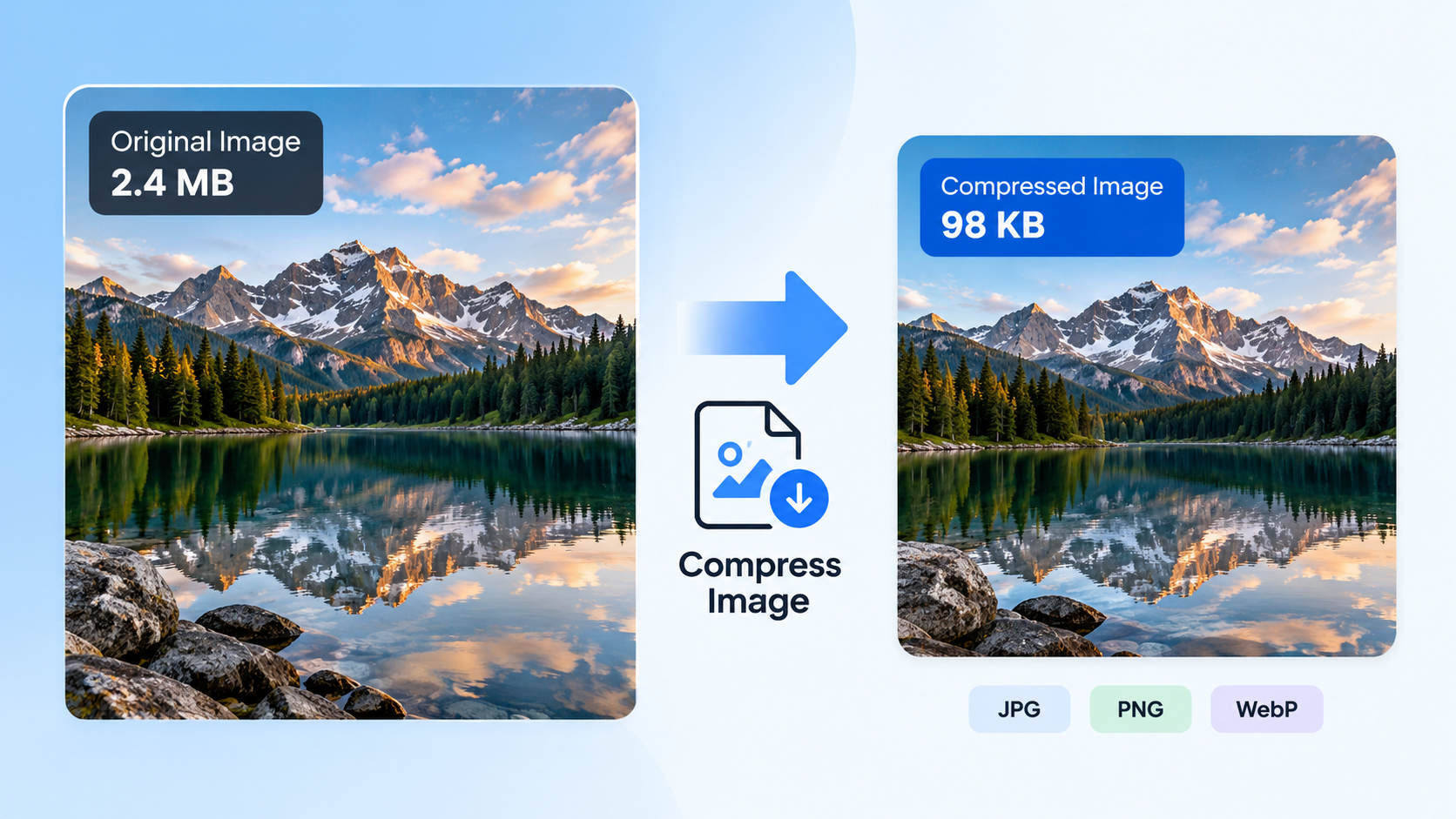
Reducing the pixel dimensions usually means the image contains fewer pixels, which can reduce the amount of data needed to store it. However, the final file size also depends on the format, compression settings, image content, and metadata.
For example, reducing a large photograph from 4000 × 3000 pixels to 1200 × 900 pixels will often make it considerably smaller. But an image resized to those dimensions could still have a relatively large file size if it is saved with high-quality settings or uses a format that stores more data.
If your goal is to meet an upload limit such as 200 KB, resizing may not be enough. You may also need to compress the image or choose a more efficient format.
Our guide on How to Make an Image Smaller in KB, Not Just Pixels explains the difference between pixel dimensions and file size.
How to Resize Images in Bulk Without Losing Quality
You can’t always avoid every change in image detail when reducing dimensions, but you can minimize unwanted quality loss by following a few simple practices.
Keep the original images
Always preserve the original files before applying bulk changes. This gives you a way to start again if the dimensions, quality, or output format aren’t right.
Avoid unnecessary enlargement
Making a small image larger doesn’t recreate the original details. If a batch contains both large and small images, choose a setting that only shrinks images when that is appropriate.
Use suitable output formats
JPEG is commonly used for photographs, while PNG is useful when you need lossless image storage or transparency. WebP can be a good option for web images when supported by your workflow.
Choose the format based on the image content and how you plan to use it, rather than assuming one format is always best.
Test your settings first
Before resizing hundreds of images, process a small sample. Check the dimensions, appearance, transparency, file sizes, and filenames. Once you’re satisfied with the results, apply the same settings to the full batch.
Common Problems When Resizing Multiple Images
Some images have different final dimensions
This is normal when you preserve the original aspect ratios. Images with different proportions won’t necessarily end up with identical width and height values when fitted inside the same bounding box.
If identical dimensions are required, crop the images to a consistent aspect ratio or use a tool that supports a suitable Fill option.
The images look stretched
Check whether the resizing tool is using Stretch mode or whether aspect-ratio preservation is disabled. Switch to a proportional Fit setting when you want to keep the entire image without distortion.
The file sizes are still too large
Resizing changes pixel dimensions, but it doesn’t guarantee a specific file size. Try an appropriate compression setting or a more suitable format if you need smaller files.
The originals have been overwritten
Some command-line tools modify files in place. Restore the originals from a backup if necessary, and use a separate working folder for future batches.
Some files aren’t supported
Not every application supports every image format. Check the tool’s supported file types and convert unsupported files separately if needed.
Final Thoughts
Resizing multiple images at once is much faster than editing every file individually. Windows users can use PowerToys Image Resizer, Mac users can use Preview, and advanced users can automate large batches with ImageMagick. Online tools can also be convenient when you don’t want to install software.
The most important thing is to choose appropriate dimensions, preserve image proportions, and keep your original files safe. If you also need to meet a specific file-size limit, remember that resizing and compression are two separate steps.
Once you’ve found the right settings for your workflow, you can resize entire folders of images in a fraction of the time it would take to edit them one by one.