What Does PDF Compression Actually Change?
What Does PDF Compression Actually Change?
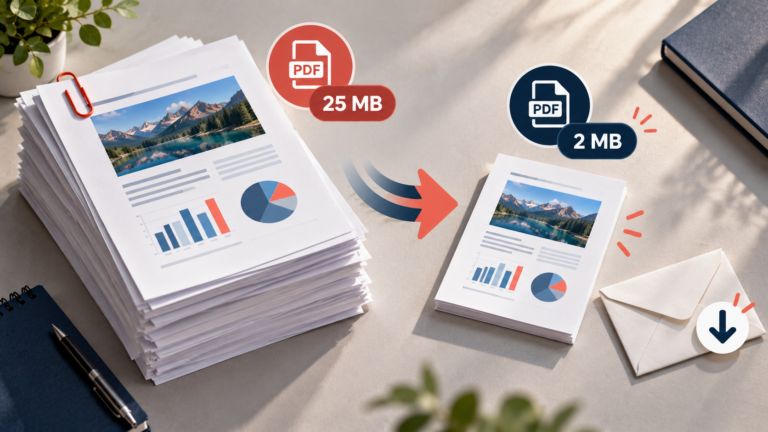
PDF compression sounds simple: you upload a document, click a button, and download a smaller file. But what actually happens to the document during that process?
Depending on the tool and settings you use, PDF compression can reduce image quality, lower image resolution, optimize fonts, remove unnecessary data, and reorganize the way information is stored. Some changes affect only the file size, while others can influence how the document looks or behaves.
Understanding these differences helps you choose the right compression method without accidentally damaging important content.
In this guide, we will explain what PDF compression actually changes, what usually stays the same, and how to check whether your compressed document is still suitable for its intended purpose.
What Happens When You Compress a PDF?
A PDF contains more than the visible text and images on its pages. It can also contain fonts, links, bookmarks, form fields, metadata, annotations, and other elements.
Compression tools examine some of this information and attempt to reduce the amount of data needed to store the document.
Depending on the method, they may:
- Reduce the resolution of embedded images.
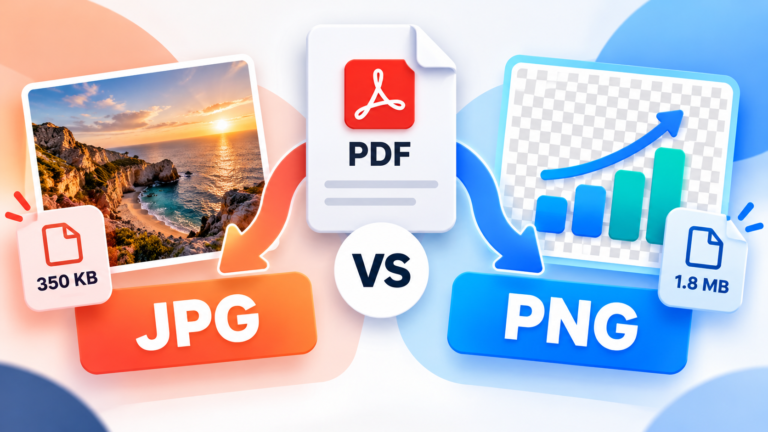
- Re-encode images using more efficient compression.
- Compress text and other document data.
- Optimize embedded fonts.
- Remove unnecessary or redundant objects.
- Delete selected metadata or other optional elements.
Adobe Acrobat’s PDF Optimizer provides controls for images, fonts, document objects, and cleanup operations. This means that compression can involve several different processes rather than a single universal change. Adobe’s PDF Optimizer documentation explains these options in more detail.
The exact changes depend on the PDF itself. A document containing mostly selectable text may respond very differently from a scanned report filled with images.
1. Image Quality Can Change
One of the biggest changes during PDF compression can involve images.
Photographs, scanned pages, screenshots, and illustrations can occupy a significant amount of space. A compression tool may reduce their resolution or encode them using a method that requires less data.
For example, imagine a PDF containing several high-resolution photographs. The original images might be much more detailed than necessary for someone reading the document on a laptop screen.
A compression tool could reduce their resolution and make the file considerably smaller.
However, there is a trade-off: reducing image resolution removes pixel information, while lossy compression discards some image data to save space.
Depending on the settings, the compressed images may show:
- Less fine detail.
- Blurred edges.
- Visible compression artefacts.
- Reduced clarity in small text embedded in images.
- Changes in gradients or subtle colour transitions.
These effects are not inevitable. Moderate optimization can sometimes reduce the file size considerably without an obvious difference during normal viewing.
The important point is that image compression can permanently discard information. If image quality matters, keep the original PDF and inspect the compressed version before replacing it.
2. Text Usually Stays the Same, but Scanned Text Is Different
One of the most important distinctions is whether the PDF contains actual text or images of text.
Selectable text
In a typical digitally created PDF, characters are stored as text elements. A compression tool can often optimize the surrounding document data without changing the words themselves.
For example, a report exported from a word processor may contain paragraphs, headings, and tables as selectable text.
If the tool preserves those elements, the words can remain sharp even when the file becomes smaller.
Scanned text
A scanned PDF works differently. Each page may be stored as an image, meaning the letters are represented by pixels rather than individual text characters.
When a compression tool reduces the resolution of that image, the text can become blurry or difficult to read.
This is why two PDFs can react differently to the same compression settings. A digitally created report may remain clear, while a scanned contract may lose detail.
If your document contains scanned pages, use conservative image settings and inspect small characters, numbers, signatures, and footnotes carefully.
3. File Size Can Decrease Without Visible Quality Loss
Not all compression methods work by sacrificing image quality.
Some techniques reduce the amount of data required to represent information without changing its decoded content. This is known as lossless compression.
For example, a PDF may contain data that can be stored more efficiently or redundant objects that can be removed without affecting the visible pages.
Other methods use lossy compression, which reduces file size by permanently discarding some information.
The difference is important:
| Compression method | What happens | Main consideration |
|---|---|---|
| Lossless compression | Data is encoded more efficiently without discarding the represented information | Usually preserves original detail |
| Lossy compression | Some image or other data is permanently discarded | Can achieve greater reductions but may affect quality |
| Image downsampling | Image resolution is reduced | Can make fine details less clear |
| Structural optimization | Document data and objects are reorganized or cleaned up | Results depend on which elements are changed |
These methods can be combined in a single PDF optimization process.
For example, a tool may losslessly compress document data while also reducing the resolution of large photographs. The final file can therefore contain both lossless and lossy changes.
If your priority is preserving every detail, look for settings that avoid lossy image recompression and unnecessary resolution reduction. The resulting file may not become as small, but it can be more suitable for archiving or professional use.
4. Fonts May Be Optimized
PDF files sometimes include embedded fonts so that text appears correctly on computers that do not have those fonts installed.
Embedding font data can increase a document’s size, particularly when several fonts are included.
Some optimization tools can reduce the amount of font information stored in a PDF. For example, they may embed only the characters used in the document rather than an entire font.
This technique is known as font subsetting and can reduce file size while preserving the appearance of the text.
However, removing embedded fonts is not always harmless. If a required font is missing on the recipient’s device, the PDF viewer may substitute another font, potentially changing the appearance or spacing of the text.
For documents that must preserve their exact layout, such as contracts, reports, and professionally designed publications, be careful when changing font settings.
A smaller file is useful, but not if it causes the document to display differently on another computer.
5. Metadata and Unnecessary Data May Be Removed
A PDF can contain information that does not appear directly on its pages.
Examples include:
- Document properties and metadata.
- Embedded page thumbnails.
- Unused or redundant objects.
- Invalid bookmarks or links.
- Certain hidden elements or optional resources.
- Additional data that is no longer needed.
An optimizer may remove some of these elements to reduce the file size.
For example, deleting embedded page thumbnails may reduce the amount of data stored in a large document. Removing redundant objects can also make the file more efficient.
However, not all hidden information is unnecessary. Metadata may contain the author, creation date, document title, or other useful details. Bookmarks and accessibility tags may also be important.
Removing accessibility tags, for instance, can affect how a document works with assistive technologies. Deleting links or form-related elements can affect how recipients interact with the file.
Therefore, avoid selecting every cleanup option simply because it promises a smaller PDF. Understand what each option removes and whether that information matters to your document.
6. Links, Bookmarks, and Forms Can Be Affected
PDF compression does not automatically remove interactive features. However, some advanced optimization options can alter or discard particular elements.
Depending on the tool and settings, the following features may be affected:
- Internal and external links.
- Bookmarks and navigation.
- Interactive form fields.
- Annotations and comments.
- Accessibility information.
- Embedded attachments or other additional content.
For example, removing invalid bookmarks can be a harmless cleanup operation. Removing all bookmarks from a long report, on the other hand, may make it more difficult to navigate.
Similarly, a PDF containing fillable fields should be checked after compression to ensure that the fields still work as expected.
If the document is interactive, do more than look at its pages. Click its links, navigate using bookmarks, test its forms, and verify any other features that matter.
7. The Page Layout Usually Stays the Same, but Not Always
When you compress a PDF using a standard optimization tool, the intention is generally to reduce file size while preserving the document’s appearance.
The page count, text placement, margins, and general layout will often remain unchanged.
However, changes to fonts, image dimensions, transparency, or other document elements can affect the final appearance.
For instance, replacing a font may alter line spacing. Reducing image resolution can make a chart look less detailed even when it remains in the same position on the page.
Some tools also offer options that change the way a document is structured for faster online viewing. These may reorganize the file internally without noticeably changing its pages.
After compression, compare the original and compressed PDFs. Pay particular attention to:
- Page order and page count.
- Headings and paragraph spacing.
- Tables and diagrams.
- Images and screenshots.
- Signatures and fine print.
- Links, forms, and bookmarks.
The aim is to make the file smaller without introducing changes that affect its usefulness.
8. Does PDF Compression Affect Security or Privacy?
PDF compression is not the same as encryption, password protection, or secure document sharing.
A smaller file is not automatically more secure, and compression does not guarantee that sensitive information has been removed.
Some optimization tools can remove metadata or selected hidden elements, but you should not rely on ordinary compression to sanitize a document.
For example, if a PDF contains confidential information that was hidden using a visual overlay rather than properly redacted, compressing the file may leave the underlying information intact.
If you need to remove sensitive information, use a suitable redaction tool and verify that the content has actually been removed. If you need confidentiality, use appropriate encryption and sharing permissions.
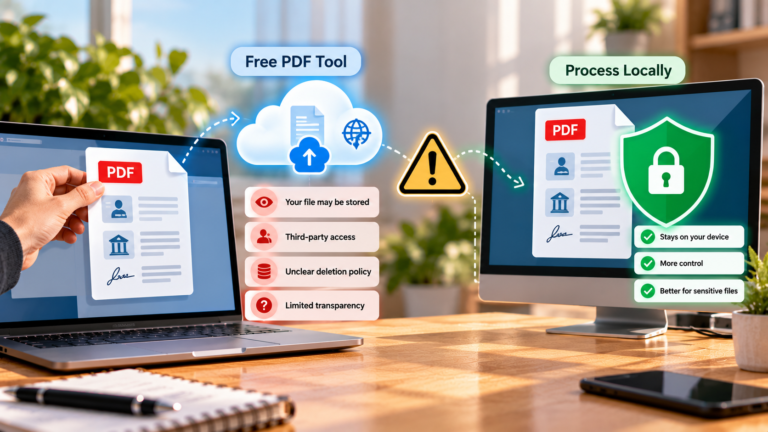
Also consider where the compression takes place. When using an online service, your document is processed outside your computer. For confidential contracts, identity documents, financial records, or other sensitive files, consider a trusted offline tool.
How to Check What Changed After Compression
The easiest way to understand the effects of compression is to compare the original PDF with the optimized version.
Follow these steps:
- Keep the original file. Save a separate copy before compression.
- Compare file sizes. Check how much space the optimization saved.
- Inspect the pages. Look for blurry images, altered fonts, or layout changes.
- Zoom in on details. Check small text, tables, diagrams, and signatures.
- Test interactive features. Open links, use bookmarks, and test form fields where relevant.
- Check text selection and search. Make sure searchable text still works if you need it.
- Review important document properties. Check metadata or accessibility features if they are part of your workflow.
If the compressed file looks the same and all required features work, the optimization was probably suitable for your needs.
If you notice unwanted changes, return to the original and try less aggressive settings. Avoid repeatedly compressing an already compressed file, particularly when lossy image compression is involved.
Common Myths About PDF Compression
Myth 1: Compression always reduces image quality.
Not necessarily. Lossless compression and removal of unnecessary data can reduce file size without discarding image information. Lossy methods, however, can reduce quality.
Myth 2: Compressing a PDF always changes the text.
Text in a digitally created PDF can often remain unchanged. Scanned text is more vulnerable because it may be stored as an image.
Myth 3: A smaller PDF is always better.
Not if the document becomes difficult to read, loses important metadata, or stops working correctly. The best result depends on how the PDF will be used.
Myth 4: Compression removes confidential information.
Ordinary compression does not guarantee secure removal of sensitive data. Use proper redaction and security tools when needed.
Myth 5: Every PDF can be compressed by the same amount.
Results depend on the original file. A large scanned document may shrink significantly, while an already optimized text-based PDF may barely change.
Final Thoughts
PDF compression can change more than the number displayed beside a file’s name. Depending on the method, it may reduce image resolution, re-encode pictures, optimize fonts, remove unnecessary objects, or change other parts of the document.
Some changes affect only how information is stored. Others can influence readability, appearance, accessibility, or interactive features.
For everyday documents, a standard compression setting is often a sensible starting point. For scanned files, professional publications, fillable forms, or documents that must preserve every detail, review the available options carefully.
Always keep an original copy and check the compressed file before sharing it. The goal is not simply to achieve the smallest possible size, but to reduce unnecessary data while preserving everything the recipient needs.
Frequently Asked Questions
Does PDF compression change the original document?
Most tools create a new compressed file or save an optimized copy. If you overwrite the original, however, you may lose access to the uncompressed version. Keep a backup before making changes.
Does PDF compression reduce image quality?
It can, especially when the tool reduces image resolution or uses lossy compression. Lossless optimization may reduce file size without discarding image information.
Does compression change the text inside a PDF?
Usually, selectable text can remain unchanged when the document is compressed. Text stored inside scanned images may become blurry if image quality or resolution is reduced.
Can PDF compression remove metadata?
Some optimization tools offer options to remove selected metadata or other document information. Ordinary compression does not necessarily remove all metadata, so check the tool’s settings if this matters.
Can compressed PDFs still contain clickable links and forms?
Yes, provided the compression process preserves those features. Always test links, bookmarks, annotations, and form fields after optimization if you depend on them.
Is lossless PDF compression better than lossy compression?
Lossless compression is preferable when preserving all represented information is essential. Lossy compression can achieve greater file-size reductions, particularly for images, but may discard details. The best choice depends on the document’s purpose.